
Inspiring
September 22, 2021
Answered

body text wont show over background image

  • September 22, 2021
  • 2 replies
  • 5287 views

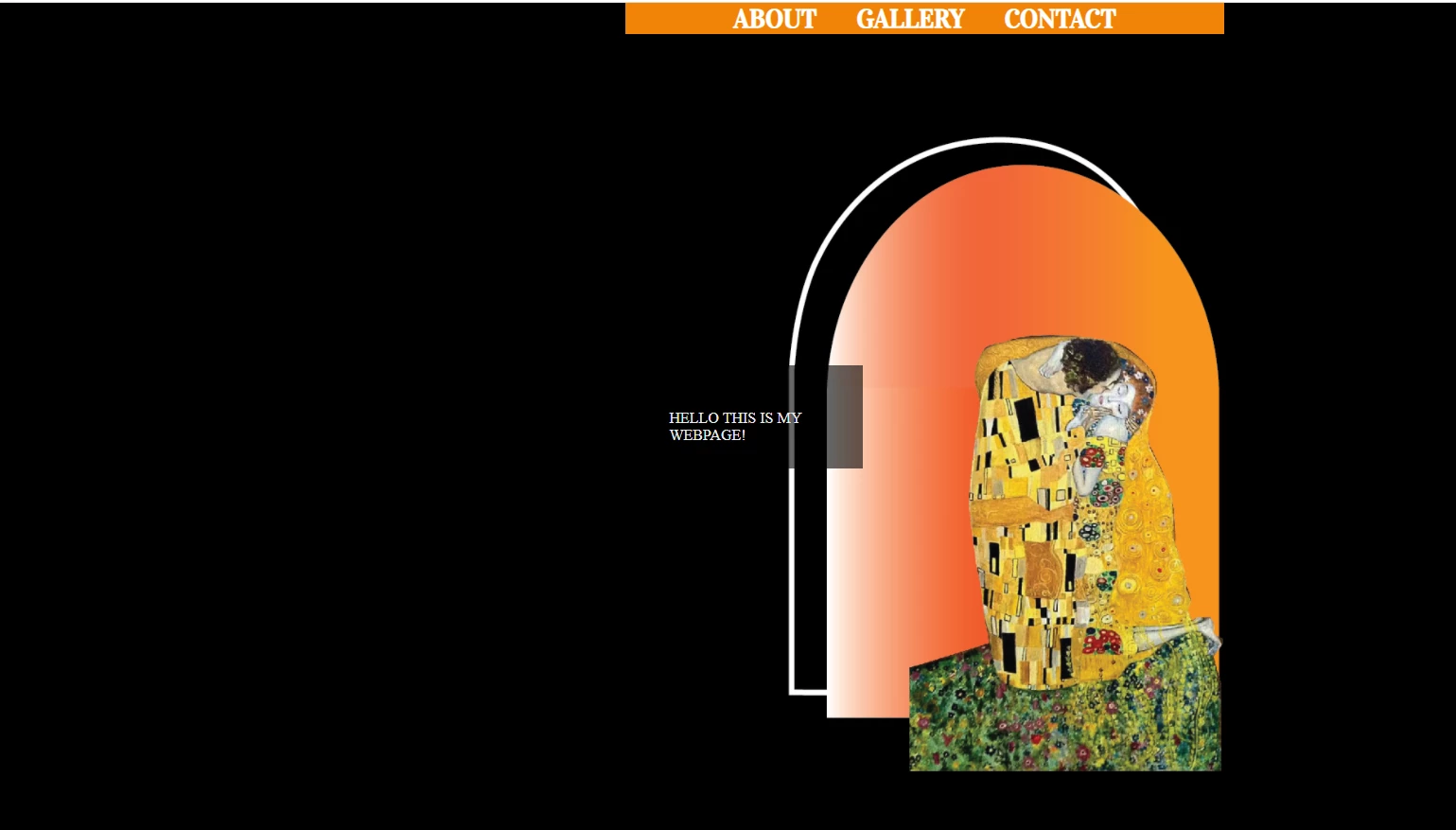
I am trying to type my body text but it is only showing up under my background image. Do I have my background image in the wrong place or is my CSS wrong?


SOURCE CODE

<!doctype html>

<html>

<head>

<meta charset="utf-8">

<title>Project One</title>

<link href="webpage layout.css" rel="stylesheet" type="text/css">

<link rel="preconnect" href="https://fonts.googleapis.com">
<link rel="preconnect" href="https://fonts.gstatic.com" crossorigin>
<link href="https://fonts.googleapis.com/css2?family=Vidaloka&display=swap" rel="stylesheet">


</head>


<body>


<header>

<div class="container">

<nav class="navigation">

<ul>


<li><a href="#">ABOUT</a></li>

<li><a href="#">GALLERY</a></li>

<li><a href="#">CONTACT</a></li>


</ul>

</nav>
</div>


</header>


<main>


<div class="full-size-img">


</div>

<p>
HELLO THIS IS MY WEBPAGE

</p>
</main>
</body>

</html>


CSS


@charset "utf-8";


html, body, h1, p, ul {
margin: 20px 20px 0px 20px;
padding: 0px;
}

html, body {
height: 100%
}

.full-size-img {background-image: url("working graphics/web1 home background.jpg") ;
background-size: cover;
background-position:center;
background-repeat: no-repeat;
height: 100vh;}


body {
margin: 0;

}

main {
padding: 0px 0px 0px 0px;
font-color: white;
}


.container {
position: absolute;
margin: opx;
width: 98.1%;
background-color: #FD990A;
}

.navigaton {
min-height: 95%;
overflow: hidden;
background-color: #F18307;
position: fixed;

}

.navigation ul {
list-style-type: none;
list-style-image: none;
display: flex;
flex-direction: row;
justify-content:flex-end;

}

.navigation ul li {
display: left;
margin-right: 10px;
padding-right: 200px;
}

.navigation ul li a {
float: right;
padding: 0px 8px 0px 20px;
font-family: 'Vidaloka', serif;
font-size: 30px;
font-weight: bold;
text-decoration: none;
color: white;

}

.navigation ul li a:hover {
background-color: #000000;
transition: 1s background-color;
}
 

    This topic has been closed for replies.
    Correct answer Nancy OShea

    My Navigation bar will not run across the entire page?


    @charset "utf-8";


    html, body, h1, p, ul {
    margin: 20px 20px 0px 20px;
    padding: 0px;
    }

    html, body {
    margin: 0;
    padding: 0;
    height: 100%;
    display: flex;
    align-items: center;
    justify-content: center;
    }


    body {
    Background: url("working graphics/web1-home-background.jpg")
    center center fixed;
    background-size: cover;

    }

    main {

    background: rgba(0, 0, 0, 0.60);
    width: 75%;
    color: #EAEAEA;
    padding: 10%;
    text-align:left;

    }


    nav{
    position: fixed;
    top: 0;
    width: 40%;
    overflow:hidden;
    text-align: center;
    background-color: #F18307;
    transition: 1s background-color;

    }

    nav a {
    color: white;
    text-decoration: none;
    padding: 3%;
    font-size: 1.7rem;
    font-weight: bold;
    font-family: 'Vidaloka', serif;
    }

    nav a:hover, nav a:active, nav a:focus {
    color: white;
    text-decoration: underline;
    background-color: crimson;
    transition: 1s background-color;
    }


    HTML

    <!doctype html>

    <html>

    <head>

    <meta charset="utf-8">

    <title>Project One</title>


    <link href="webpage layout.css" rel="stylesheet" type="text/css">

    <link rel="preconnect" href="https://fonts.googleapis.com">
    <link rel="preconnect" href="https://fonts.gstatic.com" crossorigin>
    <link href="https://fonts.googleapis.com/css2?family=Vidaloka&display=swap" rel="stylesheet">


    </head>


    <body>


    <header>


    <nav>

    <a href="about.html">ABOUT</a>

    <a href="about.html">GALLERY</a>

    <a href="contact.html">CONTACT</a>


    </nav>


    </header>


    <main>


    <p>
    HELLO THIS IS MY WEBPAGE!

    </p>

    </main>

    </body>

    </html>


    It's useless having an empty <header> tag on the page.  Get rid of it. 


    But keep in mind that the <header> content on your landing page is quite possibly the MOST IMPORTANT piece of real estate on your site.   It's the first impression people have of you and frequently appears in search engine results. If you're going to use it, use it properly. 


    <body>

    <nav>

    About

    Gallery

    Contact

    </nav>


    <header>

    <h1>XYZ Website Name</h1>

    <h2>Some pithy slogan</h2>

    <p>Brief description of the site and what people can expect to find here.  Vital for search engines to grab onto and find your site.</p>

    </header>


    <main>

    <h2>Main page content</h2>

    </main>


    <footer>

    <p>©2021 copyright information, legal, disclaimers, etc...</p>

    </footer>

    </body>


    2 replies

    Nancy OShea
    Community Expert
    Community Expert
    September 22, 2021

    The problem is caused by position: absolute.  DO NOT use absolute positioning in basic layouts.   Absolute positioning is for special use cases only.


    Try this:


    <!doctype html>
    <html lang="en">
    <head>
    <meta charset="utf-8">
    <title>Vertically Centered with CSS Flexbox</title>
    <meta name="viewport" content="width=device-width, initial-scale=1">
    
    <meta http-equiv="X-UA-Compatible" content="IE=edge">
    
    <style>
    body, html {
    margin: 0;
    padding: 0;
    height: 100%;
    display: flex;
    align-items: center;
    justify-content: center;
    font-family: Calibri, Candara, Segoe, Segoe UI, Optima, Arial, sans-serif;
    
    /** font size grows 1px for every 100px of viewport width **/
    font-size: calc(16px + 1vw);
    
    /** line-height grows with font size **/
    line-height: calc(1.1em + 0.5vw);
    background: url(https://placeimg.com/1200/1200/nature) center center fixed;
    background-size: cover;
    }
    
    main {
    background: rgba(0, 0, 0, 0.60);
    width: 75%;
    color: #EAEAEA;
    padding: 10%;
    text-align:center;
    }
    </style>
    </head>
    <body>
    <main>
    <h3>Welcome to CSS Flexbox</h3>
    <p>This is horizontally and vertically centered.</p>
    </main>
    </body>
    </html>


    Hope that helps.


    Nancy O'Shea— Product User & Community Expert
    Inspiring
    September 22, 2021

    Thank you. That did help except now my navigation is showing up in the center of my page. I would like the box with my body copy to be on the left side of the page. I can probably try and figure that part out... but the navigation part is now not looking right. Sorry I am very new to this...


    CSS

    @charset "utf-8";


    html, body, h1, p, ul {
    margin: 20px 20px 0px 20px;
    padding: 0px;
    }

    html, body {
    margin: 0;
    padding: 0;
    height: 100%;
    display: flex;
    align-items: center;
    justify-content: center;
    }


    body {
    Background: url("working graphics/web1 home background.jpg")
    center center fixed;
    background-size: cover;

    }

    main {

    background: rgba(0, 0, 0, 0.60);
    width: 75%;
    color: #EAEAEA;
    padding: 10%;
    text-align:left;

    }


    .container {

    margin: 0;
    width: 98.1%;
    background-color: #FD990A;
    }

    .navigaton {
    overflow: hidden;
    background-color: #F18307;

    }

    .navigation ul {
    list-style-type: none;
    list-style-image: none;
    display: flex;
    flex-direction: row;
    justify-content:flex-end;

    }

    .navigation ul li {
    display: left;
    margin-right: 10px;
    padding-right: 200px;
    }

    .navigation ul li a {
    float: right;
    padding: 0px 8px 0px 20px;
    font-family: 'Vidaloka', serif;
    font-size: 30px;
    font-weight: bold;
    text-decoration: none;
    color: white;

    }

    .navigation ul li a:hover {
    background-color: #000000;
    transition: 1s background-color;
    }


    HTML


    <!doctype html>

    <html>

    <head>

    <meta charset="utf-8">

    <title>Project One</title>


    <link href="webpage layout.css" rel="stylesheet" type="text/css">

    <link rel="preconnect" href="https://fonts.googleapis.com">
    <link rel="preconnect" href="https://fonts.gstatic.com" crossorigin>
    <link href="https://fonts.googleapis.com/css2?family=Vidaloka&display=swap" rel="stylesheet">


    </head>


    <body>


    <header>

    <div class="container">

    <nav class="navigation">

    <ul>


    <li><a href="#">ABOUT</a></li>

    <li><a href="#">GALLERY</a></li>

    <li><a href="#">CONTACT</a></li>


    </ul>

    </nav>
    </div>


    </header>


    <main>


    <p>
    HELLO THIS IS MY WEBPAGE!

    </p>

    </main>

    </body>

    </html>

    BenPleysier
    Community Expert
    Community Expert
    September 23, 2021

    working graphics/web1 home background.jpg

    This link is going to present problems as well. File and folder names should not have spaces included. A better solution is

    working-graphics/web1-home-background.jpg

    Make sure that the folder and the file names are adjusted accordingly.

    Wappler is the DMXzone-made Dreamweaver replacement and includes the best of their powerful extensions, as well as much more!
    Inspiring
    September 22, 2021

    I changed my CSS  so that my background image is now in my body but text still wont appear when I try and type in my HTML in the body area.


    body {
    margin: 0;
    background-image: url("working graphics/web1 home background.jpg") ;
    }