


Participant
February 7, 2018
Answered

Changes and attachments not populating in site

  • February 7, 2018
  • 1 reply
  • 348 views

New problem since transitioning to Dreamweaver 2017:

When making edits or uploading attachments in Dreamweaver, these changes aren't shown immediately in my site. In the older version I was able to make a change in Dreamweaver, refresh my site, and see the change / open new attachments instantly. With the 2017 version I haven't been able to do that.

In my old Dreamweaver, when I set up the initial sync to my server, I went into advanced settings and selected "automatically upload files to the server on Save". I didn't find this option when I was syncing my Dreamweaver 2017 version to the server. Do you think this could be the problem?

If that is the problem, where do I find the "automatically upload files to the server on Save" option in the 2017 version?

    This topic has been closed for replies.
    Correct answer BenPleysier
    1. Go to site setup as in Site -> Manage Sites and
    2. In the pop-up choose the site that you are wanting to change and click on the pencil icon.
    3. This shows a second pop-up where you select Servers.
    4. Select one of the servers and again hit the pencil icon which in turn shows a third pop-up.
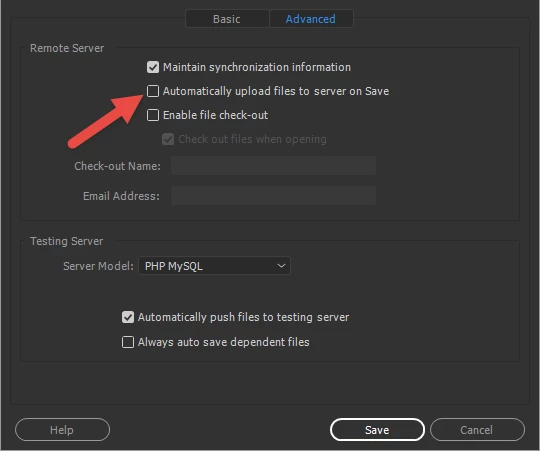
    5. Click the Advanced tab and select the Automatically upload ...... option.

    As you can see, I have not chosen that option because I want to be in charge of what gets uploaded. This will prevent problem files (files with errors) to be uploaded and upsetting the live site.

    1 reply

    BenPleysier
    Community Expert
    BenPleysierCommunity ExpertCorrect answer
    Community Expert
    February 7, 2018
    1. Go to site setup as in Site -> Manage Sites and
    2. In the pop-up choose the site that you are wanting to change and click on the pencil icon.
    3. This shows a second pop-up where you select Servers.
    4. Select one of the servers and again hit the pencil icon which in turn shows a third pop-up.
    5. Click the Advanced tab and select the Automatically upload ...... option.

    As you can see, I have not chosen that option because I want to be in charge of what gets uploaded. This will prevent problem files (files with errors) to be uploaded and upsetting the live site.

    Wappler is the DMXzone-made Dreamweaver replacement and includes the best of their powerful extensions, as well as much more!
    Participant
    February 8, 2018

    Thank you very much. That was exactly what I was looking for.