Participating Frequently
January 9, 2017
Answered

Coding Help

  • January 9, 2017
  • 2 replies
  • 888 views

Hi ... I'm new and it's been a while since I've built a website. I have watched and followed a few tutorials, which have been fabulous, however I'm struggling with getting my images to act the way I want them too. I'm working on a building a website that is viewable on mobile, tablet and desktop, and the coding I've used works on mobile and desktop, but I can't get it to respond correctly for tablet. I've used the exact coding the tutorial used. Can anyone help me?

Please?

Thank you, Aurea

    This topic has been closed for replies.
    Correct answer osgood_

    Found it!

    .html

    <main>

      <div class="row" align="center">

    <div class="col ">

      <div class="title-box">

      <h1> ATVs, UTVs, Garden and Compact Tractors</h1>

      </div>


       <div>


          <div class ="col col-md-one-half col-full"><img src="Images/Pull-Drag.jpg"></div>

         <div class="col col-md-one-half col-full"><img src="Images/Pull-Dragstr.jpg"></div>

         <div class="col col-md-one-half col-full"><img src="Images/Pull-Rake.jpg"></div>

         <div class="col col-md-one-half col-full"><img src="Images/Pull-EquiG-QD.jpg"></div>


      </div>


      <div class="row" align="center">

      <div class="col ">

      <div class="title-box">

      <h1> 3-Point Hitch and Large Tractors</h1>

      </div>


        <div class ="col col-md-one-half col-full"><img src="Images/Hitch-Max.jpg"></div>

       <div class="col col-md-one-half col-full"><img src="Images/Hitch-Shark.jpg"></div>

       <div class="col col-md-one-half col-full"><img src="Images/Hitch-EG-TR.jpg"></div>

      </div>


      <div class="row" align="center">

      <div class="col col-md-one-half col-full"><img src="Images/ind-jump.jpg"></div>

        <div class="col col-md-one-half col-full"><img src="Images/ind-turn.jpg"></div>

      </div>

    </main>

    And this is how it looks. Sorry it took so long. My computer is painfully slow.
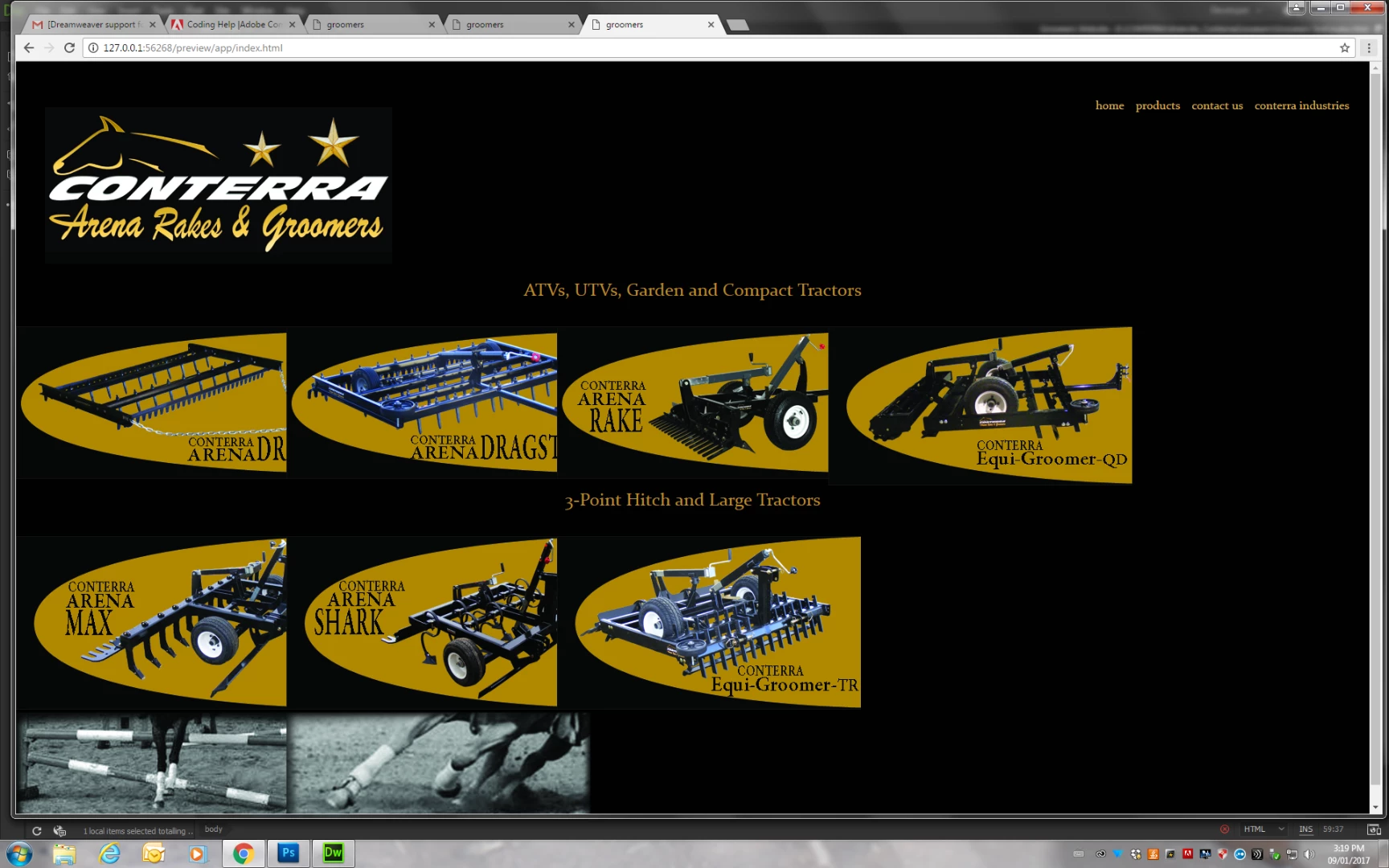

    display: grid; isnt supported in some browsers yet, its still behind a flag.

    Are you using display: grid; as an experiment for laying out your page or are you using it because you don't know what it is but just following a tutorial?

    .col-full {

      width: 20%;

      display:grid ;

      }

    2 replies

    Nancy OShea
    Community Expert
    Community Expert
    January 9, 2017

    As Jon said, answers to layout questions are contained your code.

    If you're using Bootstrap for your layouts, don't forget to add the img-responsive class to your <img> tag.

         <img class="img-responsive" src="http://dummyimage.com/600x400.jpg" alt="details">

    This allows images to scale down to viewport width.  However, they do not upscale beyond the image's native file size.  This helps avoid distortion on really big displays.

    Nancy

    Nancy O'Shea— Product User & Community Expert
    Jon Fritz
    Community Expert
    Community Expert
    January 9, 2017

    Please provide a link to your work in progress. If you can't upload your work to a server and provide a link, a distant second would be to post the entire code of the page, css and any scripts to the forum (don't use email, it won't come through).

    A little more detail about what exactly isn't working in tablet view, and the tutorial you're using may also help contributors get you on track.

    Something you can check in the meantime is to be sure you're working with clean and valid code. Even small mistakes in your html or css can cause big problems...

    The W3C CSS Validation Service

    Ready to check - Nu Html Checker

    Participating Frequently
    January 9, 2017

    Thank you, however I messed around with it long enough that I was able to find a solution.

    The difference between what I had to add versus the tutorial was add a block to my images.

    How do I check for a clean and valid code?

    Thanks.

    Nancy OShea
    Community Expert
    Community Expert
    January 9, 2017

    In CC 2017, go to Window > Results > Validation.

    Click on the big triangle to check current document.

    Nancy

    Nancy O'Shea— Product User & Community Expert

