Participant
June 6, 2017
Answered

Creating Regular expressions

  • June 6, 2017
  • 1 reply
  • 341 views

I have some google sheet code I put into an HTML doc.

I want to remove the sheets code but have no clue how(and i did research it, just don't understand it, must be getting old)

The code has lines that are in this format

<td data-sheets-value="{" 1":2,"2":"briar="" rose"}"="">Briar Rose</td>

<td data-sheets-value="{" 1":2,"2":"jane="" yolan"}"="">Jane Yolan</td>

<td data-sheets-value="{" 1":2,"2":"978-0765382948"}"="">978-0765382948</td>

I want to search and replace all the code from the word data sheet to the > bracket...so that the lines read

<td>Briar Rose</td>

<td>Jane Yolan</td>

<td>978-0765382948</td>

Hoping someone can help me learn how.

Thanks.

    This topic has been closed for replies.
    Correct answer Jon Fritz

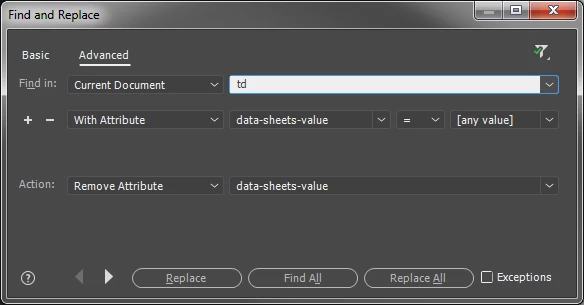
    I'm guessing the actual code has correct single and double quote nesting. If so, you can clean out the attributes pretty easily (DW will have problems if there are code errors in the attribute quote structure though)...

    1. Open the Find & Replace Tool (Ctrl + Shift + F in CC2017.1 or Ctrl + F in older versions)
    2. Click the Advanced tab
    3. Choose Find In "Current Document" and set the dropdown to "td"
    4. For the next line, set the 4 drop down menus to...
    "With Attribute"
    "data-sheets-value"
    "="
    "[any value]"

    5. For the Action, set "Remove Attribute" "data-sheets-value"
    6. Hit Replace All

    If it works correctly, you can then change the Current Document in step 1 to Entire Current Local Site...

    1 reply

    Jon Fritz
    Community Expert
    Jon FritzCommunity ExpertCorrect answer
    Community Expert
    June 6, 2017

    I'm guessing the actual code has correct single and double quote nesting. If so, you can clean out the attributes pretty easily (DW will have problems if there are code errors in the attribute quote structure though)...

    1. Open the Find & Replace Tool (Ctrl + Shift + F in CC2017.1 or Ctrl + F in older versions)
    2. Click the Advanced tab
    3. Choose Find In "Current Document" and set the dropdown to "td"
    4. For the next line, set the 4 drop down menus to...
    "With Attribute"
    "data-sheets-value"
    "="
    "[any value]"

    5. For the Action, set "Remove Attribute" "data-sheets-value"
    6. Hit Replace All

    If it works correctly, you can then change the Current Document in step 1 to Entire Current Local Site...

    Participant
    June 6, 2017

    Wow...wow...wow.  You learn something new every day.  Thanks so much. 

    I teach a programming class and I got stuck on this.  Embarrassing i know...

    Worked like a charm.