talk2robby
Participating Frequently
April 15, 2017
Answered

Customizing Left/Right Arrows on Carousel

  • April 15, 2017
  • 3 replies
  • 43218 views

How do you move the arrows so they are on the picture?


The Carousel span 100% across the page.

i.e.: We get your Business!

I would like to see it look more like on this site.

i.e.: KPMG International | KPMG | CA

Is there any documentation on Carousel customization?  Any advice would be appreciated.

Thanks again.

This topic has been closed for replies.
Correct answer Nancy OShea

I actually planned on making the banners on the carousel smaller and wanted the left / right arrows to be on the inside edges of the graphic.   I figure out how to move the arrows but it doesn't work well when resizing the browser (using the Media Queries Bars to reset the arrows as browser size changes.)

Is this my only option?


Put your Carousel inside a smaller col.
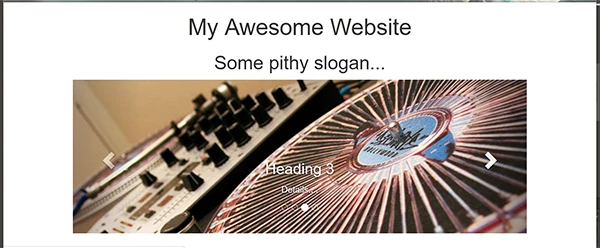
<!doctype html>

<html>

<head>

<meta charset="utf-8">

<title>Bootstrap 3.3.7 Starter</title>

<meta name="viewport" content="width=device-width, initial-scale=1">

<meta http-equiv="X-UA-Compatible" content="IE=edge">

<!-- Latest compiled and minified Bootstrap CSS-->

<link rel="stylesheet" href="https://maxcdn.bootstrapcdn.com/bootstrap/3.3.7/css/bootstrap.min.css" integrity="sha384-BVYiiSIFeK1dGmJRAkycuHAHRg32OmUcww7on3RYdg4Va+PmSTsz/K68vbdEjh4u" crossorigin="anonymous">

<style>

.center-block {float:none}

</style>

</head>

<body>

<div class="container">

<div class="row">

<div class="col-md-10 center-block text-center">

<h1>My Awesome Website</h1>

<h2>Some pithy slogan...</h2>

<!--begin Bootstrap Carousel-->

<div id="myCarousel" class="carousel slide" data-ride="carousel" data-interval="5200">

<!-- Indicators -->

<ol class="carousel-indicators">

<li data-target="#myCarousel" data-slide-to="0" class="active"></li>

<li data-target="#myCarousel" data-slide-to="1"></li>

<li data-target="#myCarousel" data-slide-to="2"></li>

<li data-target="#myCarousel" data-slide-to="3"></li>

</ol>

<!-- Wrapper for slides -->

<div class="carousel-inner" role="listbox">

<div class="item active">

<img src="http://lorempixel.com/1180/400/technics/4" alt="...">

<div class="carousel-caption">

<h3>Heading 3</h3>

<p>Details....</p>

</div>

</div>

<div class="item">

<img src="http://lorempixel.com/1180/400/technics/3" alt="...">

<div class="carousel-caption">

<h3>Heading 3</h3>

<p>Details....</p>

</div>

</div>

<div class="item">

<img src="http://lorempixel.com/1180/400/technics/2" alt="...">

<div class="carousel-caption">

<h3>Heading 3</h3>

<p>Details....</p>

</div>

</div>

<div class="item">

<img src="http://lorempixel.com/1180/400/technics/1" alt="...">

<div class="carousel-caption">

<h3>Heading 3</h3>

<p>Details....</p>

</div>

</div>

<!--end active-->

</div>

<!-- Left and right controls -->

<a class="left carousel-control" href="#myCarousel" role="button" data-slide="prev">

<span class="glyphicon glyphicon-chevron-left" aria-hidden="true"></span>

<span class="sr-only">Previous</span> </a> <a class="right carousel-control" href="#myCarousel" role="button" data-slide="next">

<span class="glyphicon glyphicon-chevron-right" aria-hidden="true"></span>

<span class="sr-only">Next</span> </a>

<!--end carousel-->

</div>

</div>

</div>

</div>

<!--latest jQuery-->

<script src="https://code.jquery.com/jquery-1.12.2.min.js" integrity="sha256-lZFHibXzMHo3GGeehn1hudTAP3Sc0uKXBXAzHX1sjtk=" crossorigin="anonymous">

</script>

<!--Bootstrap-->

<script src="https://maxcdn.bootstrapcdn.com/bootstrap/3.3.7/js/bootstrap.min.js" integrity="sha384-Tc5IQib027qvyjSMfHjOMaLkfuWVxZxUPnCJA7l2mCWNIpG9mGCD8wGNIcPD7Txa" crossorigin="anonymous"></script>

</body>

</html>

3 replies

Nancy OShea
Community Expert
Community Expert
April 15, 2017

IMO, that fixed footer has got to go.  It does nothing positive for your site and gets in the way of your carousel.

Nancy O'Shea— Product User & Community Expert
Legend
April 15, 2017

Typically when dealing with Bootstrap I find it nearly always easier to re-write the css styling rather than try and work out what css properties have been applied by the default Bootstrap css.

Default Bootstrap carousel example below (taken from w3c Bootstrap Carousel ) - look for the revised css and html code between the red /*       */

<!DOCTYPE html>

<html lang="en">

<head>

  <title>Bootstrap Example</title>

  <meta charset="utf-8">

  <meta name="viewport" content="width=device-width, initial-scale=1">

  <link rel="stylesheet" href="https://maxcdn.bootstrapcdn.com/bootstrap/3.3.7/css/bootstrap.min.css">

  <script src="https://ajax.googleapis.com/ajax/libs/jquery/3.2.0/jquery.min.js"></script>

  <script src="https://maxcdn.bootstrapcdn.com/bootstrap/3.3.7/js/bootstrap.min.js"></script>

  <style>

  .carousel-inner > .item > img,

  .carousel-inner > .item > a > img {

      width: 100%;

      margin: auto;

  }

/* CAROUSEL CONTROLS */

.carousel-controls {
display: -ms-flexbox;
display: flex;
-ms-flex-pack: justify;
justify-content: space-between;
position: absolute;
width: 100%;
top: 43%;
}

.carousel-controls a {

background-color: rgba(255, 255, 255, 0.6);

color: #000;

padding: 10px 14px;

font-size: 30px;

}

.carousel-controls a:hover {

background-color: rgba(255, 255, 255, 0.9);

}

/* END CAROUSEL CONTROLS */

  </style>

</head>

<body>

<div class="container">

  <br>

  <div id="myCarousel" class="carousel slide" data-ride="carousel">

    <!-- Indicators -->

    <ol class="carousel-indicators">

      <li data-target="#myCarousel" data-slide-to="0" class="active"></li>

      <li data-target="#myCarousel" data-slide-to="1"></li>

      <li data-target="#myCarousel" data-slide-to="2"></li>

      <li data-target="#myCarousel" data-slide-to="3"></li>

    </ol>

    <!-- Wrapper for slides -->

    <div class="carousel-inner" role="listbox">

      <div class="item active">

        <img src="https://www.w3schools.com/bootstrap/img_chania.jpg" alt="Chania" width="460" height="345">

        <div class="carousel-caption">

          <h3>Chania</h3>

          <p>The atmosphere in Chania has a touch of Florence and Venice.</p>

        </div>

      </div>

      <div class="item">

        <img src="https://www.w3schools.com/bootstrap/img_chania2.jpg" alt="Chania" width="460" height="345">

        <div class="carousel-caption">

          <h3>Chania</h3>

          <p>The atmosphere in Chania has a touch of Florence and Venice.</p>

        </div>

      </div>

      <div class="item">

        <img src="https://www.w3schools.com/bootstrap/img_flower.jpg" alt="Flower" width="460" height="345">

        <div class="carousel-caption">

          <h3>Flowers</h3>

          <p>Beautiful flowers in Kolymbari, Crete.</p>

        </div>

      </div>

      <div class="item">

        <img src="https://www.w3schools.com/bootstrap/img_flower2.jpg" alt="Flower" width="460" height="345">

        <div class="carousel-caption">

          <h3>Flowers</h3>

          <p>Beautiful flowers in Kolymbari, Crete.</p>

        </div>

      </div>

    </div>

<!-- start carousel controls -->

    <div class="carousel-controls">

    <a href="#myCarousel" data-slide="prev">

    <span class="glyphicon glyphicon-chevron-left"></span>

    </a>

   <a href="#myCarousel" data-slide="next">

    <span class="glyphicon glyphicon-chevron-right"></span>

    </a>

    </div>

<!-- end carousel-controls -->

  </div>

</div>

</body>

</html>

Legend
April 15, 2017

Following on from post above - effectively the end of your page code from the closing </html> up would look like:

<!-- start carousel controls -->

<div class="carousel-controls">

<a href="#carousel1" data-slide="prev">

<span class="glyphicon glyphicon-chevron-left"></span>

</a>

<a href="#carousel1" data-slide="next">

<span class="glyphicon glyphicon-chevron-right"></span>

</a>

</div>

<!-- end carousel-controls -->

</div>

<footer>&copy; Copyright 1998, Made with 100% recycled pixels.</footer>

</body>

</html>

Then just add the following css to the end of your mainStyles.css file

.carousel-inner > .item > img,

.carousel-inner > .item > a > img {

width: 100%;

margin: auto;

}

/* CAROUSEL CONTROLS */

.carousel-controls {

display: -ms-flexbox;

display: flex;

-ms-flex-pack: justify;

justify-content: space-between;

position: absolute;

width: 100%;

top: 43%;

}

.carousel-controls a {

background-color: rgba(255, 255, 255, 0.6);

color: #000;

padding: 10px 14px;

font-size: 30px;

}

.carousel-controls a:hover {

background-color: rgba(255, 255, 255, 0.9);

}

/* END CAROUSEL CONTROLS */

See if that helps.

talk2robby
Participating Frequently
April 15, 2017

I actually planned on making the banners on the carousel smaller and wanted the left / right arrows to be on the inside edges of the graphic.   I figure out how to move the arrows but it doesn't work well when resizing the browser (using the Media Queries Bars to reset the arrows as browser size changes.)

Is this my only option?

BenPleysier
Community Expert
Community Expert
April 15, 2017
Wappler is the DMXzone-made Dreamweaver replacement and includes the best of their powerful extensions, as well as much more!
BenPleysier
Community Expert
Community Expert
April 17, 2017

This discussion has been marked correct and so that it does not continue into irrelevance, I have locked the discussion.

If this is an error on my part please PM me with the reason(s).

Wappler is the DMXzone-made Dreamweaver replacement and includes the best of their powerful extensions, as well as much more!