


wefollow
Inspiring
September 12, 2017
Answered

Doesn't synchronize

  • September 12, 2017
  • 2 replies
  • 2095 views

On my computer everything looks fine.

But when I upload the files, it takes time to update the files sometime.

I thought the server was slow but now I see it doesn't update when I login to remote  server.

When I upload the files I use  , Arrow for put file to remote server also tried the , circle arrow for synchronize with remote server...

I remember on blackboard,  no stupid question,

Thanks for reading

James
This topic has been closed for replies.
Correct answer EbaySeller

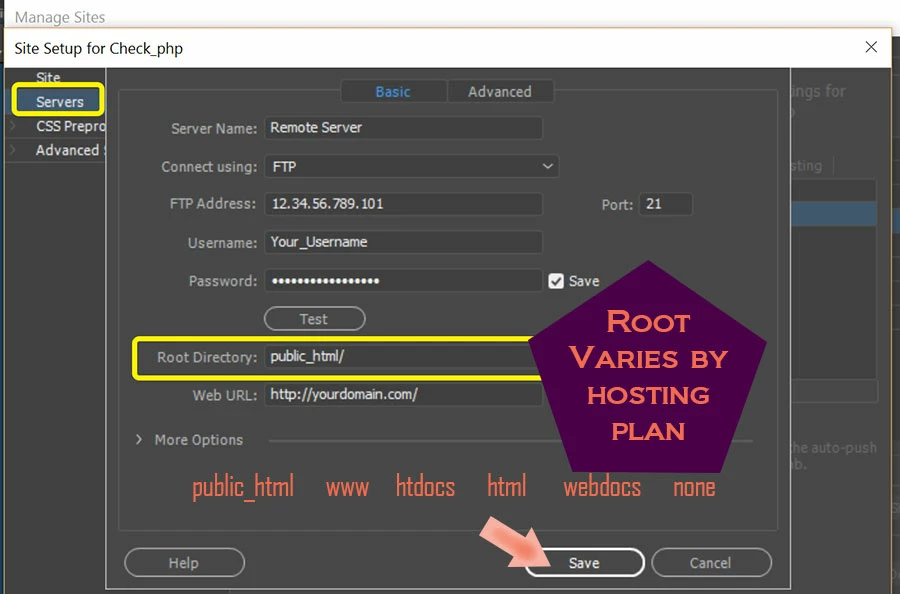
Did you define your site properly? 


You would not be able to upload some - but not all - of your files to the root directory of your server if the site definition was not defined properly so just go ahead and forget that wild goose chase right now.

Typically a folder (especially if there's a subdirectory where the updated content is being uploaded) will not update with current timestamp if only some of the content of the folder has been updated (again, content within a subdirectory of the folder).  For example: the wp-content/uploads folder's modified date is not the same timestamp as the most recent upload you made in wordpress because uploads are sent to wp-content/uploads/yyy/mmm/file. So in this example only the mmm folder name would mirror the most recent upload's timestamp that occurred within that respective folder.

Check inside the folder and ensure the newly-uploaded files are there... and they are! This is a non-issue false alarm. Just because the timestamp for the modified date of the folder is not recent does not necessarily mean the sky is falling and that the contents of the folder are not being uploaded. Open the folder and you'll see recent uploads with modified timestamp more recent than the parent folder's modified timestamp.

2 replies

Nancy OShea
Community Expert
Community Expert
September 12, 2017

Can you expand your files panel to show remote and local files?  Click the connect icon (see screenshot).

Check the modified date & timestamp to ensure the latest files are indeed on your server.  If not, click & drag file from Local Files to Remote Server.   If everything looks good on this side, you might need to clear your browser's cache memory.

Nancy O'Shea— Product User & Community Expert
wefollow
wefollowAuthor
Inspiring
September 12, 2017

Better show you the screenshots , second screenshot doesn't show modified time...thank you


Jon Fritz
Community Expert
Community Expert
September 12, 2017

Right click the bar to the right of "Local Files" to turn on the "Modified" column...

Jon Fritz
Community Expert
Community Expert
September 12, 2017

What does your FTP Log say when you try to upload?

Open it under Window > Results > FTP Log and try to upload again. Any errors should show there and give a clue as to what's going wrong.