Participant
March 7, 2023
Answered

Error in uploading to FTP host

  • March 7, 2023
  • 2 replies
  • 679 views

I am responsible for managing multiple websites using Muse, but I'm facing issues with uploading content to one of the sites using FTP. Despite confirming my FTP server, username, and password, I'm unable to upload anything, and Muse indicates that I already have the latest upload. Unfortunately, I can't find any options to enter the required web directory or port number for this particular site.


Interestingly, I was able to upload content successfully using Fetch by entering the directory and port information. This confirms that the FTP details I have are correct. I've also contacted my hosting provider, who informed me that everything is working fine on their end. However, their instructions include the directory and port, which I'm unable to enter through Muse.


When attempting to upload content to a server via Muse, I received the following error message: "Server not responding in time, FTP may not be supported on this server [Connection timed out after undefined milliseconds]." This error suggests that there may be an issue with FTP support on the server, as the connection timed out without any defined millisecond limit.


Can anybody help me out in this regards!

Thanks

This topic has been closed for replies.
Correct answer Nancy OShea

Not sure what this has to do with DREAMWEAVER which is where you posted.


Muse is discontinued web design software from 2018.  It hasn't received any updates in 5 years. Meanwhile, your servers have no doubt received multiple security updates/upgrades.  That's the risk you take with outdated software.  The web stands still for no one. 


Since you posted in the Dreamweaver community, I'll assume you're trying to migrate from Muse to Dreamweaver.   If yes, follow the steps and screenshots below.


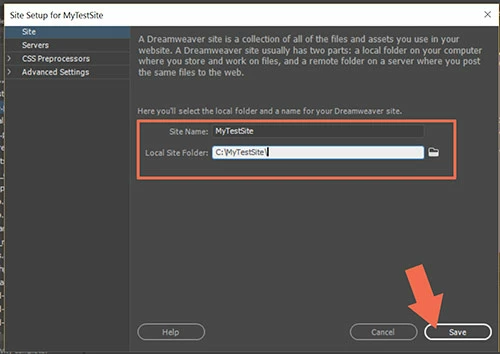
1. Create a new site.  Site > New Site.  Give it a name and create a site folder on your local hard drive. Example,  C:\MyTestSite\ 


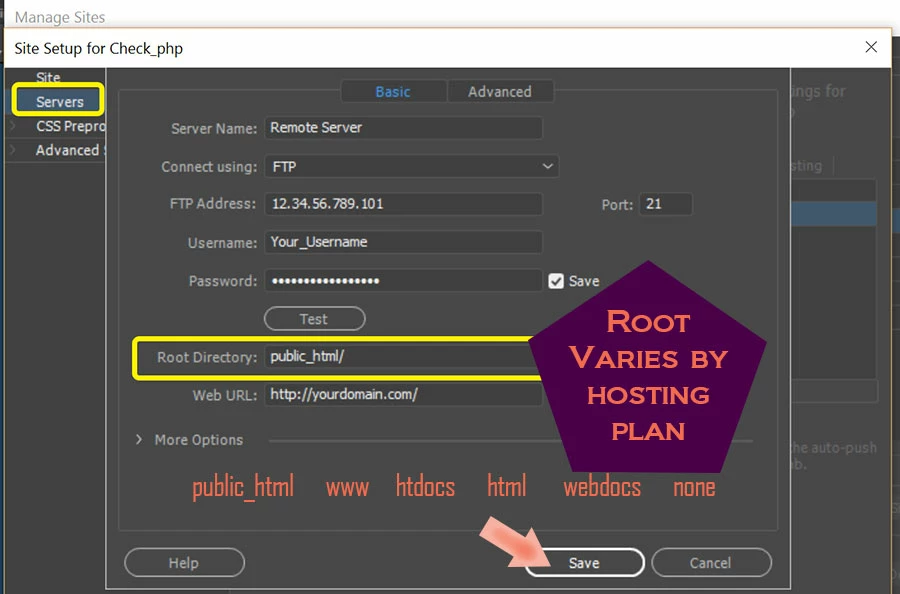
2. Click on Servers Tab and enter your S/FTP log-in details and your Site's Root Directory.  Root varies by hosting plan.  If unsure, ask your hosting provider.


3. Click on the TEST button to confirm connection with remote server.

If all is good.  Save settings.


4. Open Files Panel (F8).

Use the Down Arrow to GET files from your remote server.

Use the Up Arrow to PUT local files on the remote server.


If you're new to editing code, see links below.

- https://www.w3schools.com/html/
- https://www.w3schools.com/css/
- https://www.w3schools.com/js/


Hope that helps. Post back if you have any questions.


2 replies

Participant
March 8, 2023

Dear nancy yes I'm trying to migrate from MUSE to DREAMWEAVER  because muse is no longer working for me...


Thank you for your support. My issue resolved

Nancy OShea
Community Expert
Community Expert
March 8, 2023

Glad to hear it. 🙂

You're welcome.


Nancy O'Shea— Product User & Community Expert
Nancy OShea
Community Expert
Nancy OSheaCommunity ExpertCorrect answer
Community Expert
March 7, 2023

Not sure what this has to do with DREAMWEAVER which is where you posted.


Muse is discontinued web design software from 2018.  It hasn't received any updates in 5 years. Meanwhile, your servers have no doubt received multiple security updates/upgrades.  That's the risk you take with outdated software.  The web stands still for no one. 


Since you posted in the Dreamweaver community, I'll assume you're trying to migrate from Muse to Dreamweaver.   If yes, follow the steps and screenshots below.


1. Create a new site.  Site > New Site.  Give it a name and create a site folder on your local hard drive. Example,  C:\MyTestSite\ 


2. Click on Servers Tab and enter your S/FTP log-in details and your Site's Root Directory.  Root varies by hosting plan.  If unsure, ask your hosting provider.


3. Click on the TEST button to confirm connection with remote server.

If all is good.  Save settings.


4. Open Files Panel (F8).

Use the Down Arrow to GET files from your remote server.

Use the Up Arrow to PUT local files on the remote server.


If you're new to editing code, see links below.

- https://www.w3schools.com/html/
- https://www.w3schools.com/css/
- https://www.w3schools.com/js/


Hope that helps. Post back if you have any questions.


Nancy O'Shea— Product User & Community Expert