

Everything refers to open local page (remote server).
Dear,
Everything refers to open local page (remote server).
Please, I am in need of help to know how to solve what has been happening with Dreamweaver versions CC 2018 and CC 2019 in relation to Dreamweaver CS6.
I have "Adobe Creative Cloud" and have installed the following versions of Dreamweaver.
a) CS6,
b) CC 2018 e;
c) CC 2019.
I intend, for a while, to stay alone with Dreamweaver CC 2018, then only with CC 2019. But at the moment I would like to take this doubt, even because I do not know if uninstalling the CS6 version will continue happening what I am seeing with CC 2018 and CC 2019.
What's happening?
In the CS6 version, when I give an F12, in a page, it shows in the address as for example:
http: //localhost/minespages/version_03/index.php
In my view, there is no mistake. The page opens normal, interact with database in MySQL. All right.
In the settings of this same page still in CS6 it looks like this:
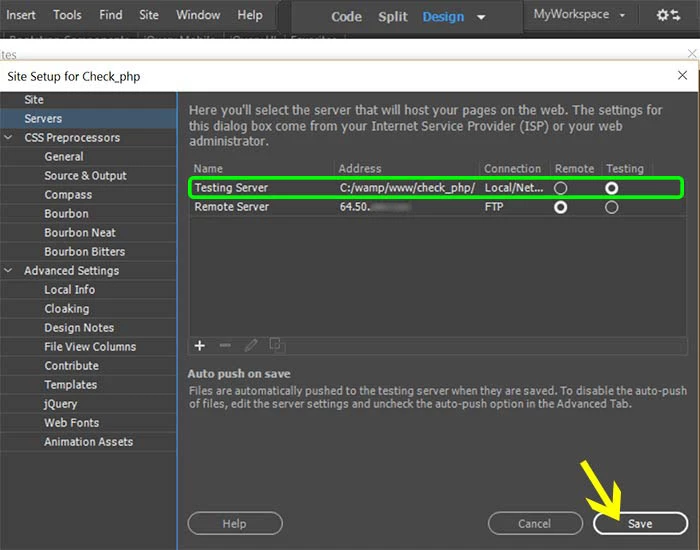
Settings under "Site" -> "Manage system ..."
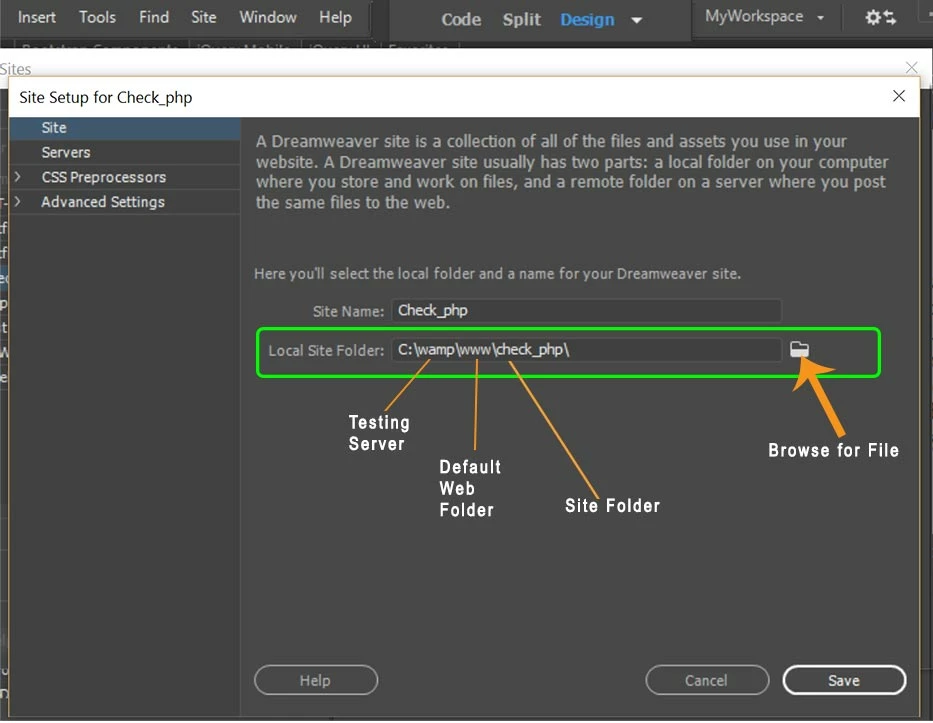
"Site"
"Site Name" - mypaginas
"Address" - C: / wamp / mypaginas /
"Connection" - Location / Network
"Remote" - dialed
"Testing" - marked
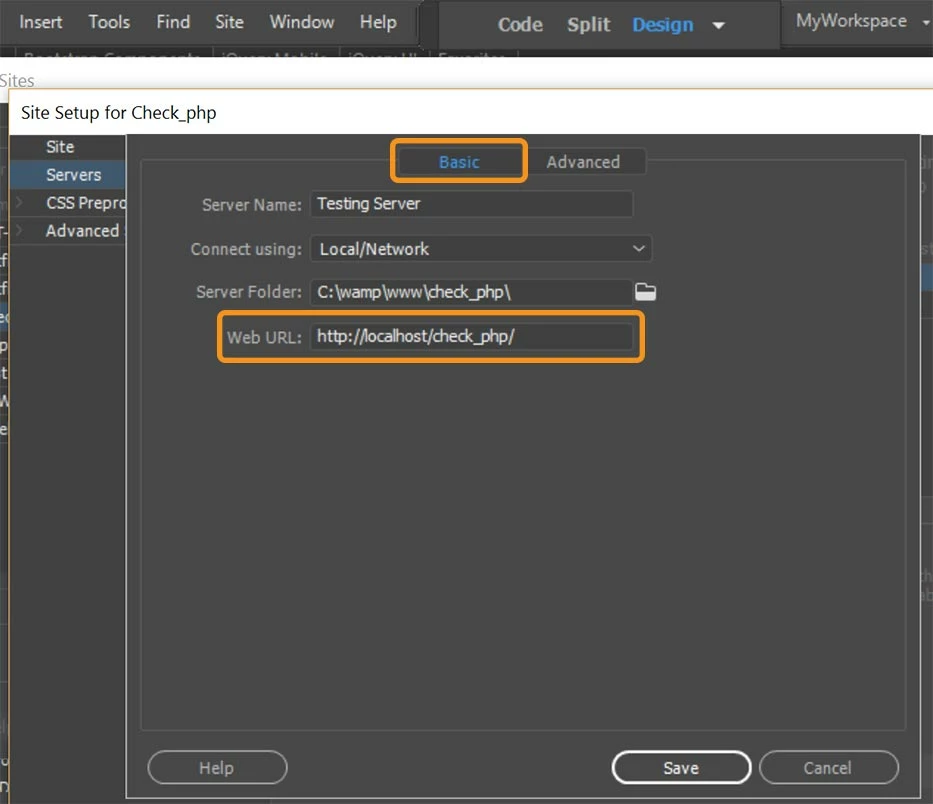
"Basic"
"Server Name:" - mypaginas
"Connection Usage:" - Location / Network
"Server folder:" - C: \ wamp \ www \ mypadinas \
"Web URL:" - http: // localhost / mypaginas /
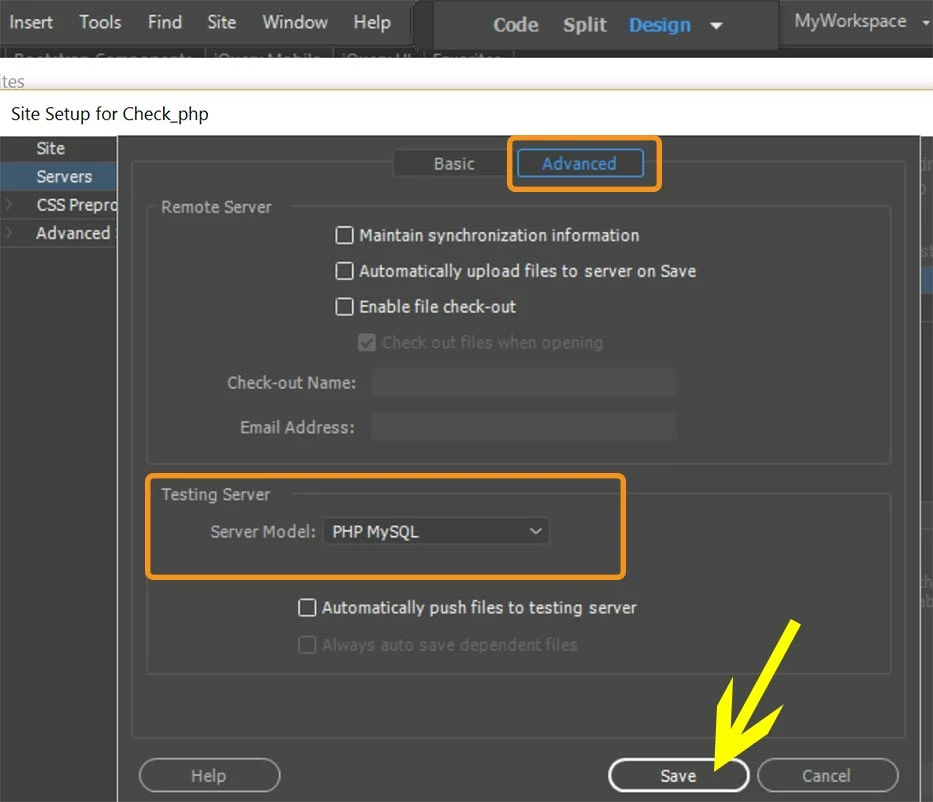
"Advanced"
"Remote server"
"Keep synchronization information" - checked
"Upload files to server automatically when saving" - unchecked
"Name of withdrawal" - nothing noted
"Email address" - nothing noted
"Advanced"
"Test server"
"Server model" - PHP Mysql
What I've shown so far refers to a page in Dreamweaver CS6.
Now I'll show you how to find the address of the same page with the same settings, but in Dreamweaver CC 2018 or in CC 2019 when I give an F12.
http://127.0.0.1:53753/preview/app/index.html
Note that here giving an F12, although it is asking to open the page index.php shows in the address index.html. Because Dreamweaver CC 2018 or 2019 are showing html page when page is php.
I understand that the number 127.0.0.53753 is IP, but I'm giving an F12 in a php page and not html. There must be something wrong with the settings of CC 2018 and CC 2019 and I can not figure it out. I already clicked on "Help" read, relay and not solve.
Thank you




 AdChoices