

Michellio
Known Participant
August 21, 2020
Question

Getting browser broken link message when trying to do a Real-time Preview

  • August 21, 2020
  • 5 replies
  • 524 views

Hi, I'm new to Dreamweaver and think I did something to mess up my settings.  I have 20.2 installed, build 15263 and am on Windows 10.


I initially set up my site definition for a folder on my local machine and also pointed to a folder for images.  I was getting on ok, relatively, and was able to open the site (just one index.html page at this point) using the Preview in Browser thing.  Then I fiddled with something in Files, Connect to Remote Server. I don't even know why, but fiddle I did.  Now I cannot get it to open the site in the Preview in Browser, no matter what browser I try and I cannot remove what I entered into the Remote Server window because it doesn't seem to like having an empty list in there, despite it being empty before I fiddled.
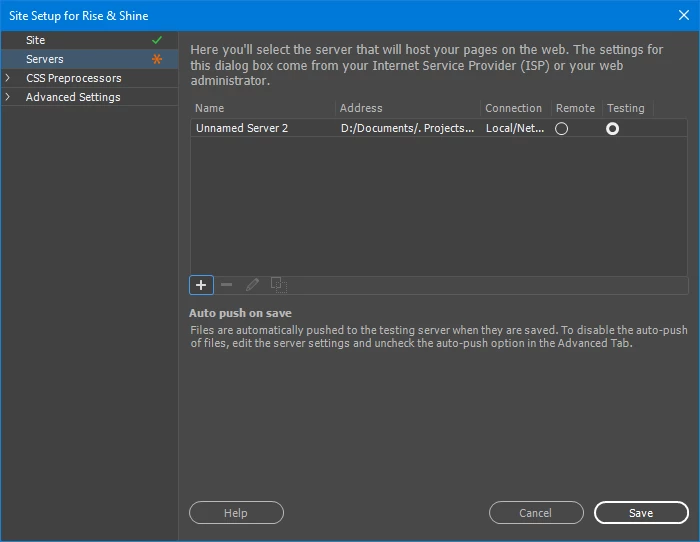
 

(If I delete this entry, the Save button doesn't work and I have to press Cancel so of course it doesn't change anything then.)


I'd appreciate any advice.  I just want to get back to it looking at the files in the local folder.


Michelle

    This topic has been closed for replies.

    5 replies

    Nancy OShea
    Community Expert
    Community Expert
    August 22, 2020

    You don't need a local testing server to view HTML files locally.  That's only necessary when working with server-side scripts inside .php files for example.  


    Create a new site definition.  Go to Site > New Site and enter a name for your site.  It can be anything  that makes sense to you like MyTestSite.  See screenshot.

    Then go to the Server tab and enter your remote server's FTP log-in details that your hosting provider sent you when you signed-up.  See screenshot.


    Ideally, all site assets should reside in your local site folder.


    Post back if you still need help.


    Nancy O'Shea— Product User & Community Expert
    Michellio
    MichellioAuthor
    Known Participant
    August 26, 2020

    Thank you Nancy.  Deleting and recreating the site definition worked for me in this instance though I now realise that I should install a local testing server too as I might dabble with a .PHP file.  Michelle

    B i r n o u
    Legend
    August 21, 2020

    In your comment you place a screen shot showing that you use a testing server... but beside setting it in the site definition, did you also launch an run a server stack from your computer (Xampp, Easy PHP, Node, Wampserver ?...) ?

    As far as I know DW don't propose any server nor stack that is include in the box.


    Michellio
    MichellioAuthor
    Known Participant
    August 26, 2020

    No I didn't, and I realise that I should have 🙂  I'm going to do that now.  Thanks again.

    B i r n o u
    Legend
    August 26, 2020

    if you need any help to install the stack please don't hesitate

    B i r n o u
    Legend
    August 21, 2020

    as I can see, your file is just an HTML file, so you don't need anything else than DW to Preview in a browser. you now have two ways to test files.


    1 - from the left bottom corner of the document window, you'll find the Preview in a browser Icon, from there you also can edit the browser's list, and set the primary browser of your choice to be launched directly when hitting F12

    2 - from the main menu File > Real Time preview > then the browser of your choice... you can also edit the browser's list from this menu too.


    from now, what ever the way (1 or 2) each time that you will edit your file , no need to save it, the browser will instantly refresh and display the new content


    are we talking about the same feature ?


    Michellio
    MichellioAuthor
    Known Participant
    August 26, 2020

    Thank you. Yes we are talking about the same thing and both of those methods were working for me before I messed with the test server thing.  I've created a new site definition now and deleted the old one and it works again.  Michelle

    Jon Fritz
    Community Expert
    Community Expert
    August 21, 2020

    If you can get Real Time Preview to open, Adobe's servers are up, and you're not doing anything tricky in your code, it might actually function correctly. For me, it never did and I gave up on the feature.

    I use the old Preview in Browser function instead, keeping my files local and bypassing Adobe's servers. To use that instead of RTP...

    Go to Edit > Preferences
    Click the Real-time Preview listing in the sidebar
    At the top of the dialogue that opens, check the box for "Default to Static Browser Preview"
    Click Apply

    Your computer will now preview your pages in your local browser, without using Adobe's servers.

    Michellio
    MichellioAuthor
    Known Participant
    August 26, 2020

    Thanks Jon.  Unfortunately I first tried creating a new site definition and deleted the old one and it solved the problem so I wasn't able to test your suggestion.  Thank you though.  Michelle

    Community Expert
    August 21, 2020

    You should be able to have no servers there and hit save without issue.  If you are experiencing an issue, then you might need to re-install.


    For your site, are you looking to test scripts like PHP or test connections to a database?  If so and you want to test locally you will need to install a local server. I would recommend WAMP/MAMP as a good solution.  Then you would install those solutions and point the web root to the folder where you store your sites.  Then you could get more use out of the local testing server and be able to set up the paths to your site.

    Michellio
    MichellioAuthor
    Known Participant
    August 26, 2020

    Thanks Ben.  No, I wasn't able to hit save... it didn't do anything.  I managed to just create a new site definition and delete the old one, but actually now I am going to install a local server as you suggested.  Michelle