April 18, 2018
Answered

Glyphicon

  • April 18, 2018
  • 3 replies
  • 1422 views

Best Adobe Community,

Example for you to try out in order to encounter the issue yourself: create a div element and put a glyphicon inside it. If you use the funcion inspect and then mouse over the div, you'll notice that the width and height of the div do not coincide with that of the glyphicon (the width and height of the glyphicon are namely correct [meaning: that of the chosen font-size]). At first glance and that you may have noticed without using the inspect function, it looks as if it has padding that you need to override with a custom class... But doing that does not affect it... I've also tried the position declaration with no success...

I want to remove ALL of this space!

Thank you so much on beforehand and have a continous pleasant future!

Best Regards,

Andreas

This topic has been closed for replies.
Correct answer Nancy OShea

https://getbootstrap.com/docs/3.3/components/

Sorry for the lack of specificity... It is the glyphicon halflings set


Bootstrap v4 does not contain glyphicons.   Suggest you use Font Awesome icons instead.

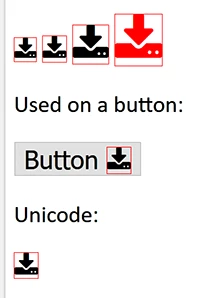
Below is an example of Font Awesome with a border around the icon.

<!doctype html>

<html>

<head>

<title>Font Awesome Icons</title>

<meta name="viewport" content="width=device-width, initial-scale=1">

<link rel="stylesheet" href="https://cdnjs.cloudflare.com/ajax/libs/font-awesome/4.7.0/css/font-awesome.min.css">

<style>

/**for demo purposes**/

.fa {border: 1px solid red}

</style>

</head>

<body>

<h1>Font Awesome download</h1>

<i class="fa fa-download"></i>

<i class="fa fa-download" style="font-size:24px"></i>

<i class="fa fa-download" style="font-size:36px"></i>

<i class="fa fa-download" style="font-size:48px;color:red"></i>

<br>

<p>Used on a button:</p>

<button style="font-size:24px">Button <i class="fa fa-download"></i></button>

<p>Unicode:</p>

<i style="font-size:24px" class="fa">&#xf019;</i>

</body>

</html>

3 replies

BenPleysier
Community Expert
Community Expert
April 19, 2018

It would have been nice for you to have shown your code, that way we do not have to speculate.

The space that you are seeing is caused by the padding of the container element plus the padding/margins of the font that is being used. If no font has been specifically applied to the Glyphicon, then the document default will be used. All this means is that you should use a container that has no dimensions, which is the reason why Nancy, in her example, has used the <i> element as the container.

Wappler is the DMXzone-made Dreamweaver replacement and includes the best of their powerful extensions, as well as much more!
April 19, 2018

Sorry. Removed my comment because it was inaccurate...

I found two solutions:

First solution: Add a display:block and position:static to the span, which is responsible for creating the glyphicon.

Second solution: Add a position:static and float:left (or right) to the span, which is responsible for creating the glyphicon, and the clearfix to the parent element.

pziecina
Legend
April 18, 2018

A glyphicon is not always a font.

It is often an image -

https://glyphicons.com/

April 18, 2018

The glyphicon is added by a span tag for example <span class="glyphicon glyphicon-download"></span> and, as I said, is one version older than the latest

April 18, 2018

https://getbootstrap.com/docs/3.3/components/

Sorry for the lack of specificity... It is the glyphicon halflings set

Nancy OShea
Community Expert
Community Expert
April 18, 2018

Is this a Bootstrap question?  Can you please show us your code?

Nancy O'Shea— Product User & Community Expert
April 18, 2018

Yes, it is bootstrap. One version older than the current...

No need to show my code because I haven't modified anything!