JJphilly
Participant
July 29, 2017
Answered

How can i create a Game Design Document in Dreamweaver.

  • July 29, 2017
  • 2 replies
  • 495 views

Hello im Jerry,

I'm a Game Developer for a company and i was wondering how i could use Dreamweaver to create my Design Document for my project. For those who don't know a Design Document is a Doc that houses pretty much everything that will go into the game. So i would need sections of the site dedicated to Story, Characters, backstories, Mechanics and so on and so forth. Then a index to link to all of those sections on the site. So if you could help me i would be very greatful. Also the main reason i ask is because there was a YouTube tutorial that showed me how to do this once but i cant seem to find it. That and i'm new to Dreamweaver.

Thanks Jerry

This topic has been closed for replies.
Correct answer Nancy OShea

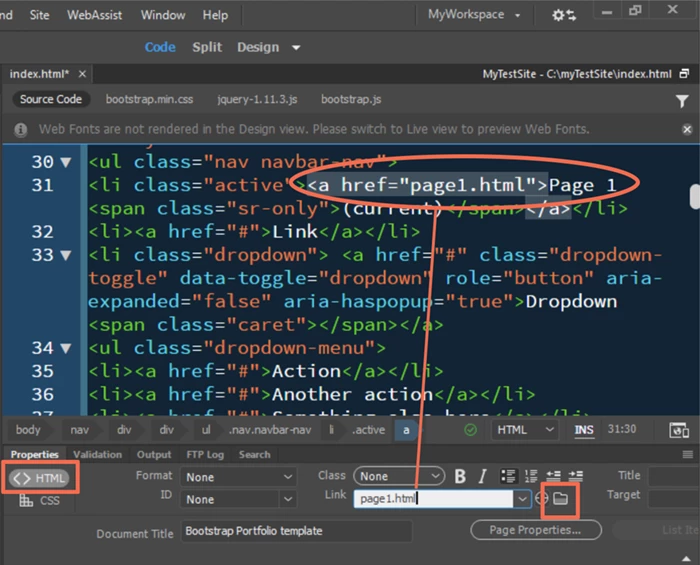
When you are ready to create navigation on your index.html page,  add some text with hyperlinks to the various pages in your site using the link field on your HTML Properties Panel

Nancy

2 replies

Nancy OShea
Community Expert
Nancy OSheaCommunity ExpertCorrect answer
Community Expert
July 29, 2017

When you are ready to create navigation on your index.html page,  add some text with hyperlinks to the various pages in your site using the link field on your HTML Properties Panel

Nancy

Nancy O'Shea— Product User & Community Expert
Nancy OShea
Community Expert
Community Expert
July 29, 2017

1) define your local site folder by going to Site > New Site.   This will be a folder on your local HD where you keep all your site files & assets --  see screenshots below.

2) go to File > New > Starter Templates.  Pick a layout of choice and  hit the Create button.

Immediately Save this page as index.html (your site's home page).  If you look in the Files Panel, you'll see that DW has created some assets folders for you.  This may vary a little depending on which Starter Template you choose.

You now have a starter site to work with.

Add your own images and text.  Save your work often with Ctrl+S.

When you're ready to create a 2nd page, go to File > SaveAs new_filename.html.  Repeat for other site pages.

Nancy

Nancy O'Shea— Product User & Community Expert