You can turn it off, but it's kind of a pain...
1. Go to Edit > Preferences > Interface
2. Click the theme you're using, then the + icon to make a duplicate of it (you can't edit default themes directly)
3. Verify the duplicate theme is selected and click the edit button (pencil icon)
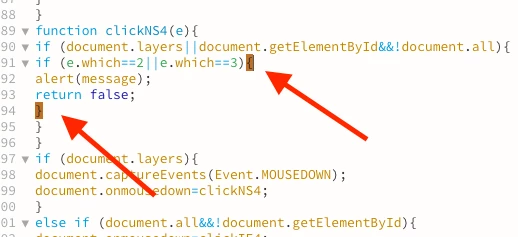
4. Look for the line with the class .CodeMirror-matchingbracket, .CodeMirror-matchingtag and separate them into two classes. (Around line 247 in the Dark theme)
5. Now, if you want to disable all matching brackets and tags highlighting, change the background-color to transparent. If you only want to affect brackets, you'll need to single out the coma separated classes into two, leaving the color settings on the matchingtag version and changing the matchingbracket one to transparent.
6. Save
7. Go back to Edit > Preferences > Interface and click your new theme, then click Apply
Personally, I would leave the highlighting, maybe make it a less annoying color if it's bothering you. It's a fairly simple way to see if your brackets and tags are matched the way they need to be while coding. It allows you some degree of debugging that Adobe took out when they changed error reporting in the Linting feature to run only after the document is saved.





 AdChoices