


vanessah99475283
Known Participant
December 30, 2016
Answered

How to make header go up?
  • December 30, 2016
  • 2 replies
  • 1343 views

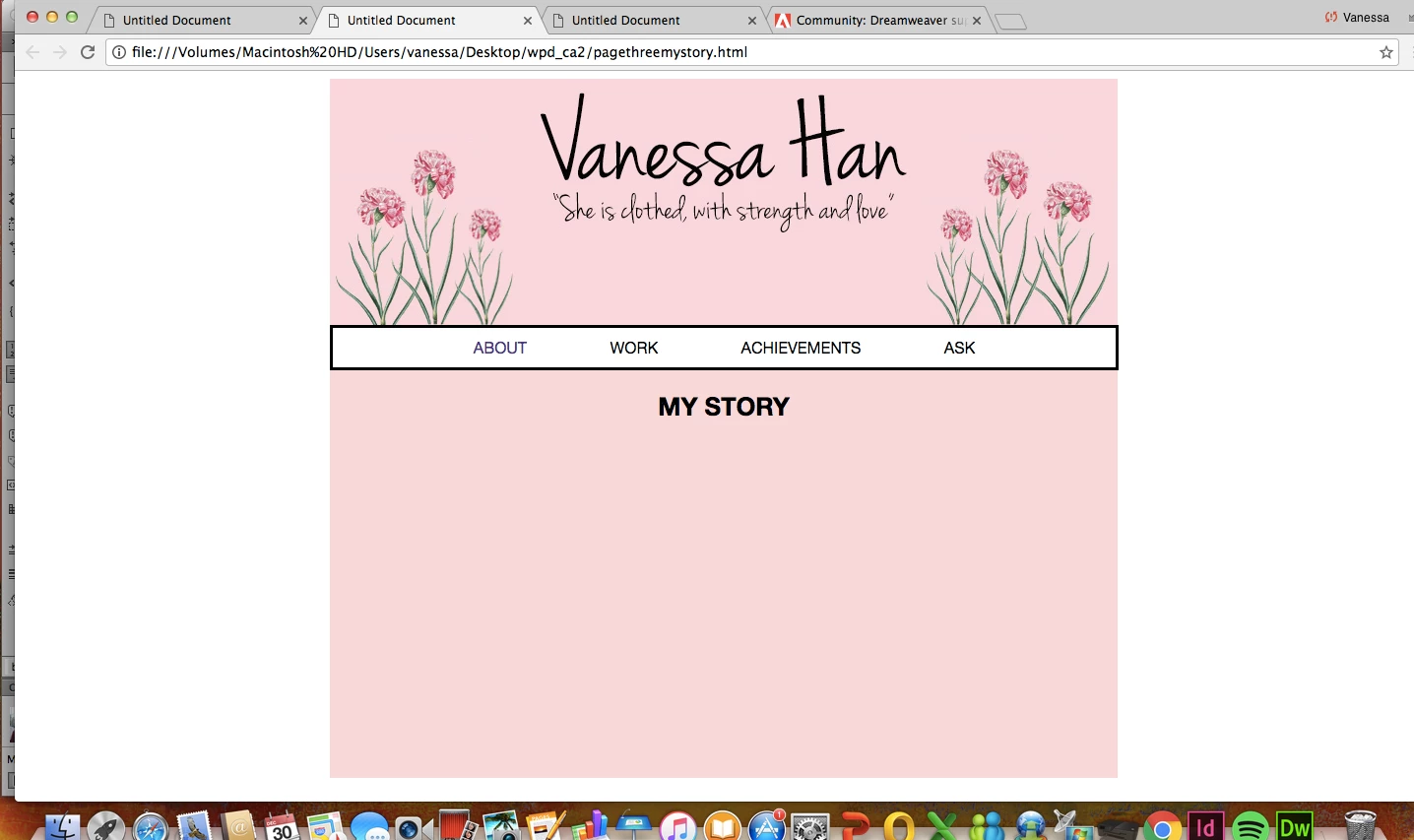
So before adding an image, the header was situated properly and normally. But after I added in the image, the arrangement became weird. Is there something I did wrong?
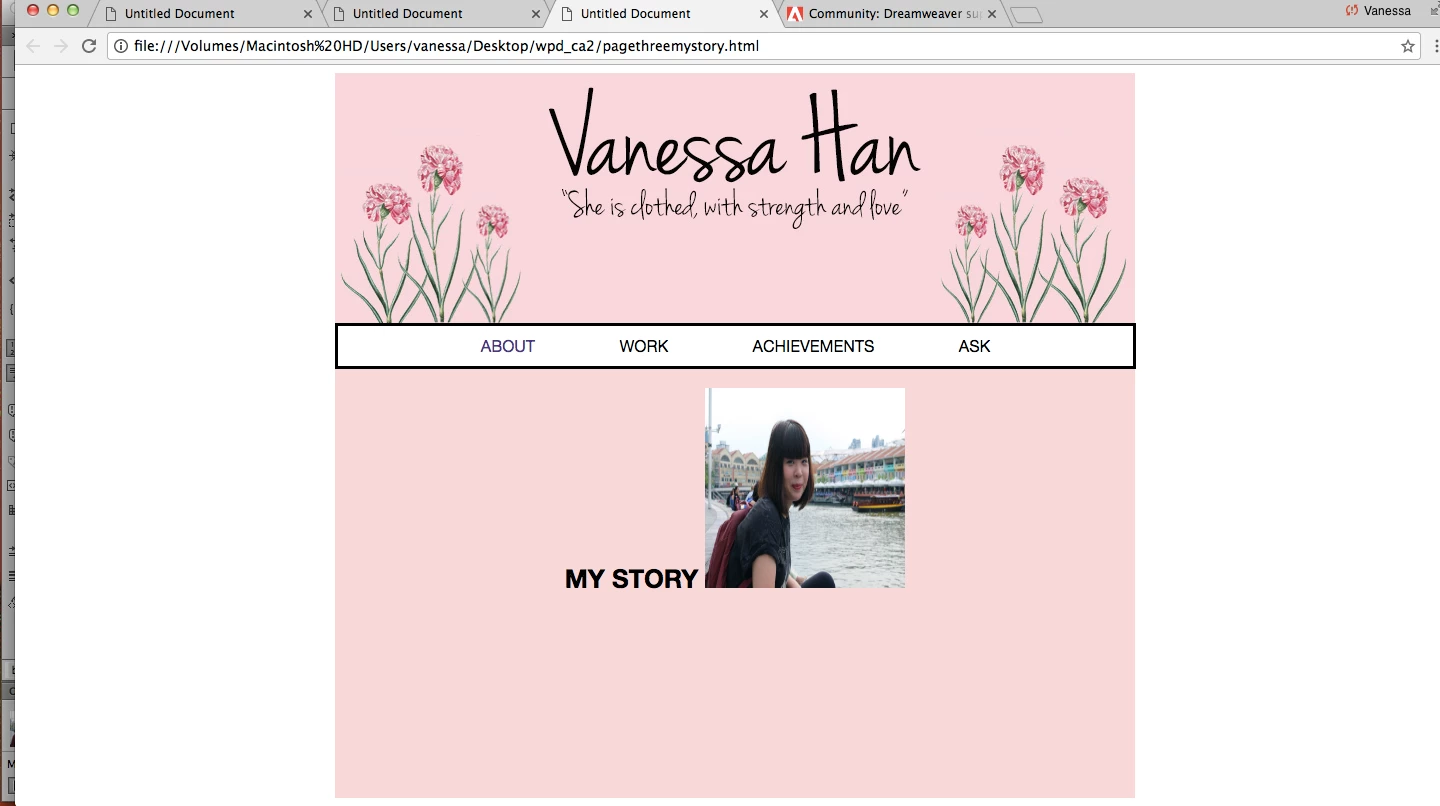
Also, the main part it automatically extended the height on its own. (compare the length of the main part to the first pic's main part. Its longer now? But i want it to stay the same size)
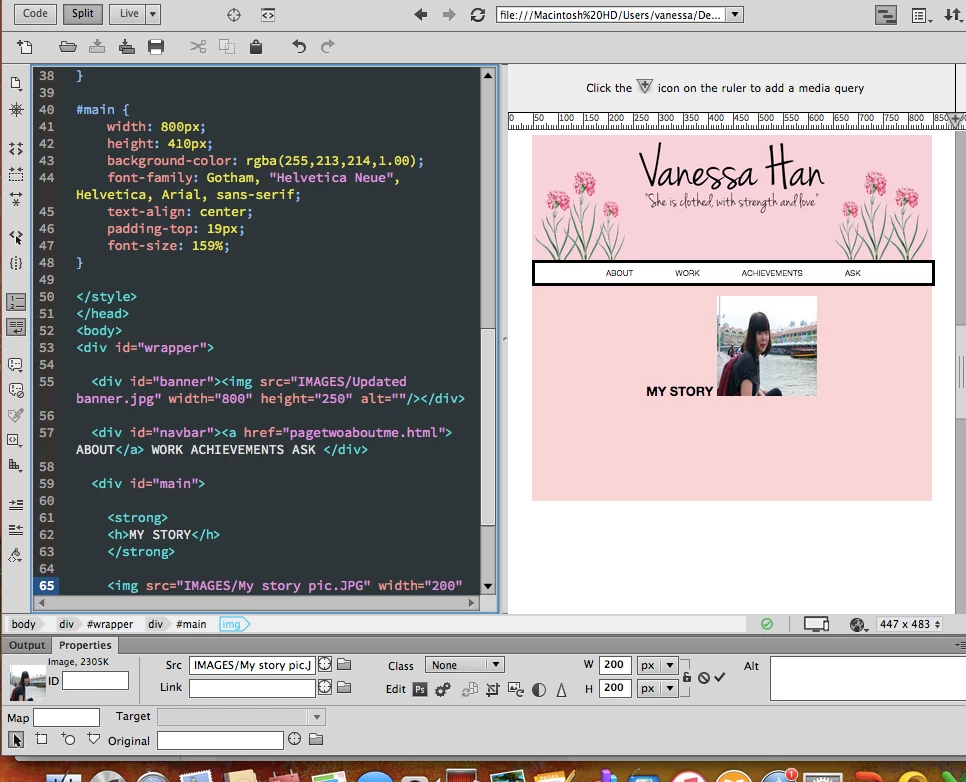
These are my codes.. is there something I did wrong?

This topic has been closed for replies.
Correct answer BenPleysier

I have noticed that Al Sparber gave you some excellent advice (closing gap ). However, in this case it may be a better solution to set images to block-level rather than inline-block level.

To do this change the style rule from

img {

vertical-align: bottom;

}

to

img {

display: block;

}

2 replies

Legend
December 30, 2016

Also you dont need <strong></strong> tags around your to be <h1></h1> heading tag - by default headings are 'strong'. By wrapping it in a <strong> tag you might be unaturally distorting the shape of the type face.

These days it's custom to use fonts like 'Google Fonts:

Google Fonts

Some fonts come in many weights, which you can selected, and used to style your elements:

h1 {

font-weight: 600;

}

vanessah99475283
Known Participant
December 30, 2016

Then, how do I bold the letters? The strong tag appeared because I clicked the "B" icon.

Legend
December 30, 2016

vanessah99475283 wrote:

Then, how do I bold the letters? The strong tag appeared because I clicked the "B" icon.

Use a typeface which has a bolder cut as default. There are dozens which you can select from Google fonts.

Example.

Go out to Google Fonts  and search for Roboto font. Select the weight/s you want in the drop down menu and add them by clicking the red plus icon.

When you have finished selecting the font weight/s click on the black tab at the foot of the window which says '1 Family Selected'

This is what you will end up with:

<link href="https://fonts.googleapis.com/css?family=Roboto:400,700" rel="stylesheet">

Paste the above line of code in your pages code between the <head> </head> tags.

Then create your h1 css selector and add the font-family and font weight:

h1 {

font-family: 'Roboto', sans-serif;

font-weight: 700;

}

You now have access to hundred of different fonts by repeating the process above. You can combine the fonts.

BenPleysier
Community Expert
Community Expert
December 30, 2016

There is no element called 'h', it can be 'h1', 'h2' etc. Because the 'h.' elements are block elements, they will automatically occupy the whole line. 'img' elements are inline-block elements, meaning that they are placed inline.

To answer your question, change <h> and </h> to <h1> and </h1> respectively. That will push the image to the next line.

Wappler is the DMXzone-made Dreamweaver replacement and includes the best of their powerful extensions, as well as much more!
BenPleysier
Community Expert
BenPleysierCommunity ExpertCorrect answer
Community Expert
December 30, 2016

I have noticed that Al Sparber gave you some excellent advice (closing gap ). However, in this case it may be a better solution to set images to block-level rather than inline-block level.

To do this change the style rule from

img {

vertical-align: bottom;

}

to

img {

display: block;

}

Wappler is the DMXzone-made Dreamweaver replacement and includes the best of their powerful extensions, as well as much more!
vanessah99475283
Known Participant
December 30, 2016

You are so helpful! Thankyou!! It worked