


Participant
January 24, 2024
Question

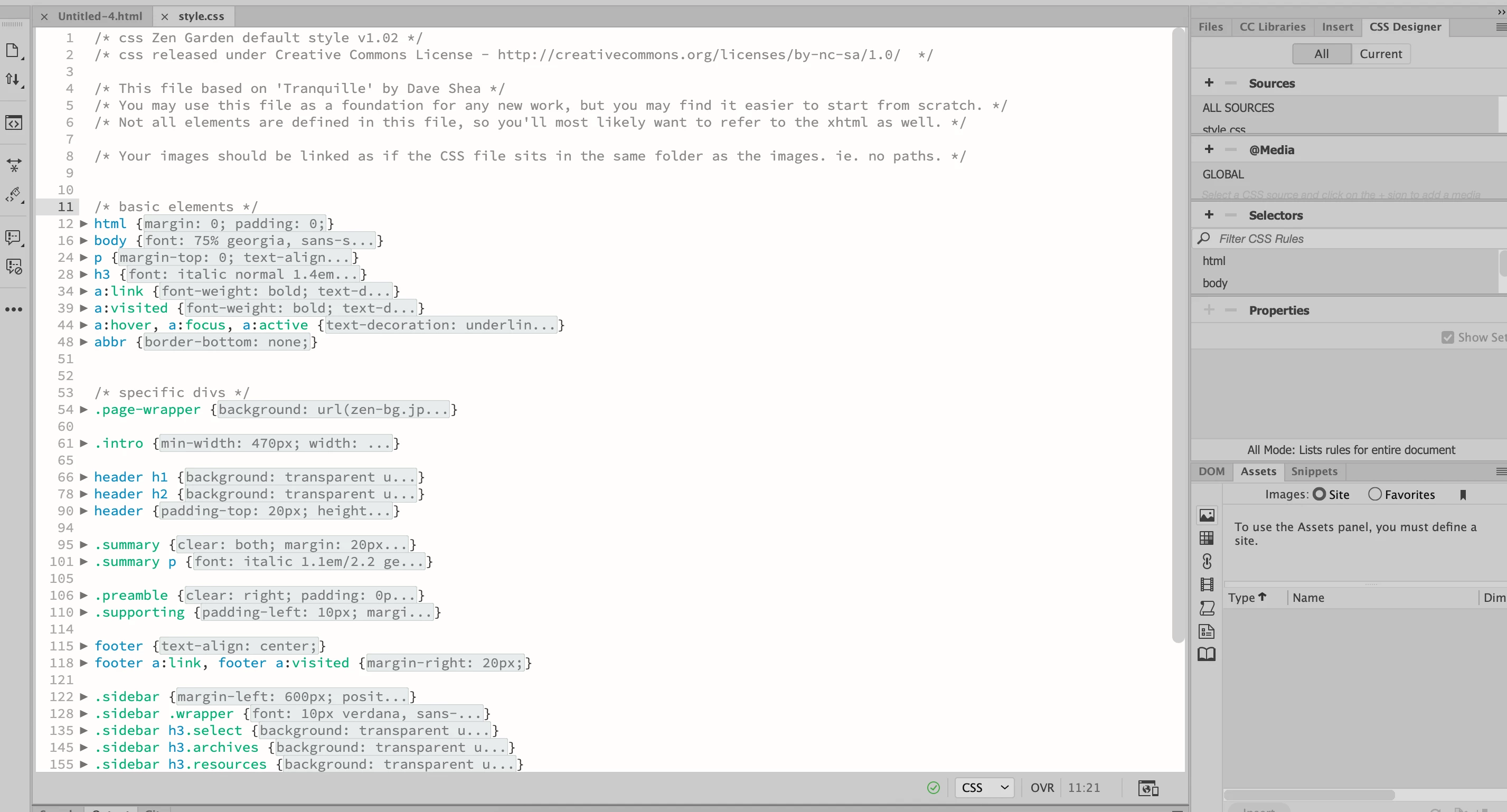
I can't do a split screen on a dreamweaver CSS file? ( I have never worked with dreamweaver before)

  • January 24, 2024
  • 4 replies
  • 431 views

Hello everyone !

This is my first time ever working wiht dreamweaver and saying i am lost would be such an understatement...

I am trying to edit this css file while trying to see the changes that i am making live, how do i do so?

and then, how to i export it as CSS and HTML?

Thanks !
    This topic has been closed for replies.

    4 replies

    Jon Fritz
    Community Expert
    Community Expert
    January 24, 2024

    Before you go any further, you first need to create a Site Definition,  so DW knows how to handle your site's assets. 

    It'll be the first step every time you create a new site with DW: https://creativecloud.adobe.com/cc/learn/dreamweaver/web/define-a-dreamweaver-site 

    Without that step done, you will run into all kinds of "this isn't working right" style issues.

    Nancy OShea
    Community Expert
    Community Expert
    January 24, 2024

    JavaScript, CSS, XML, etc... are editable only in Code View. 

    HTML files can be opened in Split View as shown below.


    For best results, work with valid code as denoted by the green checkmark in a circle below the document panel.

    A red X indicates the code contains errors.  Window > Results > Validation.


    CODE TUTORIALS:

    - https://www.w3schools.com/html/
    - https://www.w3schools.com/css/
    - https://www.w3schools.com/js/

    - https://www.w3schools.com/bootstrap/


    Hope that helps.


    Nancy O'Shea— Product User & Community Expert
    Participant
    January 24, 2024

    thanks ! but how do i even connect my css file to the html one?


    Jon Fritz
    Community Expert
    Community Expert
    January 24, 2024

    1. Open an html file that has your CSS file attached to it
    2. Go to Window > Toolbars > verify Document has a check by it
    3. In the Document toolbar, verify you have Split highlighted. This will show your code next to either the Design View or Live View of your page
    4. Click the small triangle in the Document Toolbar to select Live if it's not
    5. Now you should see your code, next to a Live View of your current html page
    6. To work on the CSS attached to the page, click the .css file name in the top of the document window, just under the named file tab. When you make a change there, it will instantly update in the Live View. ...


    7. When you're satisfied with the CSS, you can hit Ctrl + S to save it, then click Source Code in the top of the document window to go back to working on the html page itself.


    Participant
    January 24, 2024

    thanks ! but how do i even connect my css file to the html one?

    Nancy OShea
    Community Expert
    Community Expert
    January 24, 2024
    quote

    how do i even connect my css file to the html one?

    By @Rebecca350113063c94

    ==========

    With HTML file open, insert mouse cursor inside the <head> of your document.

    Go to Tools > CSS > Attach Style Sheet. 

    Select a CSS file from your local site folder & hit OK.

    Save document (Ctrl + S).


    This is the result:


    Nancy O'Shea— Product User & Community Expert