


anjuman_grewal
Participant
July 3, 2017
Answered

Links within Area Tag Not Working

  • July 3, 2017
  • 2 replies
  • 1280 views

The code that I am using to create a rectangular image map within an area tag is not working when it comes to integrating hyperlinks. What's weird is that when I use this on a blank HTML doc is works.

<!DOCTYPE html>

<html>

<head>

  <title>Home</title>

  <meta charset="UTF-8">

  <meta name="viewport" content="width=device-width, initial-scale=1.0">

  <link href="https://fonts.googleapis.com/css?family=Montserrat" rel="stylesheet">

  <link rel="stylesheet" type="text/css" href="grewal.css">

</head>

<body>

<div id="content">

<div class="banner">

  <img src="images/banner.png" alt="Anjuman Grewal Portfolio Website" width="100%" height="auto">

</div>

  <nav>

  <ul id="links">

  <li><a href="contact.html">Contact</a></li>

  <li><a href="skills.html">Skills</a></li>

  <li class="dropdown"><a href="javascript:void(0)" class="dropbtn">Portfolio</a><div class="dropdown-content">

      <a href="visualarts.html">Visual Arts</a>

  <a href="graphicdesign.html">Graphic Design</a></div></li>

  <li><a href="about.html">About</a></li>

    <li><a href="index.html">Home</a></li>

  </ul>

  </nav>

</div>

  <img src="images/index_image.png" alt="Home Image" usemap="#index_image.png">

       <map name="index_image.png">

       <area shape="rect" coords="620,372,972,454" alt="Visual Arts" href="visualarts.html">

       <area shape="rect" coords="984,318,1334,402" alt="Pinterest" href="graphicdesign.html">

  </map>

</body>

<footer>Copyright &copy; 2016 - All Rights Reserved</footer>

</html>
This topic has been closed for replies.
Correct answer Niharika Jha

Hi,

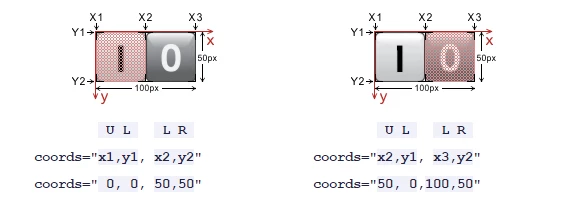
In my opinion, everything look fine apart from the co-ordinates. Can you refer the example below and reset your co-ordinates accordingly?

Regards,

Niharika Gupta

Adobe Dreamweaver

2 replies

Niharika Jha
Adobe Employee
Niharika JhaCorrect answer
Adobe Employee
July 3, 2017

Hi,

In my opinion, everything look fine apart from the co-ordinates. Can you refer the example below and reset your co-ordinates accordingly?

Regards,

Niharika Gupta

Adobe Dreamweaver

Legend
July 3, 2017

What's weird is that when I use this on a blank HTML doc is works.

So maybe it has something to do with what is in your css file?

Have you tried commenting that out <!--     -->  to see if the image 'hotspots' then work?

<!-- <link rel="stylesheet" type="text/css" href="grewal.css">  -->

anjuman_grewal
Participant
July 3, 2017

CSS looks like this:

content {

  margin: auto;

}

.banner {

    width: 100%;

    height: auto;

  margin:fixed;

}

body{

  background-image:url(images/texture.jpg)

}

html, body {

  font-family: 'Montserrat';

  height: 100%;

}

#links {

    list-style-type: none;

    margin: 0;

  margin-top: -2px;

    padding: 0;

    overflow: hidden;

    background-color: #252526;

  padding-right: 65px;

}

li {

    float: right;

  color: #FFF;

}

li a, .dropbtn {

    display: inline-block;

    color: white;

    text-align: center;

    padding: 16px 16px;

    text-decoration: none;

}

li a:hover, .dropdown:hover .dropbtn {

    background-color: #3B88AD;

}

li.dropdown {

    display: inline-block;

}

.dropdown-content {

    display: none;

    position: absolute;

    background-color: #e3e3e3;

    min-width: 160px;

    box-shadow: 0px 8px 16px 0px rgba(0,0,0,0.2);

    z-index: 1;

}

.dropdown-content a {

    color: #252526;

    padding: 12px 16px;

    text-decoration: none;

    display: block;

    text-align: left;

}

.dropdown-content a:hover {

  background-color: #f1f1f1}

.dropdown:hover .dropdown-content {

    display: block;

}

footer {

  text-align: center;

  font-size: 80%;

  font-style: regular;

  color: #252526;

  padding: 2.5%;

  background-color: #f1f1f1;

  position:relative;

  width: auot;

  display: block;

  overflow: hidden;

  clear:both;

}

.floating-box {

    float: left;

    width: 205px;

    height: 120px;

    margin: 20px;

  margin-bottom: 2em;

    border: 1px solid #3B88AD;

    padding-left:20px;

    padding-bottom: 167px;

    padding-right: 20px;

    background-color: #f2f2f2;

    font-family: open sans;

    font-size: 15px;

  color: black;

}

h1{

  padding-left: 20px;

    padding-top: 15px;

    font-family: open sans;

    text-shadow: 3px 1px #cccccc;

}

p {

  padding-left: 20px;

    font-family: open sans;

}

#skills{

  color: black;

  clear:both;

  float:left;

}

#googlemap{

  float:left;

  padding-left: 20px;

  padding-bottom: 70px;

  position:relative;

  display: block;

}

#information{

  width:40%;

  float:left;

  position: relative;

  display: block;

  padding-left: 40px;

  line-height: 30px;

  padding: 60px;

}

#hyperlink{

  color:#3B88AD;

  text-decoration: none;

  clear:both;

}

img {

  width: 100%;

    height: auto;

  width: fixed;

}

Legend
July 3, 2017

The 'hotspots' on the image work if I test your page, including the css.