BlaBlaBla444
Participant
July 21, 2018
Answered

Live preview browser problem

  • July 21, 2018
  • 3 replies
  • 782 views

So i'm writing my code, i'm trying to make my first page. I did a div header with my logo in it, a div nav and div article, in this order.

The thing is, when I see the code and design in dreamweaver, I can see everything looking how it is suppose to look. It seems fine, until I try to see a live preview in a browser. What is suppose to appear first appears third and what is third.. does not appear actually but whatever. I'm new to making websites.

How it is in dreamweaver: div logo, nav and article

How it is in Edge, Opera or another browser: article (which does not appear lol), nav and logo.

I tried to figure it out.. I just don't understand, my code is written correctly. The browser seems to don't respect the chronology of what I've wrote.

I also have some strange yellow bars around my different sections and I want them to disappear. Do you know how?

Thanks in advance to the persons who will answer

This topic has been closed for replies.
Correct answer Nancy OShea

@charset "utf-8";
/* CSS Document */


body {
margin: 0;
padding: 0;
display: block;
background-color: darkgrey;


}


.logo{
width: 100%;
background-color: midnightblue;
position: fixed;
height: auto;
text-align: center;

}

.nav {
float: left;
position: fixed;
width: 100%;
height: auto;
background-color: black;
 
}

.nav a{

display: inline;
text-decoration: none;
color: antiquewhite;
 
}

.article{

width: 70%;
height: auto;
align-content: center;
background-color: antiquewhite;
margin: 20px;
}


Let's say, this is what you're tyring to do.
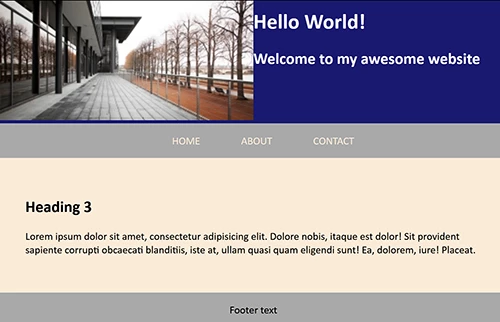
The entire code would look like this.  I'm using embedded CSS here for expediency.

<!doctype html>

<html lang="en">

<head>

<meta charset="utf-8">

<title>Document Title</title>

<meta name="viewport" content="width=device-width, initial-scale=1">

<meta http-equiv="X-UA-Compatible" content="IE=edge">

<style>

body {

    margin: 0;

    padding: 0;

    background: darkgrey;

}

header {

    background: midnightblue;

    color: white;

}

header img { width: 100%; }

.flex-grid { display: flex; }

.col { flex: 1; }

nav {

    text-align: center;

    width: 80%;

    margin: 0 auto;

}

nav ul { list-style: none; }

nav ul li { display: inline; }

nav ul li a {

    text-decoration: none;

    padding: 5%;

    color: antiquewhite;

}

nav ul li a:hover, nav ul li a:active, nav ul lia:focus {

    color: midnightblue;

    text-decoration: underline

}

article {

    background: antiquewhite;

    padding: 5%;

}

footer { text-align: center }

</style>

</head>

<body>

<header class="flex-grid">

<div class="col"><img src="https://placeimg.com/300/150" alt="my logo"></div>

<div class="col">

<h1>Hello World!</h1>

<h2>Welcome to my awesome website</h2>

</div>

</header>

<nav>

<ul class="nav">

<li><a href="#">HOME</a></li>

<li><a href="#">ABOUT</a></li>

<li><a href="#">CONTACT</a></li>

</ul>

</nav>

<article>

<h2>Heading 3</h2>

<p>Lorem ipsum dolor sit amet, consectetur adipisicing elit. Dolore nobis, itaque est dolor! Sit provident sapiente corrupti obcaecati blanditiis, iste at, ullam quasi quam eligendi sunt! Ea, dolorem, iure! Placeat.</p>

</article>

<footer>

<p>Footer text</p>

<small>XYZ Company © 2018</small> </footer>

</body>

</html>

3 replies

Nancy OShea
Community Expert
Community Expert
July 21, 2018

Did you define a local site folder for your project yet?  This is a critical 1st step.

Go to Site > New Site > and create a folder on your hard drive.  Example, C:\myTestSite.

Next, go to File > New > Starter Templates.  Select one and hit the CREATE button.  See screenshots.

Immediately save your newly created web page to your local site folder.   Name it index.html.  You should see it in your Files Panel (F8). 

Right click on the document's tab and select Open in Browser. 

Post back if you have any questions.

Nancy O'Shea— Product User & Community Expert
hans-g.
Legend
July 21, 2018

... and if you can see these "file:///" links. They point to images or something similar on your hard drive, what means they will appear in a DW preview but will NOT show when the files are uploaded.

hans-g.
Legend
July 21, 2018

Hello,

please load up your website in question and send us a link to it, so we can better analyze.

Hans-Günter

BlaBlaBla444
Participant
July 21, 2018

<!doctype html>
<html>
<head>
<meta charset="utf-8" name="viewport" content="width=device-width, initial-scale=1.0">
<title>****************************</title>
<link href="../******.css" rel="stylesheet" type="text/css"/>
</head>

<body>
<div class="logo">
  
  <img src="../***/***.png" width="27%" height="auto" alt="Logo">
 
</div>
<div class="nav">

<a href="******.html"> Home</a>
 
</div>

<div class="article">
 
  <h1> *********</h1>
  <p> *******</p>
 
</div>

</body>
</html>

As you can see, there's a css stylesheet attached to it. I don't think it's really necessary to show it. I've tried margin, padding, float.. many things to make the display look correct in the browser. The websites is currently saved on a folder on my harddrive, I've done that right in the start. My logo appears in the browser, it is really how they appear. They are like in a reverse order, not in the order of the code. It's weird.

Nancy OShea
Community Expert
Community Expert
July 21, 2018

Let's see your CSS code.

Nancy O'Shea— Product User & Community Expert
