Participant
October 8, 2019
Answered

Make Bootstrap not Writable again

  • October 8, 2019
  • 2 replies
  • 488 views

I mistakenly made bootstrap-4.3.1.css writable and I don't seem to find the way to lock it again. Any suggestions? I prefer for bootstrap to be not writable as I don't trust muself not to mess with it...

    This topic has been closed for replies.
    Correct answer BenPleysier

    You have not stated your OS, I will therefore assume that it is Windows.

    1. Open Windows Explorer and surf to the folder of your site

    2. Right click the Bootstrap file and choose properties
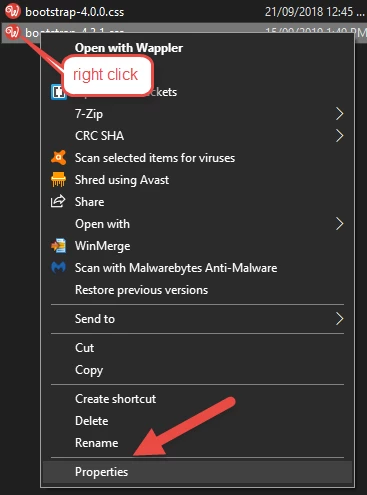
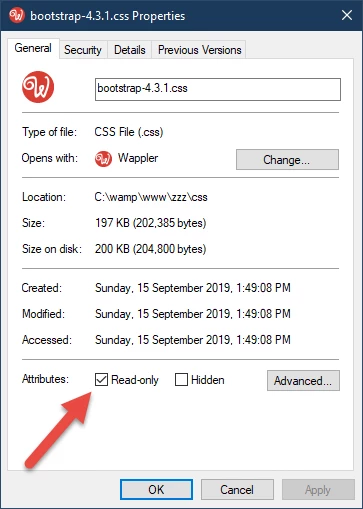
    3. In the Properties window, tick the Read Only box
     

    2 replies

    BenPleysier
    Community Expert
    BenPleysierCommunity ExpertCorrect answer
    Community Expert
    October 8, 2019

    You have not stated your OS, I will therefore assume that it is Windows.

    1. Open Windows Explorer and surf to the folder of your site

    2. Right click the Bootstrap file and choose properties

    3. In the Properties window, tick the Read Only box


    Wappler is the DMXzone-made Dreamweaver replacement and includes the best of their powerful extensions, as well as much more!
    plinceAuthor
    Participant
    October 8, 2019
    Thank you for your reply. I am working on mac OSX 10.13 and Dreamweaver CC 2019
    Nancy OShea
    Community Expert
    Community Expert
    October 8, 2019

    Replace local scripts with read only scripts on a Content Distribution Network (CDN) like Stackpath.   https://www.bootstrapcdn.com/


    In other words, replace this code:

    <link href="css/bootstrap-4.3.1.css" rel="stylesheet">


    with this code:

    <link href="https://stackpath.bootstrapcdn.com/bootstrap/4.3.1/css/bootstrap.min.css" rel="stylesheet" integrity="sha384-ggOyR0iXCbMQv3Xipma34MD+dH/1fQ784/j6cY/iJTQUOhcWr7x9JvoRxT2MZw1T" crossorigin="anonymous">


    Nancy O'Shea— Product User & Community Expert
    plinceAuthor
    Participant
    October 8, 2019
    Thank you. I'll try that.