
Participating Frequently
April 1, 2020
Answered

max-width blury

  • April 1, 2020
  • 3 replies
  • 1334 views

I've just recently changed my entire 490,000+ page site to a responsive web design. In Dreamweaver, I use a vertical split, code-design view. On the design side, the images are now blurry. Here is an example:
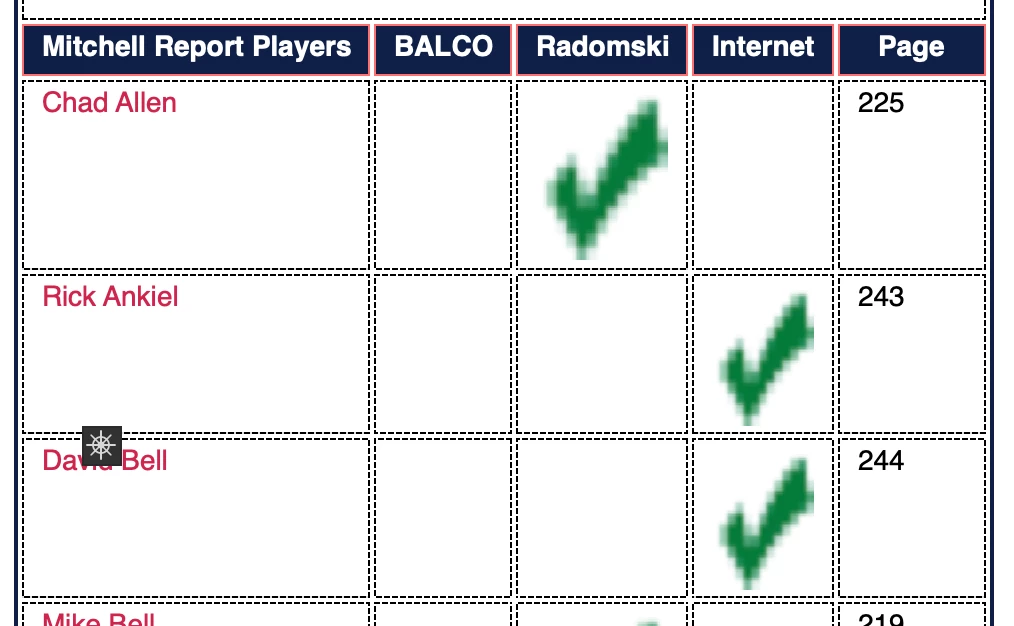


The code I'm using for the img:


<img src="/checkmark.gif" style="max-width: 13px; margin: 0 auto; display: inline-block; vertical-align: middle" alt="Baseball Almanac Checkmark" />


The actual size of the image is 13x13, but as you can see it is displaying in the design view blurry.


Any ideas why / how to fix? If I remove the max-width line completely, same thing, blurry image.


Sean
    This topic has been closed for replies.
    Correct answer Nancy OShea

    Did what you suggested:


    Go to View > Design View Options > Style Rendering > disable Display Styles


    Checkmark displays perfectly fine. So it is in the style sheet. The code for that are:


    <td class="datacolBox"><img src="/checkmark.gif" style="max-width: 13px; margin: 0 auto; display: inline-block; vertical-align: middle" alt="Baseball Almanac Checkmark" /></td>


    And in my style sheet I have:


    .datacolBox { vertical-align: middle; padding: 4px; font-size: smaller; border-color: black; border-style: solid; border-width: 1px; }


    Any ideas?


    Sean


    PS: The site was built back in 1999. Updated every day since. Lots of evolution there by a guy with twenty years plugging away with various tools. So it does have lots of errors. I'll be fixing some of those errors soon, just takes time, I've got a half million pages...


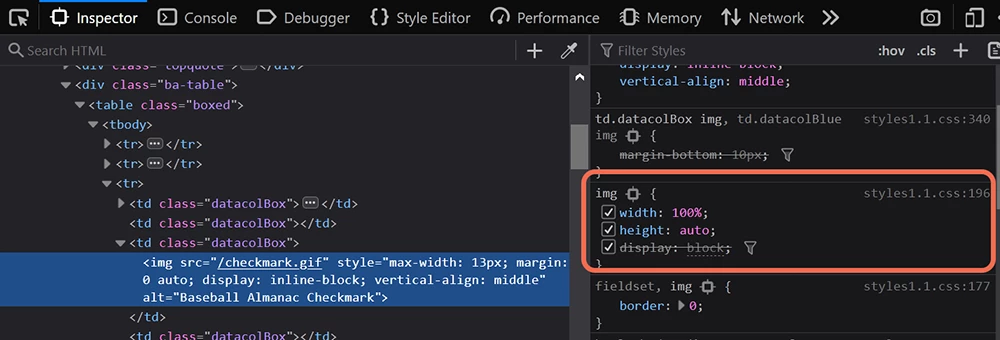
    You have conflicting styles in your stylesheet which is at the source of your problem. See screenshot from Firefox Inspect Element (F12).


    Width: 100% is grossly distorting low res images.  Change width to max-width or remove that style entirely.


    3 replies

    Nancy OShea
    Community Expert
    Community Expert
    April 1, 2020

    Font Awesome icons instead of raster images. No pixelation at any size.


    <!doctype html>
    <html lang="en">
    <head>
    <meta charset="utf-8">
    <title>Font Awesome Demo</title>
    <meta http-equiv="X-UA-Compatible" content="IE=edge">
    <meta name="viewport" content="width=device-width, initial-scale=1">
    <!--Font Awesome-->
    <link href="https://maxcdn.bootstrapcdn.com/font-awesome/4.6.3/css/font-awesome.min.css" rel="stylesheet">
    <style>
    i {color:green}
    </style>
    </head>
    
    <body>
    <h3>These are Font Awesome Icons.</h3><p>No pixelation at any size</p>
    <p><i class="fa fa-5x fa-check"></i></p>
    <p><i class="fa fa-4x fa-check"></i></p>
    <p><i class="fa fa-3x fa-check"></i></p>
    <p><i class="fa fa-2x fa-check"></i></p>
    <p><i class="fa fa-sm fa-check"></i></p>
    <p><a href="https://fontawesome.com/v4.7.0/cheatsheet/">Font Awesome Cheat Sheet</a></p>
    </body>
    </html>


    Nancy O'Shea— Product User & Community Expert
    Participating Frequently
    April 10, 2020

    Those are really cool Nancy, but it isn't just checkmarks, its almost ALL the images on ALL the pages inside of Dreamweaver that I use. The checkmark one was just a sample. The baseball at the bottom of every single page (490,000 of them) even displays stretched out oddly inside of DW, but the typewriter on the top of every single page, displays perfectly...

    Nancy OShea
    Community Expert
    Community Expert
    April 10, 2020

    A very low resolution GIF will look blurry when your display magnification is greater than 100%.  In contrast, the higher resolution PNG maintains a decent appearance because it contains more pixels to begin with. 


    Revert your display settings to normal magnification level. 

    In DW, go to View > Design View Options > Magnification > 100% [Ctrl + 0 (zero)].


    Nancy O'Shea— Product User & Community Expert
    Nancy OShea
    Community Expert
    Community Expert
    April 1, 2020

    I think you should use Font Awesome icons instead of that GIF.  The quality will be much better on all devices.


    <!doctype html>
    <html lang="en">
    <head>
    <meta charset="utf-8">
    <title>Font Awesome Demo</title>
    <meta http-equiv="X-UA-Compatible" content="IE=edge">
    <meta name="viewport" content="width=device-width, initial-scale=1">
    <!--Font Awesome-->
    <link href="https://maxcdn.bootstrapcdn.com/font-awesome/4.6.3/css/font-awesome.min.css" rel="stylesheet">
    <style>
    i {color:green}
    </style>
    </head>
    <body>
    <h3>This is a Font Awesome Checkmark</h3>
    <p>No pixelation at any size</p>
    <p><i class="fa fa-5x fa-check"></i></p>
    <p><i class="fa fa-4x fa-check"></i></p>
    <p><i class="fa fa-3x fa-check"></i></p>
    <p><i class="fa fa-2x fa-check"></i></p>
    <p><i class="fa fa-sm fa-check"></i></p>
    <p><a href="https://fontawesome.com/v4.7.0/cheatsheet/">Font Awesome Cheat Sheet</a></p>
    </body>
    </html>


    Nancy O'Shea— Product User & Community Expert
    Jon Fritz
    Community Expert
    Community Expert
    April 1, 2020

    Something else in your code is allowing your images to be displayed much larger than 13x13 pixels, causing major pixelization.

    Could you share a link to your page online so we could take a look?

    Participating Frequently
    April 1, 2020

    That particular page, that I was using as an example, is here:


    Mitchell Report


    Sean

    Jon Fritz
    Community Expert
    Community Expert
    April 1, 2020

    I'm seeing the correct size in the browsers, but your page does have a fair number of errors that should be cleaned up to ensure all browsers see it as intended. Run your pages through the validators at...

    HTML: https://validator.w3.org/nu/

    CSS: https://jigsaw.w3.org/css-validator/

    ...and repair the listed problems. That will at least make sure you have the most consistent experience possible for your viewers. As for DW's Design View, sometimes it just won't display correctly, especially when you use old html attributes and css to control the layout and styles of a page.