Inspiring
April 6, 2026
Answered

media query

  • April 6, 2026
  • 1 reply
  • 55 views

Hello:


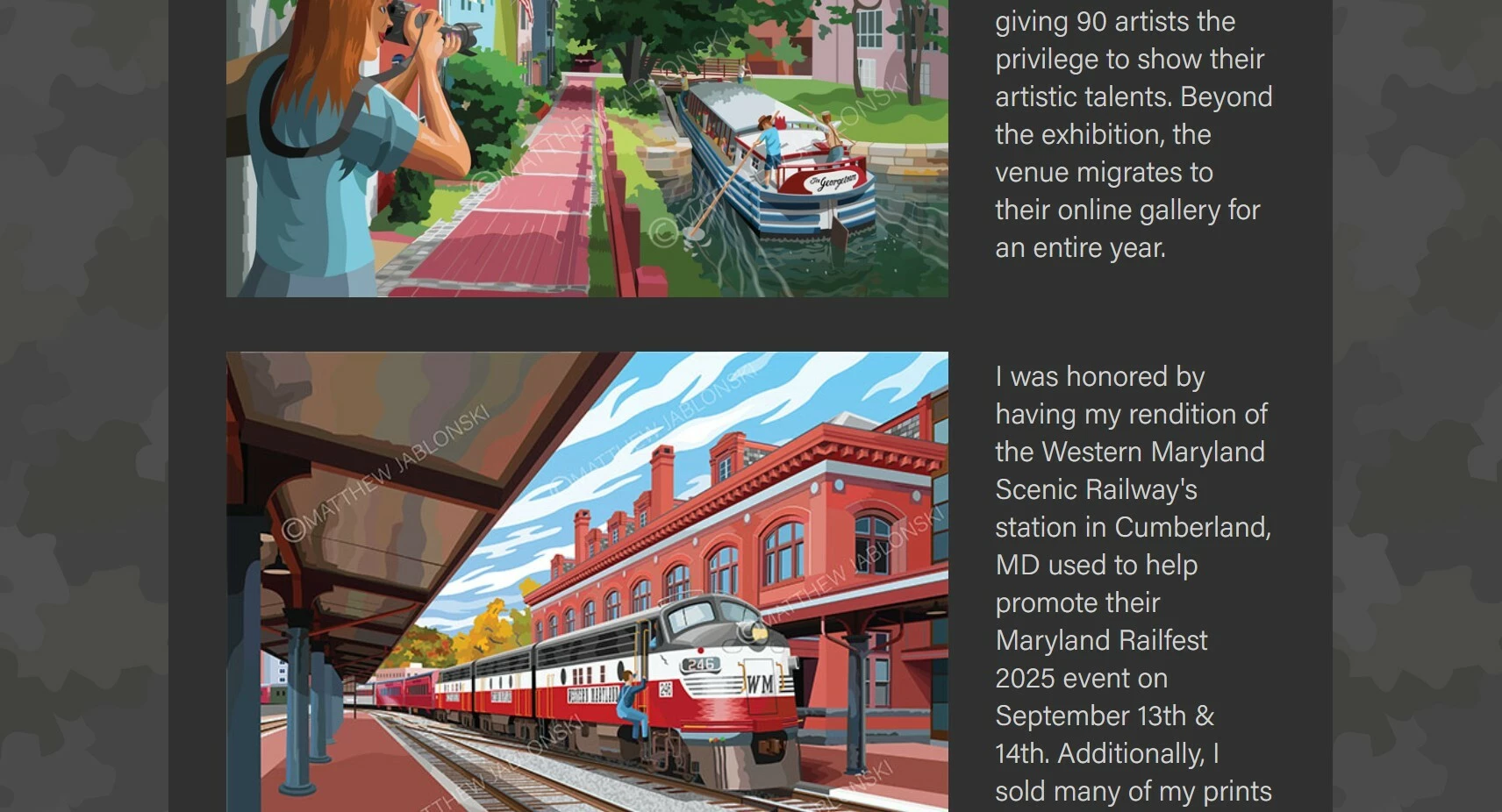
My main reason for having the artworks on the left and the text on the right is that I wanted them to collapse, having the text below the images. It works great. However, is there a media query I can apply to have it alternate (image - text to text - image and vice versa) with the same effect? 


matthewjablonski.com


Matthew 


    Correct answer L e n a

    HI ​@Trains1985 

    I’m not entirely sure I fully understood your question, but it sounds like a fairly common pattern 🙂

    The general idea is to keep a simple two-column layout (image + text) on larger screens, and then let everything stack naturally into a single column on smaller screens.

    To alternate image and text, you don’t need to change the HTML structure each time. You can simply reverse the direction on every other row using CSS (for example with :nth-child and row-reverse).

    The only small tricky part usually comes from that row-reverse, because it can interfere with your mobile layout if you don’t override it properly in your media query.

    Once that is handled, the rest tends to fall into place quite naturally. 

    If it helps, you can have a quick look at this code example, it follows the same kind of layout: https://demo.puce-et-media.com/Trains1985/


    1 reply

    L e n aCommunity ExpertCorrect answer
    Community Expert
    April 6, 2026

    HI ​@Trains1985 

    I’m not entirely sure I fully understood your question, but it sounds like a fairly common pattern 🙂

    The general idea is to keep a simple two-column layout (image + text) on larger screens, and then let everything stack naturally into a single column on smaller screens.

    To alternate image and text, you don’t need to change the HTML structure each time. You can simply reverse the direction on every other row using CSS (for example with :nth-child and row-reverse).

    The only small tricky part usually comes from that row-reverse, because it can interfere with your mobile layout if you don’t override it properly in your media query.

    Once that is handled, the rest tends to fall into place quite naturally. 

    If it helps, you can have a quick look at this code example, it follows the same kind of layout: https://demo.puce-et-media.com/Trains1985/

    Inspiring
    April 6, 2026

    Exactly! I thought I needed to modify the html - lol. If you can elaborate on this, I would be so grateful.

    Matthew

    Nancy OShea
    Community Expert
    Community Expert
    April 6, 2026

    See CSS Order Property.

    https://www.w3schools.com/cssref/css3_pr_order.php


    CODE:

    <!DOCTYPE html>
    <html>
    <head>
    <style>
    #main {
    width: 400px;
    height: 150px;
    border: 1px solid #c3c3c3;
    display: flex;
    }

    #main div {
    width: 70px;
    height: 70px;
    }

    div#myRedDIV {order: 2;}
    div#myBlueDIV {order: 4;}
    div#myGreenDIV {order: 3;}
    div#myPinkDIV {order: 1;}
    </style>
    </head>
    <body>

    <h1>The order Property</h1>

    <div id="main">
    <div style="background-color:coral;" id="myRedDIV">1</div>
    <div style="background-color:lightblue;" id="myBlueDIV">2</div>
    <div style="background-color:lightgreen;" id="myGreenDIV">3</div>
    <div style="background-color:pink;" id="myPinkDIV">4</div>
    </div>

    </body>
    </html>


    RESULT:

    For Bootstrap users, use Bootstrap’s built-in .order-class. Valid class values .order-[0-5].

    <!DOCTYPE html>
    <html lang="en">
    <head>
    <title>Bootstrap Example</title>
    <meta charset="utf-8">
    <meta name="viewport" content="width=device-width, initial-scale=1">
    <link href="https://cdn.jsdelivr.net/npm/bootstrap@5.3.8/dist/css/bootstrap.min.css" rel="stylesheet">
    <script src="https://cdn.jsdelivr.net/npm/bootstrap@5.3.8/dist/js/bootstrap.bundle.min.js"></script>
    </head>
    <body>

    <div class="container mt-3">
    <h2>Order</h2>
    <p>Change the visual order of a specific flex item(s) with the .order classes. Valid classes are from 0 to 5:</p>
    <div class="d-flex mb-3">
    <div class="p-2 order-3 bg-info">Flex item 1</div>
    <div class="p-2 order-2 bg-warning">Flex item 2</div>
    <div class="p-2 order-1 bg-primary">Flex item 3</div>
    </div>
    </div>

    </body>
    </html>


    Hope that helps.


    Nancy O'Shea— Product User & Community Expert