
December 30, 2010
Answered

Need Help with 404 error

  • December 30, 2010
  • 1 reply
  • 19477 views

Hello,

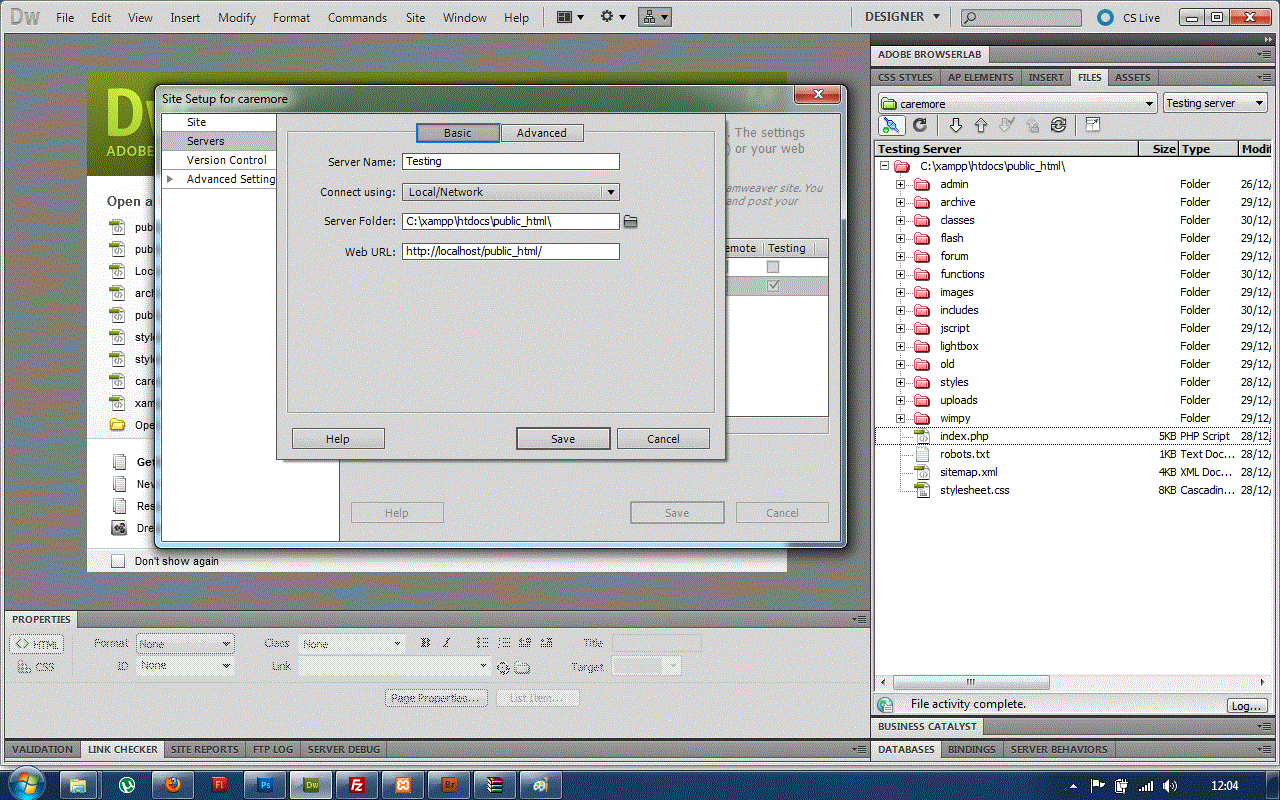
I have completed the local folder, tesing server, and remote server setup correctly  (i think so).

My testing setup and files shown below:
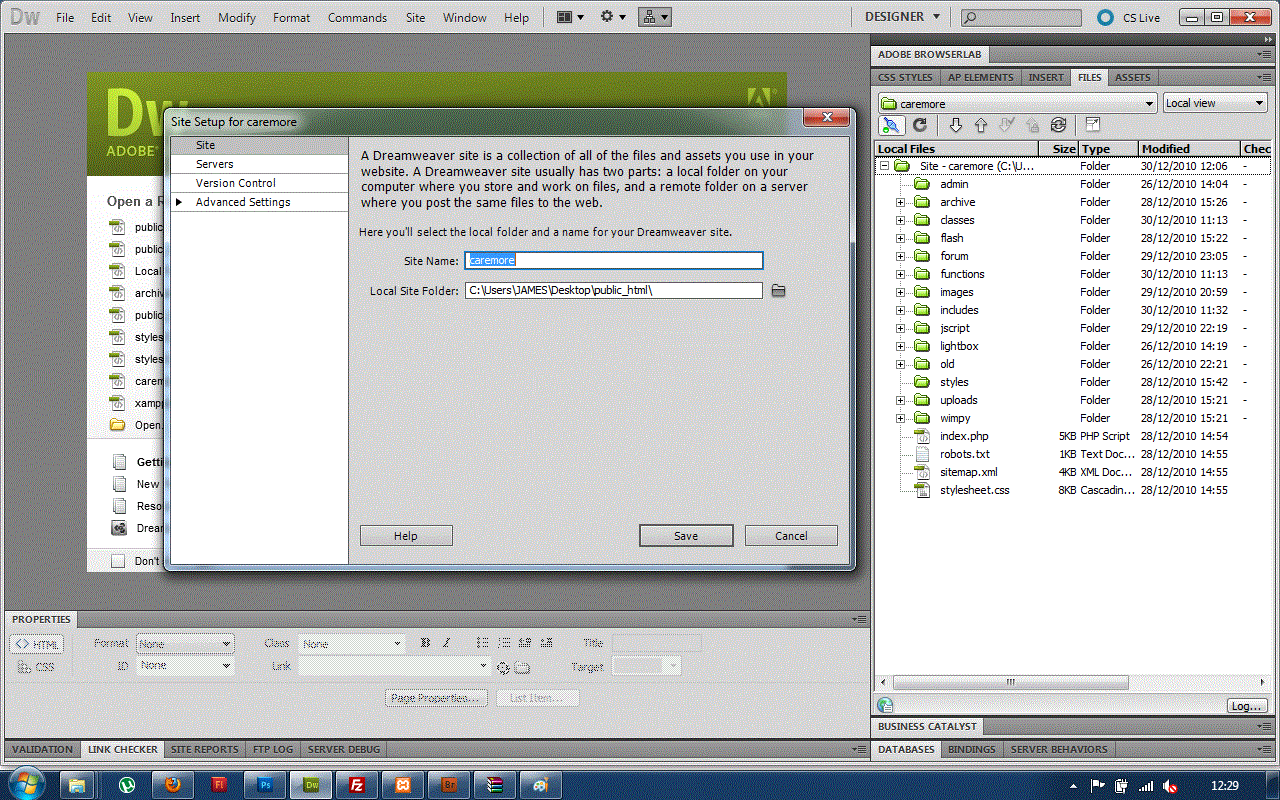
My local folder for site shown below:
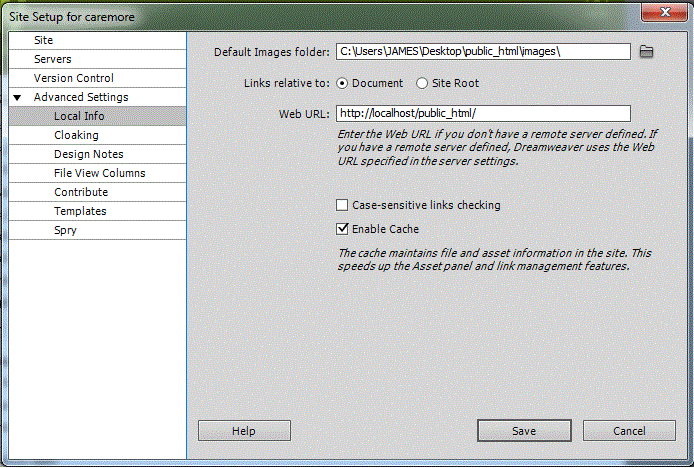
My advanced settings shown below:
I have downloaded all the files to the local folder from my remote server which are working fine on the live website http://www.caremoreconstruction.co.uk.

No layouts of the files/folders etc have been changed, I simply moved them over from the FTP server in to local folder I had created.

Just to confirm I have XAMPP installed and Apache runnining.

When I open DW CS5 and select the index.php file form the FILES tab, the main home page opens up and I little bar comes up at the top and says "This page has server proccesing directives that design view cannot display. Switch to Live View".

So I click on Live View and the home page loads up. I then press ctrl and click one of the links. (See picture below)
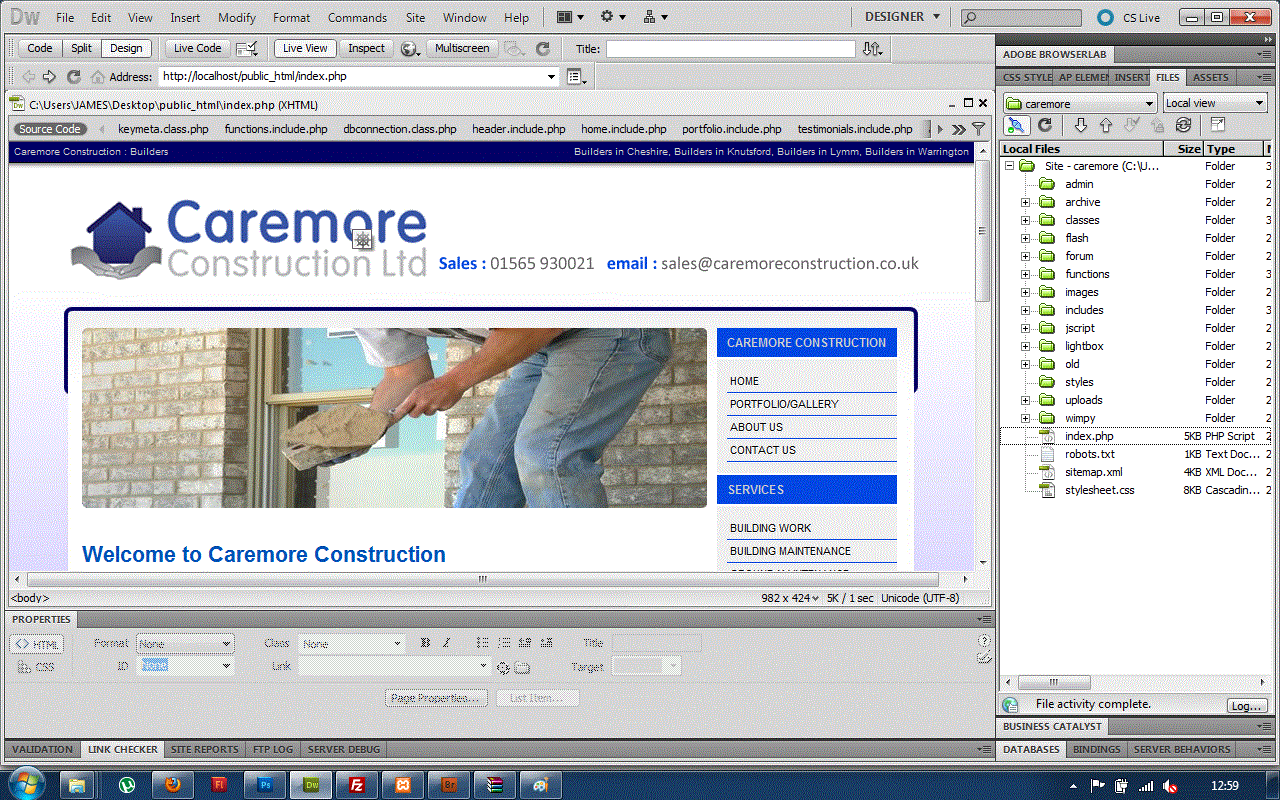
For some reason I am getting the following error message when I click on my links.

   ______________________________________________________________________________________________________________________

Object not found!

The requested URL was not found on this server. The link on the referring page seems to be wrong or outdated. Please inform the author of that page about the error.

If you think this is a server error, please contact thewebmaster.

Error 404

localhost
12/30/10 11:58:51
Apache/2.2.14 (Win32) DAV/2 mod_ssl/2.2.14 OpenSSL/0.9.8l mod_autoindex_color PHP/5.3.1 mod_apreq2-20090110/2.7.1 mod_perl/2.0.4 Perl/v5.10.1

___________________________________________________________________________________________________

Please can someone help me!!

Regards

James


This topic has been closed for replies.
Correct answer David_Powers
What I recommend you do is to create a new virtual host in the vhosts folder.

  1. Create a folder called caremoreconstruction inside the vhosts folder.
  2. Add the following line to the hosts file:
    127.0.0.1    caremoreconstruction
  3. Add the following at the bottom of the httpd-vhosts.conf file:

<VirtualHost *:80>
  DocumentRoot "C:/vhosts/caremoreconstruction"
  ServerName caremoreconstruction
</VirtualHost>

After making those changes, restart Apache. You should then be able to access the local version of your site as http://caremoreconstruction/.

This is the way I have set up the local development environment for foundationphp.com. It makes it easy to switch between the local and remote versions by adding or removing the .com from the URL. In your case, you would add or remove the .co.uk.

I have done that but instead of using caremoreconstruction and have used public_html which seems to be working fine now, but yes you are correct it would be better to call it caremoreconstruction.

I am having a problem with URLS when tring to acces XAMPP

http://localhost/xampp (I get 404 error)

http://localhost/ (I get 403 error)

I can acces phpmyadmin with no trouble


http://localhost/phpmyadmin/

I have used the file you sent over and double checked that everything matches apart form the obvious (server name).


Mr Construction wrote:

I am having a problem with URLS when tring to acces XAMPP

http://localhost/xampp (I get 404 error)

http://localhost/ (I get 403 error)

It sounds as though you have screwed up the XAMPP installation when you moved it out.

Since you have only just set everything up, the simplest way of handling it is to reinstall. I assume you don't have any data stored in MySQL. If you have, and don't want to lose it, you'll need to export it first.

  1. Stop Apache and MySQL.
  2. Save httpd-conf and httpd-vhosts.conf to your Desktop.
  3. Delete C:\xampp, and everything inside it.
  4. Install a fresh version of XAMPP.
  5. Make sure that it's working.
  6. Replace httpd-conf and httpd-vhosts.conf with the versions you saved to your Desktop.
  7. Restart Apache.
  8. Enjoy.

1 reply

David_Powers
Inspiring
December 30, 2010

Since your home page is displayed fine in Live View, you have set up the local testing server correctly, albeit in a rather unconventional way. The reason your links don't work is almost certainly because you are using site-root-relative links in your pages (ones that begin with a forward slash). When testing locally, localhost is regarded as the site root. You have created your testing server in a subfolder of the server's document root (htdocs), so all site-root-relative links point to the wrong location.

There are several ways to remedy this:

  • Move the testing server folder to C:\xampp\htdocs, and use http://localhost/ as the Web URL.
  • Change the internal links in your site to document-relative.
  • Set up a virtual host for your testing server (see http://foundationphp.com/tutorials/apache22_vhosts.php).
December 30, 2010

I have moved the testing server to C:\xampp\htdocs

Please see my new settings below:

I am still having to same problem

I have set up a virtual host (i think it has been done correctly but it has still not worked) I have included pictures of what I have changed.

I dont know if what I have done is correct. I also dont know if the above is correct what to do next; ie do I have to move my local or testing files to the new virtual host local. C:\vhosts

David_Powers
Inspiring
December 30, 2010

The virtual host won't work because you have commented out the lines that define it.

In the hosts file, you have this:

#    127.0.0.1  localhost

#    127.0.0.1  phpdw

#    ::1        localhost

You need to remove the hash signs from the first two of those lines:

      127.0.0.1  localhost

      127.0.0.1  phpdw

#     ::1        localhost

Similarly, in httpd-vhosts.conf, you need to remove the hash signs from the definitions:

<Directory C:/vhosts>
  AllowOverride All
  Order Deny,Allow
  Allow from all
</Directory>

<VirtualHost *:80>
  DocumentRoot "C:/xampp/htdocs"
  ServerName localhost
</VirtualHost>
<VirtualHost *:80>
  DocumentRoot "C:/vhosts/phpdw"
  ServerName phpdw
</VirtualHost>

By the way, "phpdw" is simply an example name for a virtual host.

The normal way of working with a testing server is to store all the files in the testing server root folder. If you're using localhost, put them in C:\xampp\htdocs. If you're using a virtual host, put them in C:\vhosts\phpdw (or whatever you decide to call the virtual host).

I don't understand why the change to your testing server definition didn't work. Setting C:\xampp\htdocs as the Server Folder and http://localhost/ as the Web URL should have solved your problem. Is there something unusual about the link you clicked? What page is it trying to take you to?

Also test the site directly in a browser so you can see where the link is leading.