


Participant
September 24, 2024
Answered

No changes after putting files

  • September 24, 2024
  • 5 replies
  • 468 views

I just installed Dreamweaver to try it for 7 days. I used to use Dreamweaver 8 which suddenly didn't work. I succeeded in making connection, also in making changes. Putting files, also no problem, but when I go to the site, with different devices, I don't see the changes. How come?

    This topic has been closed for replies.
    Correct answer Nancy OShea

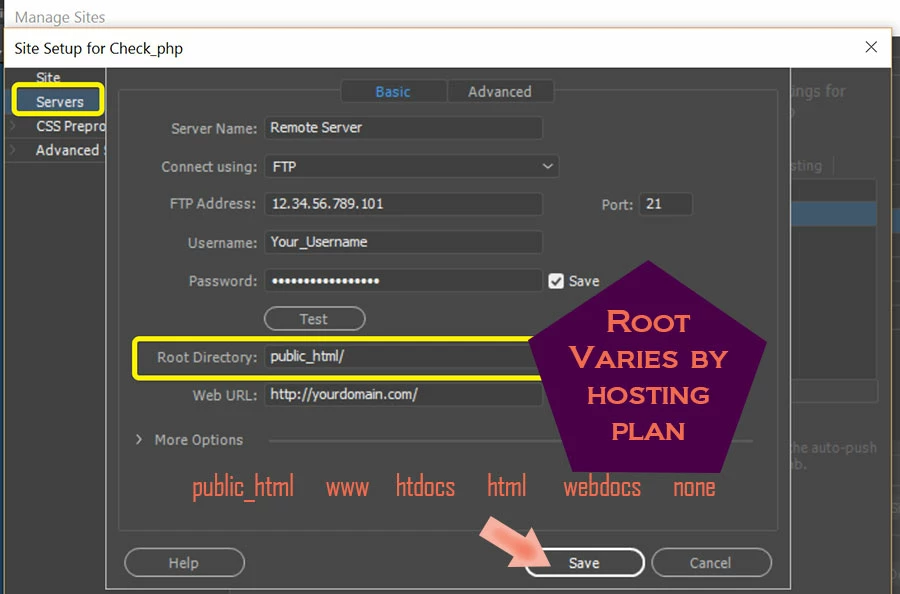
    The first thing to check is that you uploaded the correct file (example, index.html) to the correct root directory on your server.  This varies by hosting plan. If unsure, ask your hosting provider.


    Prior to migrating, it helps to have exported STE files that you can import into new Dreamweaver versions.  Failing that,  you can manually configure settings from the Manage Sites Panel.  See screenshot.


    Good luck.


    5 replies

    Participant
    September 26, 2024

    I (think I) got it solved. I created en uploaded in a wrong folder, I loooked at the site-settings and found the same folder under httpdocs, now I created again and put it... I now see it online! Thx for your suggestions!

    Nancy OShea
    Community Expert
    Community Expert
    September 26, 2024

    Glad you got it sorted. 😄


    Nancy O'Shea— Product User & Community Expert
    Participant
    September 24, 2024

    Thx all for suggesting! I'll try the options and will let you know 👍

    Nancy OShea
    Community Expert
    Nancy OSheaCommunity ExpertCorrect answer
    Community Expert
    September 24, 2024

    The first thing to check is that you uploaded the correct file (example, index.html) to the correct root directory on your server.  This varies by hosting plan. If unsure, ask your hosting provider.


    Prior to migrating, it helps to have exported STE files that you can import into new Dreamweaver versions.  Failing that,  you can manually configure settings from the Manage Sites Panel.  See screenshot.


    Good luck.


    Nancy O'Shea— Product User & Community Expert
    Jon Fritz
    Community Expert
    Community Expert
    September 24, 2024

    A couple other possibilities...

    1. Browser caching. Empty your browser cache and try again.

    2. Or, less likely, server caching. Have your host disable it if it's turned on.

    3. Case mismatch. Most Local operating systems are not case sensitive while most servers are. Going to yoursite.com/portfolio.html would be a different location from yoursite.com/Portfolio.html once it's online, but would point to the same place locally. Verify all your pages and links use the same case structure so you're not accidentally uploading to /Pages when it should be /pages

    Jon Fritz
    Community Expert
    Community Expert
    September 24, 2024

    Usually this happens when the Site Definition isn't quite set up correctly.

    It happens all the time, developers can easily, accidentally duplicate their server root directory (usually www, htdocs, or public_html) inside their local site. The Way DW works with FTP is by using the local root folder as a duplicate of the Server Root Folder. 

    Check your settings. It should only appear in the Root Directory field under Site > Manage Sites > click the site you're working on > Edit > Servers > click your remote server > Edit  ...that field should be the only place in your site that the directory name shows up.

    If you see your site root folder anywhere in your Files Window (under Window > Files or F8 if it's not open), it would mean you've accidentally duplicated it. Your site would still be uploading, but it would be found at yoursite.com/rootname instead. You'll need to pull the contents of your site out of that duplicate folder, verify you have your root set in the FTP settings, and re-upload.

    If that's not the issue, we're going to need a lot more info. There are a lot of ways uploading will appear to work, but fail.