


Deaf_Guy
Inspiring
January 17, 2018
Answered

Problem getting lightbox modals working with various thumbs and photos

  • January 17, 2018
  • 1 reply
  • 1183 views

I'm trying to get the modal lightbox work for different thumbs and different large photos.  It works great when you use the same photo for the thumb and the large photo but now they want a different thumb and a different photo.  Here is the code for the thumb:

<img id="myImg1" src="cain-thumb.jpg" width="165" height="200">

<img id="myImg2" src="lennon-thumb.jpg" width="165" height="200">

-----

Here is the modal content for each of the above:

!-- The Modal -->

<div id="myModal" class="modal">

  <span class="close">×</span>

  <img class="modal-content" id="img101" img src="cain-large.jpg">

</div>

<!-- The Modal -->

<div id="myModal" class="modal">

  <span class="close">×</span>

  <img class="modal-content" id="img102" img src="lennon-large.jpg">

</div>

-----

Here is the script.  I keep playing around with it thinking I've fixed it but cannot and I'm not sure which part of the code to tweak so that when the cain thumb is clicked the cain photo opens and then when the lennon thumb is clicked the lennon photo opens:

I also keep getting an error in DW about it must be unique; I tried that and that does not work as well:
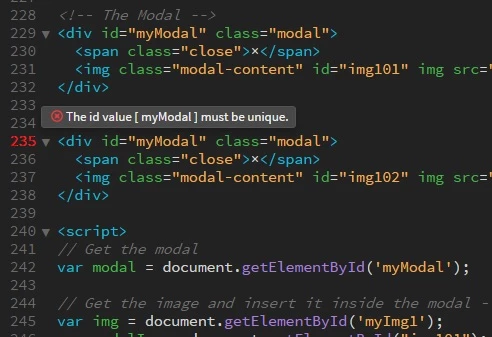
<script>

// Get the modal

var modal = document.getElementById('myModal');

// Get the image and insert it inside the modal - use its "alt" text as a caption

var img = document.getElementById('myImg1');

var modalImg = document.getElementById("img101");

var captionText = document.getElementById("caption");

img.onclick = function(){

    modal.style.display = "block";

    modalImg.src = this.src;

    captionText.innerHTML = this.alt;

}

// Get the image and insert it inside the modal - use its "alt" text as a caption

var img = document.getElementById('myImg2');

var modalImg = document.getElementById("img102");

var captionText = document.getElementById("caption");

img.onclick = function(){

    modal.style.display = "block";

    modalImg.src = this.src;

    captionText.innerHTML = this.alt;

}

/ Get the <span> element that closes the modal

var span = document.getElementsByClassName("close")[0];

// When the user clicks on <span> (x), close the modal

span.onclick = function() {

    modal.style.display = "none";

}

</script>

-----------------------

Any help is appreciated.  Thanks.

    This topic has been closed for replies.
    Correct answer Nancy OShea

    UPDATE - I now remember how I originally created the lightbox - with this code:

    Tryit Editor v3.5

    If someone could just help me tweak the above so that you click a thumb image a different image opens in the lightbox.  I don't want to reinvent the wheel with a completely different bootstrap thing.

    Based on the above I tried tweaking it like below but the thumb is still opening and not the "large" image:

    <img id="myImg" src="cain-thumb.jpg" width="165" height="200">

    <!-- The Modal -->

    <div id="myModal" class="modal">

      <span class="close">&times;</span>

      <img class="modal-content" id="img100" src="cain-large.jpg" width="800" height="572">

      <div id="caption"></div>

    </div>

    <script>

    // Get the modal

    var modal = document.getElementById('myModal');

    // Get the image and insert it inside the modal - use its "alt" text as a caption

    var img = document.getElementById('myImg');

    var modalImg = document.getElementById("img100");

    var captionText = document.getElementById("caption");

    img.onclick = function(){

        modal.style.display = "block";

        modalImg.src = this.src;

        captionText.innerHTML = this.alt;

    }


    If you don't want to use Bootstrap, get Fancybox 3.  It works great on mobile devices, too.

    Copy & paste this code into a new, blank document.

    <!doctype html>

    <html lang="en">

    <head>

    <meta charset="utf-8">

    <title>Fancybox 3 with jQuery</title>

    <!--Fancybox CSS-->

    <link rel="stylesheet" href="https://cdnjs.cloudflare.com/ajax/libs/fancybox/3.2.5/jquery.fancybox.min.css"/>

    </head>

    <body>

    <h1>Lightbox Viewer with <a href="https://fancyapps.com/fancybox/3/">Fancybox 3 </a>& latest jQuery</h1>

    <a data-fancybox="gallery" class="fancybox" data-slide="1" href="https://placeimg.com/800/600/arch/1.jpg"><img class="img-thumbnail" alt="..." src="https:/placeimg.com/200/150/arch/1.jpg"></a>

    <a data-fancybox="gallery" class="fancybox" data-slide="2" href="https://placeimg.com/800/600/arch/2.jpg"><img class="img-thumbnail" alt="..." src="https:/placeimg.com/200/150/arch/2.jpg"></a>

    <a data-fancybox="gallery" class="fancybox" data-slide="3" href="https://placeimg.com/800/600/arch/3.jpg"><img class="img-thumbnail" alt="..." src="https:/placeimg.com/200/150/arch/3.jpg"></a>

    <a data-fancybox="gallery" class="fancybox" data-slide="4" href="https://placeimg.com/800/600/arch/4.jpg"><img class="img-thumbnail" alt="..." src="https:/placeimg.com/200/150/arch/4.jpg"></a>

    <!--latest jQuery 3-->

    <script src="https://code.jquery.com/jquery-3.2.1.min.js" integrity="sha256-hwg4gsxgFZhOsEEamdOYGBf13FyQuiTwlAQgxVSNgt4=" crossorigin="anonymous"></script>

    <!--Fancybox 3-->

    <script src="https://cdnjs.cloudflare.com/ajax/libs/fancybox/3.2.5/jquery.fancybox.min.js"></script>

    <script>

    //Invoke Fancybox on page load

    $(document).ready( function() {

    $('.fancybox').fancybox(

    {protect:true});

    });

    </script>

    </body>

    </html>

    1 reply

    Nancy OShea
    Community Expert
    Community Expert
    January 17, 2018

    Are you using Bootstrap for your layout?

    Bootstrap Modal + Carousel Gallery - https://alt-web.com/

    Nancy

    Nancy O'Shea— Product User & Community Expert
    Deaf_Guy
    Deaf_GuyAuthor
    Inspiring
    January 17, 2018

    No I found this over a year ago and it works great but I've only been using it for one photo.  Example:

    lennon-photo.jpg

    The CSS will make the same image above look like a thumb and then enlarge it when you click on it.  Because they want a thumb AND a large photo that's where I'm now stumped and am hoping you can just explain what I need to tweak in above code to make it work.

    Nancy OShea
    Community Expert
    Community Expert
    January 17, 2018

    Read the link I posted above.

    Nancy

    Nancy O'Shea— Product User & Community Expert