Inspiring
March 1, 2018
Answered

Problems with bootstrap and button areas.

  • March 1, 2018
  • 2 replies
  • 680 views

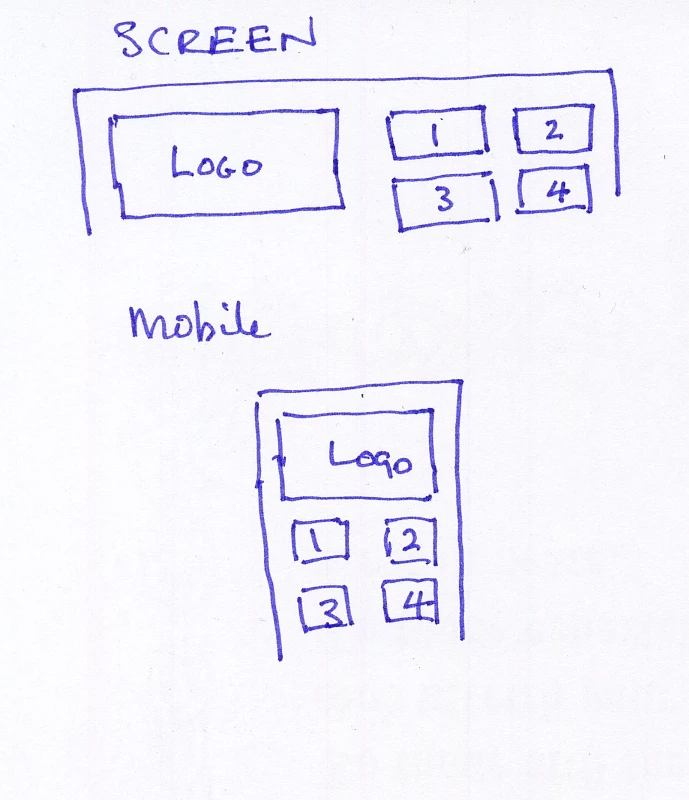
I am trying to achieve the above for the website I am creating but having problems.

What I want id for the logo to appear in area shown and then clickable links 1-4 which take you to the respective articles.

At the moment I am getting the logo and then 1-4 stacked instead of in the arrangement shown on a b=mobile.

I am using DW CS6 and Bootstrap 3

Any feedback greatly welcome - thank you in advance.

Terry

    This topic has been closed for replies.
    Correct answer Nancy OShea

    <!DOCTYPE html>

    <html lang="en">

    <head>

    <title>Bootstrap Example</title>

    <meta charset="utf-8">

    <meta name="viewport" content="width=device-width, initial-scale=1">

    <link rel="stylesheet" href="https://maxcdn.bootstrapcdn.com/bootstrap/3.3.7/css/bootstrap.min.css">

    <script src="https://ajax.googleapis.com/ajax/libs/jquery/3.3.1/jquery.min.js"></script>

    <script src="https://maxcdn.bootstrapcdn.com/bootstrap/3.3.7/js/bootstrap.min.js"></script>

    </head>

    <body>

    <div class="container">

    <div class="row">

    <div class="col-sm-12 col-lg-6">

    <img class="img-responsive" src="http://ourartgallery.azurewebsites.net/_img/OurArtGalleryLogo.gif" alt="Logo">

    </div>

    <div class="col-sm-12 col-lg-6">

    <!--nested divs-->

    <div class="row" style="margin-top:10vh">

    <div class="col-sm-6">

    <a href="#" class="btn btn-lg btn-block btn-primary">Button 1</a> </div>

    <div class="col-sm-6">

    <a href="#" class="btn btn-lg btn-block btn-danger">Button 2</a> </div>

    <div>

    <div class="col-sm-6">

    <a href="#" class="btn btn-lg btn-block btn-success">Button 3</a> </div>

    <div class="col-sm-6">

    <a href="#" class="btn btn-lg btn-block btn-info">Button 4</a> </div>

    </div>

    </div>

    </div>

    </div>

    </div>

    </body>

    </html>

    2 replies

    Inspiring
    March 3, 2018

    Thank you for all the replies.

    My problem goes one step further now.

    I have put up two images.

    They appear ok when viewed full screen, and OK when viewed on mobile but they go to mobile (single column) far too early when viewed on a tablet sized screen.

    Is this using a wrong class style causing this?

    This is only a hobby website - non commercial.

    http://ourartgallery.azurewebsites.net/

    Please can anyone advise whether I should change the bootstrap style or am I using the wrong set?

    Thank you in advance

    Terry

    Community Expert
    March 3, 2018

    If you need a transition between the large and small columns there is a medium column width you can use.  col-md-[size].  This page here will give you all of the details about the breakpoints to help you out.

    https://getbootstrap.com/docs/3.3/css/#grid

    Community Expert
    March 1, 2018

    At a high level this is what I see with your bootstrap design you are looking for:

    • Logo - col-lg-6 col-sm-12
    • Img [1-4] - col-lg-3 col-sm-6

    That will make your logo half width for larger screens and full width for mobile and your images 3 columns for large and 6 for small screens.  Without seeing your code, if you are experiencing issues, or without understanding spacing that will fill the columns to account for the 12-column bootstrap width.

    Inspiring
    March 2, 2018

    I have done as you said Ben but I get the same issue.

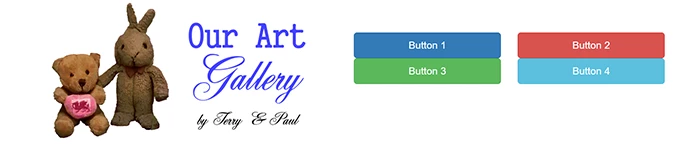
    I have created a sample website area on my azure space for you to see what I am getting.

    Ideally I want the four boxes to stay together in the right hand division of the screen.

    I have tried with a table but can not get this to fill 100% of the area of the div to the right as you can see in the top example.

    In the bottom example I am not getting the boxes side by side in the area as desired in my illustration on the top of this post.

    My test website is Our Art Gallery- Paul and Terry

    Nancy OShea
    Community Expert
    Nancy OSheaCommunity ExpertCorrect answer
    Community Expert
    March 2, 2018

    <!DOCTYPE html>

    <html lang="en">

    <head>

    <title>Bootstrap Example</title>

    <meta charset="utf-8">

    <meta name="viewport" content="width=device-width, initial-scale=1">

    <link rel="stylesheet" href="https://maxcdn.bootstrapcdn.com/bootstrap/3.3.7/css/bootstrap.min.css">

    <script src="https://ajax.googleapis.com/ajax/libs/jquery/3.3.1/jquery.min.js"></script>

    <script src="https://maxcdn.bootstrapcdn.com/bootstrap/3.3.7/js/bootstrap.min.js"></script>

    </head>

    <body>

    <div class="container">

    <div class="row">

    <div class="col-sm-12 col-lg-6">

    <img class="img-responsive" src="http://ourartgallery.azurewebsites.net/_img/OurArtGalleryLogo.gif" alt="Logo">

    </div>

    <div class="col-sm-12 col-lg-6">

    <!--nested divs-->

    <div class="row" style="margin-top:10vh">

    <div class="col-sm-6">

    <a href="#" class="btn btn-lg btn-block btn-primary">Button 1</a> </div>

    <div class="col-sm-6">

    <a href="#" class="btn btn-lg btn-block btn-danger">Button 2</a> </div>

    <div>

    <div class="col-sm-6">

    <a href="#" class="btn btn-lg btn-block btn-success">Button 3</a> </div>

    <div class="col-sm-6">

    <a href="#" class="btn btn-lg btn-block btn-info">Button 4</a> </div>

    </div>

    </div>

    </div>

    </div>

    </div>

    </body>

    </html>

    Nancy O'Shea— Product User & Community Expert