Hosun
Inspiring
June 10, 2019
Answered

pseudo elements [How to tweak CSS properties to layout page elements?]

  • June 10, 2019
  • 3 replies
  • 653 views

Hi,

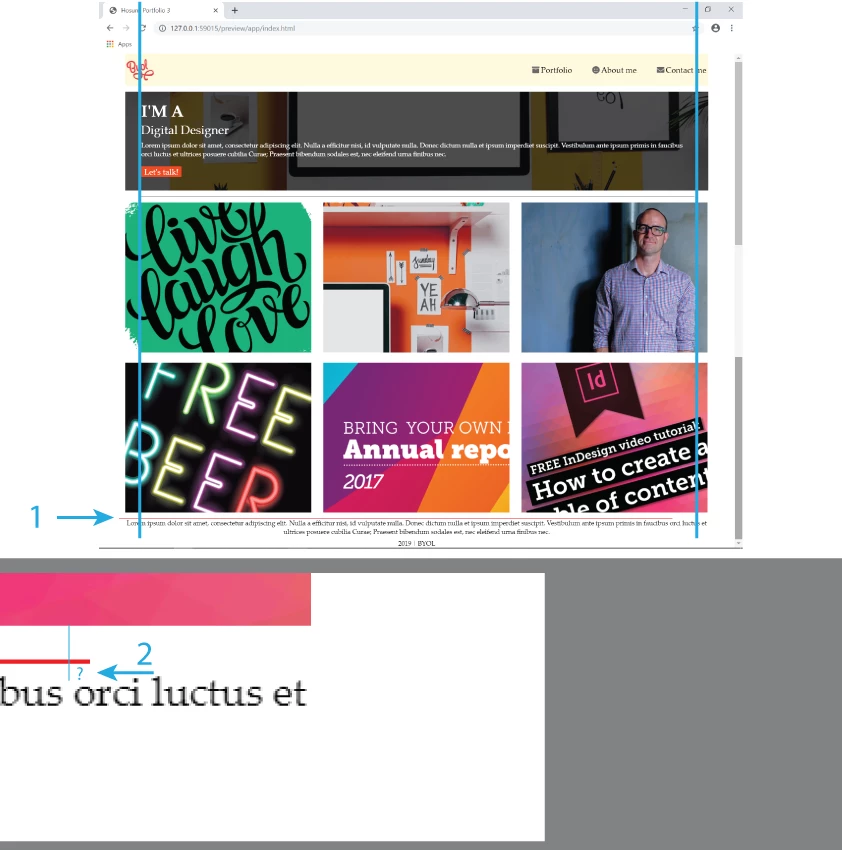
I drew two lines (black and red) as pseudo elements.

1.

How would I move the red line to the center?

For the black line, I didn't do anything for it.

2.

With the red line, there is a difference to the photo and to the text.

I gave "margin-top" to .footnote and .fn1, but it didn't work.

How would I shift the text down?

Hosuns Portfolio 3

Hosun Kang

This topic has been closed for replies.
Correct answer osgood_

It's much cleaner to wrap your thumbnail images in a 'section' element:

<section class="thumbnails">

<div><img src="images/thumbnail1-love.png" alt="pic1"></div>

<div><img src="images/thumbnail2-office.jpg" alt="pic2"></div>

<div><img src="images/thumbnail3-dan.jpg" alt="pic3"></div>

<div><img src="images/thumbnail4-beer.jpg" alt="pic4"></div>

<div><img src="images/thumbnail5-report.png" alt="pic5"></div>

<div><img src="images/thumbnail6-indesign.png" alt="pic6"></div>

</section>

Then use the css below to position them, plus its easy to apply the top and bottom border to the 'section' rather than using 'before' and 'after'

.thumbnails {

display: flex;

flex-wrap: wrap;

justify-content: space-between;

border-top: 1px solid #000;

border-bottom: 1px solid red;

padding: 10px 0 0 0;

margin: 0 1% 15px 1%;

}

.thumbnails img {

max-width: 100%;

height: auto;

display: block;

}

.thumbnails div {

width: 32%;

margin: 0 0 15px 0;

}

/*Tablet View*/

@media (max-width: 1024px) {

.thumbnails div {

width: 48%;

}

}

/*Mobile View*/

@media (max-width: 500px) {

.thumbnails div {

width: 100%;

}

}

3 replies

Nancy OShea
Community Expert
Community Expert
June 11, 2019

As a Creative Cloud member, you have a free Adobe Portfolio website available to you.  It's hosted  on Adobe's servers so there are no hosting or maintenance fees to worry about.  It's responsive and no coding skills required.  I mention this  because what you're struggling with now in Dreamweaver is  nearly identical to what Adobe Portfolio provides out of the box.

It's so simple to use, you can showcase your work online in minutes rather than days, weeks or months.

Adobe Portfolio | Build your own personalized website

  1. Just log-in at the URL above with with your Adobe ID and password.
  2. Pick a Layout Theme.
  3. Add some pages, content, images, videos,  etc...
  4. Hit the Publish / Update Live Site button and you are done.
  5. With one click, you can share your Portfolio projects with your Behance page, another online venue for creatives. Behance

Nancy O'Shea— Product User & Community Expert
Nancy OShea
Community Expert
Community Expert
June 10, 2019

Another option is the horizontal rule or <hr> tag.   A line used to visually divide elements.

How To Style the HR Element with CSS

Nancy O'Shea— Product User & Community Expert
Nancy OShea
Community Expert
Community Expert
June 10, 2019

I odn't understand what you're trying to do.  Have you never heard of the CSS border property?

CSS Borders

<!doctype html>

<html>

<head>

<meta charset="utf-8">

<title>Untitled Document</title>

<style>

.top-border {

border-top: 2px solid red;

}

.bottom-border {

border-bottom: 2px dotted #555;

}

</style>

</head>

<body>

<div class="top-border">

<p>This is a division with a solid red top border.</p>

</div>

<div class="bottom-border">

<p>This is a division with a dotted bottom border.</p>

</div>

</body>

</html>

Nancy O'Shea— Product User & Community Expert
osgood_Correct answer
Legend
June 11, 2019

It's much cleaner to wrap your thumbnail images in a 'section' element:

<section class="thumbnails">

<div><img src="images/thumbnail1-love.png" alt="pic1"></div>

<div><img src="images/thumbnail2-office.jpg" alt="pic2"></div>

<div><img src="images/thumbnail3-dan.jpg" alt="pic3"></div>

<div><img src="images/thumbnail4-beer.jpg" alt="pic4"></div>

<div><img src="images/thumbnail5-report.png" alt="pic5"></div>

<div><img src="images/thumbnail6-indesign.png" alt="pic6"></div>

</section>

Then use the css below to position them, plus its easy to apply the top and bottom border to the 'section' rather than using 'before' and 'after'

.thumbnails {

display: flex;

flex-wrap: wrap;

justify-content: space-between;

border-top: 1px solid #000;

border-bottom: 1px solid red;

padding: 10px 0 0 0;

margin: 0 1% 15px 1%;

}

.thumbnails img {

max-width: 100%;

height: auto;

display: block;

}

.thumbnails div {

width: 32%;

margin: 0 0 15px 0;

}

/*Tablet View*/

@media (max-width: 1024px) {

.thumbnails div {

width: 48%;

}

}

/*Mobile View*/

@media (max-width: 500px) {

.thumbnails div {

width: 100%;

}

}

Hosun
HosunAuthor
Inspiring
June 11, 2019

Hi,

Thank you very much for very useful tips every time.

I have one more question.

In your instruction below, why 1%? not px for measurement unit.

Hosuns Portfolio 3

Hosun Kang