
Inspiring
March 29, 2022
Answered

root url being used of images?

  • March 29, 2022
  • 4 replies
  • 990 views


  <img src="/usr/home/crusader/public_html/crusaderoftexas.com/art/01/HOME_2-768x768.jpg" alt="crystal clear water for drinking with softener" width="768" height="768" title="clean water"/> 


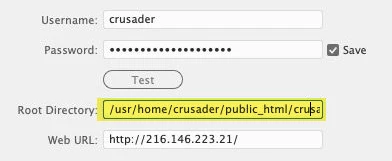
I'm working on a site and for some reason, rather than root-relative, the image source is showing as a function of the hosting root site. I am concerned that these links might break once the site goes live. Right now I'm using an IP address to create and manage the site.  I have tried removing the path from the site settings for the web address and use only the IP address, but I left the root path in the root area of settings.  I have also tried relative to document settings in the site, but the result is the same.  When shorten the path to /art/01/Home.... etc.  the image is not visible in DW but shows a missing image, although the image is there relative to root. 


Is there any way to fix this issue? 
This topic has been closed for replies.
Correct answer BenPleysier

This should read /public_html/

4 replies

BenPleysier
Community Expert
BenPleysierCommunity ExpertCorrect answer
Community Expert
March 30, 2022

This should read /public_html/

Wappler is the DMXzone-made Dreamweaver replacement and includes the best of their powerful extensions, as well as much more!
Nancy OShea
Community Expert
Community Expert
March 30, 2022

Yes, you beat me to it. That is the correct path to use.  🙂 


Nancy O'Shea— Product User & Community Expert
Nancy OShea
Community Expert
Community Expert
March 29, 2022

I see now that this is a WordPress site.  What are you doing in Dreamweaver?


To avoid problems,  use absolute  links to images on the server  --  i.e.  https :// yourdomain.com/ folder / filename.jpg  (without spaces).


Nancy O'Shea— Product User & Community Expert
jefferisAuthor
Inspiring
March 30, 2022

Hi,  the site was a Wordpress site.  I am setting it up with the IP address as a regular html site to avoid the security and maintenance issues of WP 


Is this not correct?  Should I not use a root directory?  Then it won't upload properly?

B i r n o u
Legend
March 30, 2022

be careful not to break the magic of WP by using absolute paths. Try to avoid them in your content, child templates and so on...


WP concedes this task to two of its properties (siteurl and home both located in wp_options table) and so if by any chance you were to change the structure of your site, an option to modify and the trick is done ... otherwise ... you must type in the database (plugin velvet blues) ... or in the SQL search replace ...

https://wordpress.org/support/article/changing-the-site-url/


have you try to use the path relative to the site but necessarily integrating the structure of WP

/wp-content/uploads/your-image.ext


think to add a .htaccess file to protect your uploads folder accordingly and if needed

google the subject, any article should be fine... I just digg one (not read) https://www.noupe.com/wordpress/how-to-protect-wordpress-files-and-uploads-folder.html


And finaly, in the site definition, just indicate your root folder, so that DW connects to the root ... that's all

Nancy OShea
Community Expert
Community Expert
March 29, 2022

I think the problem is caused by your Local site folder.  You cannot have public_html in your Local site.  Move everything out of local public_html folder with DW's Files Panel.  Delete that folder.  DW will resolve link paths for you.


Hope that helps.


Nancy O'Shea— Product User & Community Expert
jefferisAuthor
Inspiring
March 29, 2022

I don't have public_html in my local site folder    The only place it exists is is in the root url in the site settings area when you are setting up servers for ftp  as testing servers and regular uploads.   


Nancy OShea
Community Expert
Community Expert
March 29, 2022

Public_html should not be in your local TESTING server.  


Local server should be localhost.  See screenshot.


Nancy O'Shea— Product User & Community Expert
Jon Fritz
Community Expert
Community Expert
March 29, 2022

You can switch to Document Relative links by doing the following...

1. In DW, go to Site > Manage Sites
2. Click the site that's using root relative links to highlight it
3. Click the Edit button (pencil icon)
4. Click the chevron next to Advanced Settings to expand the options
5. Click Local Info
6. Set "Links relative to" to "Document"
7. Click Save

You will need to go through and manually repair existing links, but new ones will be written as Document Relative by the program.

jefferisAuthor
Inspiring
March 29, 2022

I don't think you understand.  I was already set to relative to Doc when I started seeing these long paths. So I switched to root relative and they were still there.  

Jon Fritz
Community Expert
Community Expert
March 29, 2022

The shortened path you give, /art/01/Home..., is also root relative.