Known Participant
August 11, 2019
Answered

Stop JS from running on "live" split view

  • August 11, 2019
  • 2 replies
  • 1368 views

Hello

I have some scripts that make images move according to mouse movement

but it slows down the live preview - is there a way to stop script in the DW but keep it on the Chrome preview?

I saw the option "freeze javascript" but it is greyed out

any ideas?

This topic has been closed for replies.
Correct answer Nancy OShea

ZivoDesign  wrote


Can you explain what is the purpose of the "Freeze JS" in the live view menu?

I had to look this up because I don't  usually  disable or freeze JS code .

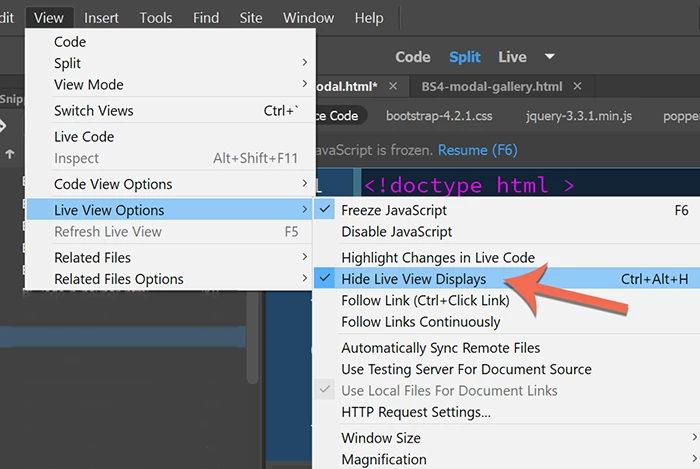
First  go to View > Live View Options > Hide Live View Displays.  Then you can Freeze JS.  Hit F6 key to resume JS.  See screenshot.

2 replies

B i r n o u
Legend
August 12, 2019

by adding to what Nancy offers you, you can also directly filter the program's execution location before launching your JavaScript function, for example by retrieving the URL

let oktoberun= document.location.href;

1 - in live view oktoberun will start by file://your drive/your path

2 - in local testing oktoberun will start by http://127.0.0.1 or http://localhost (depending on your server settings)

3 - in remote testing oktoberun will start by http://your domain name

so, in point 2 and 3 where your function could be called without any trouble, we know that URL will start using http, so we can check if that fits our needs

let oktoberun= document.location.href.startsWith("http");

just to test copy paste the script down below, and test, affine, adapt, ...

    <script>

        let oktoberun = document.location.href.startsWith("http");


        if (!oktoberun) {

            document.write("in within dreamweaver")

        } else {

            document.write("running on server, or live preview")

        }

    </script>

Nancy OShea
Community Expert
Community Expert
August 11, 2019

OPTION 1 - Switch to Design View.


OPTION 2 - try using root relative links to your external JavaScript files.

Let's say you have a link to an external file like this,

<script src="js/wow.min.js"></script>

Add a foward slash to make it root relative like this.

<script src="/js/wow.min.js"></script>

Scripts won't work locally but when you upload to remote server, everything will work as expected.


OPTION 3 - comment out scripts during development and un-comment them before you upload.

<!--comment out

<script src="js/wow.min.js"></script>

-->

Nancy O'Shea— Product User & Community Expert
Known Participant
August 12, 2019

OK I will try it

Can you explain what is the purpose of the "Freeze JS" in the live view menu?

also for some reason design mode is broken beyond recognition so no way to work with it

maybe you shed some light on why this is happening?

thanks you

Nancy OShea
Community Expert
Community Expert
August 12, 2019

Design View is a holdover from the Macromedia days  when everyone built sites with tables.  At best, Design View is an approximation of what you'll see in some older browsers.  I use it for quick editing.  Live View is more accurate at rendering but it's slower to work with. 

The DW team implied a few years ago that they would eventually phase out Design View and improve Live View editing.  We're still waiting.   In the meantime, we have both.

Nancy O'Shea— Product User & Community Expert