Inspiring
April 11, 2018
Answered

switching out button tag throughout my website pages (40 in all)

  • April 11, 2018
  • 1 reply
  • 794 views

Little help please. my client just told me he wanted me to switch a button we had on his 40 page website from Music  to  Music Selections.

no problem. However, i don't want to go through 40 pages to switch every one of them out.

I went to FIND>FIND AND REPLACE IN FILES

but from there i still can't figure out how to change at once on all 40 pages the code that reads

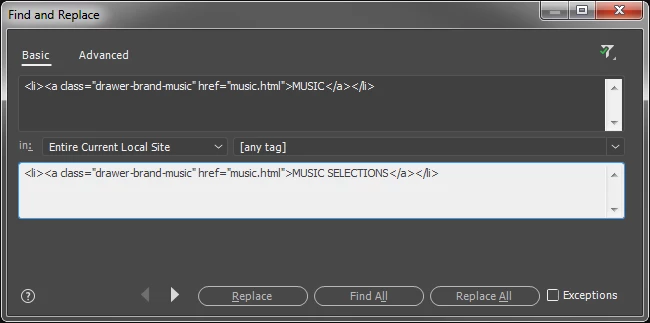
<li><a class="drawer-brand-music" href="music.html">MUSIC</a></li>

TO

<li><a class="drawer-brand-music" href="music.html">MUSIC SELECTIONS</a></li>

if anybody has an easy answer it would be much appreciated. I am getting no response it seems when putting in the info and hitting Find And Replace.  I know i am doing something wrong.

thank you in advance for your help

This topic has been closed for replies.
Correct answer Jon Fritz

It's not too tough, as long as you're working from a Defined Site and the code is the same on every page...

1. Make sure the correct site is selected in the Files window
2. Hit Ctrl/Cmnd + Shift + F (Find and Replace in Files)
3. In the Basic tab (the word Basic will be underlined), add the link code to the top field
4. Between the large fields, there is a dropdown menu next to the word "In" change that to "Entire Current Local Site"
5. In the bottom large field, add the code you're changing it to
6. Click Replace All

7. It will warn you that you're about to do something that is not "undoable" click OK

That should do the trick.

1 reply

Jon Fritz
Community Expert
Jon FritzCommunity ExpertCorrect answer
Community Expert
April 11, 2018

It's not too tough, as long as you're working from a Defined Site and the code is the same on every page...

1. Make sure the correct site is selected in the Files window
2. Hit Ctrl/Cmnd + Shift + F (Find and Replace in Files)
3. In the Basic tab (the word Basic will be underlined), add the link code to the top field
4. Between the large fields, there is a dropdown menu next to the word "In" change that to "Entire Current Local Site"
5. In the bottom large field, add the code you're changing it to
6. Click Replace All

7. It will warn you that you're about to do something that is not "undoable" click OK

That should do the trick.

drotarAuthor
Inspiring
April 11, 2018

Jon,

thanks, however when i do that nothing happens and the box disappears.

please find attached screenshot. i know i missing something here.

drotar

Jon Fritz
Community Expert
Community Expert
April 11, 2018

Images do not show up on the forum if attached in email.

To share screenshots, you need to use the forum interface in a browser.