johns45317965
Known Participant
June 7, 2017
Answered

Tables - can't freely adjust size, cell alignment, size, placement, etc.

  • June 7, 2017
  • 3 replies
  • 6607 views

Hello there. In current website I am working on trying to make a simple Table in which I can then place pictures and then stats/info/etc. So I went on YouTube and read through Adobe to learn on how to do this. Everyone explained about clicking on "Make a table"...adjust to the size...move it around and I should be happy (see video). However, for some reason I am unable to do any of this. It seems that I am very restricted in my Dreamweaver abilities as in my video my Table's simple 1 box script plops on and then I have to work it from there. And then I have no ability to move it around. Even when I try to edit it through Modify -> Table -> (nothing is lit up).

Please watch the video below  and share your thoughts. I will reply to them as soon as possible. Thanks.

This topic has been closed for replies.
Correct answer mark@headTrix

Hi.

I watched the video. First off you don't have to copy and paste the code or write any code at all like the video shows.

All you have to do is Insert> Table which it sounds like you have done. Enter in the columns and rows that you want (although you can always easily add more rows and/or columns or delete them). Then to be able to edit the table you have to be in Design View.

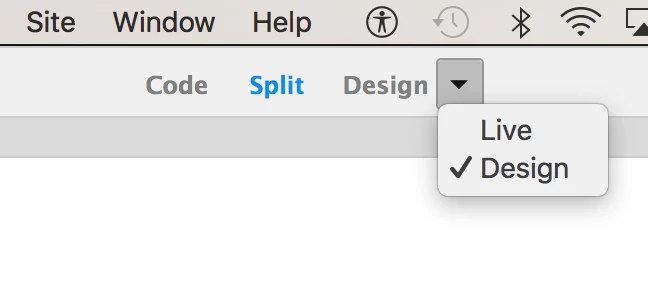
So under View Menu go View>View Mode>Design or change the center drop down to "Design". (see attached)

Then you will be able to click on the table and stretch it, select it and center it, or add more columns and rows by right-clicking in the table and then selecting Table>Insert Rows or Columns... or you can click an drag to select a few cells and then right click and select Table>Merge Cells.

3 replies

Nancy OShea
Community Expert
Community Expert
June 7, 2017

A better question is why are you even using tables for layout?   Tables are for tabular data only like charts and spreadsheets.   Modern websites are built with CSS layouts.

Start your project with one of the pre-built CSS starter templates in DW.  No tables required.

Go to File > New... see screenshots.

After saving your file, DW will create Assets folders for you which can be seen in your Files Panel.

Nancy

Nancy O'Shea— Product User & Community Expert
johns45317965
Known Participant
June 7, 2017

Hi Nancy. This isn't for an entire layout. This is just a simply 3 x 2 table WITHIN a layout page...it's for a simple profile page.

Nancy OShea
Community Expert
Community Expert
June 7, 2017

I still say Tables are not the right choice for responsive web design.   They invariably fail to work well in mobile phones.   You might want to consider using CSS styled Definition Lists . https://jsfiddle.net/NancyO/SxGNV/

Pseudo-Tables with Definition Lists - JSFiddle

Nancy

Nancy O'Shea— Product User & Community Expert
mark@headTrixCommunity ExpertCorrect answer
Community Expert
June 7, 2017

Hi.

I watched the video. First off you don't have to copy and paste the code or write any code at all like the video shows.

All you have to do is Insert> Table which it sounds like you have done. Enter in the columns and rows that you want (although you can always easily add more rows and/or columns or delete them). Then to be able to edit the table you have to be in Design View.

So under View Menu go View>View Mode>Design or change the center drop down to "Design". (see attached)

Then you will be able to click on the table and stretch it, select it and center it, or add more columns and rows by right-clicking in the table and then selecting Table>Insert Rows or Columns... or you can click an drag to select a few cells and then right click and select Table>Merge Cells.

headTrix, Inc. | Adobe Certified Training & Consulting
BenPleysier
Community Expert
Community Expert
June 7, 2017

I'm sorry but I do not have 10 minutes to spare to watch the video.

What I can say is for you to go to Design view instead of Live view and you will be able to insert and adjust the table as per video.

If that does not work, then try Insert > Table or Ctrl+Alt+T

Wappler is the DMXzone-made Dreamweaver replacement and includes the best of their powerful extensions, as well as much more!