csgaraglino
Known Participant
January 12, 2017
Answered

Tag Editing Background Color?

  • January 12, 2017
  • 2 replies
  • 1548 views

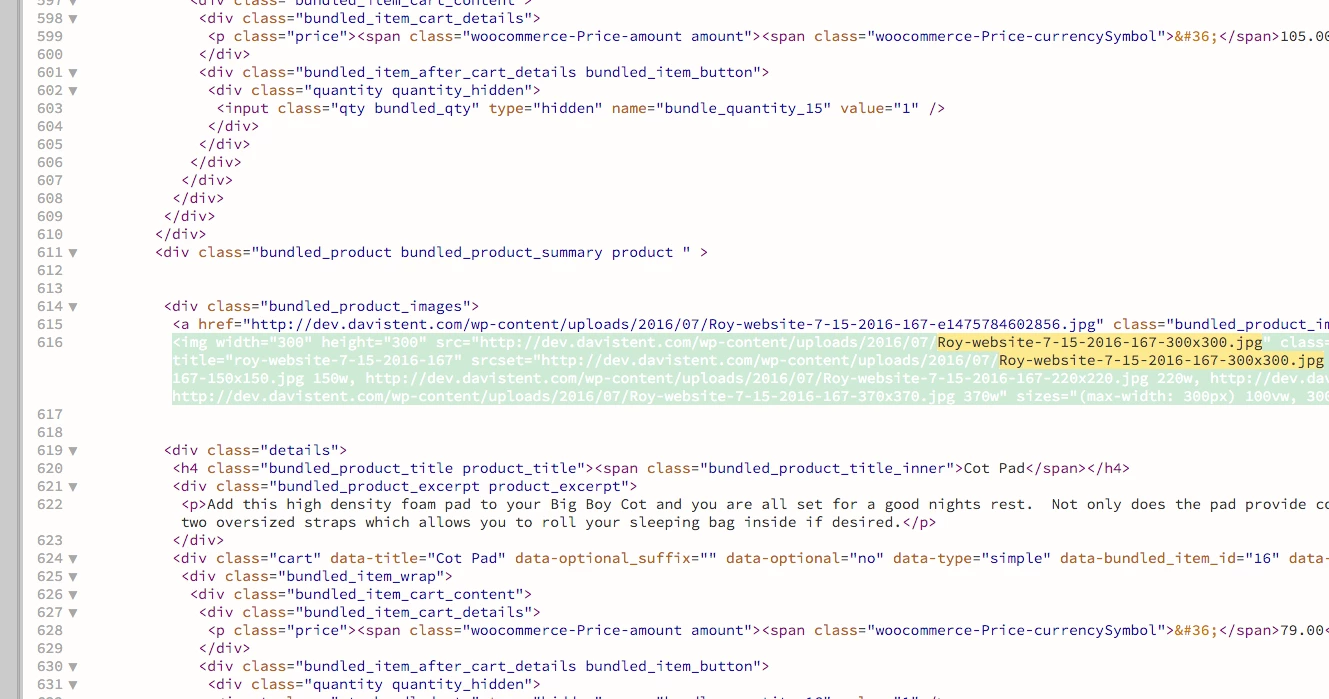
When editing and your cursor is in a tag - there is a funky "pea green" color for the background and white text - this is extremely difficult to read and I need it changed, but I am unable to find where to do that?

Please advise!

    This topic has been closed for replies.
    Correct answer BenPleysier

    Beg to differ Nancy,

    Code color choices are very subjective. 

    Indeed they are but the bulk of users would recognise a poor choice, pale green with white is not the best contrast to use.

    If you can't edit CSS code, then DW is not the right tool for you.

    I CAN edit CSS perfectly well. I just do NOT see why I should have to go through such a convoluted process to make a simple change.

    I am not as I mentioned color blind but anyone who is, would have the same issue as me.

    This is NOT at all user friendly. I have better things to do than post questions about things that should be easier to find through the interface or help options..

    McP


    And I am having a ball, adding and modifying themes. Just have a look at what I have so far.
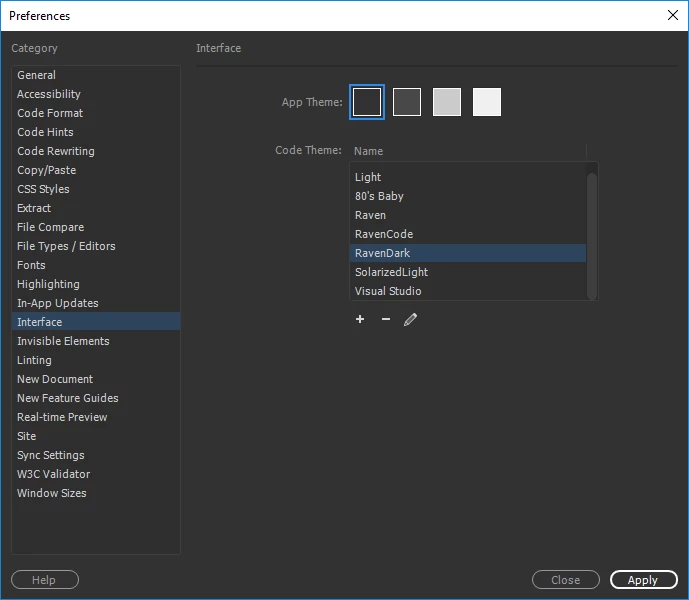
    How do I get the themes? By going to the likes of Brackets Themes and copying the contents of the CSS file. I then go back to the Dreamweaver Preferences panel Click the button, give the theme a name, hit the edit button and replace the current content with my clipboard content. Presto, new theme! BTW, the Visual Studio theme is horrible.

    Should this be automatic for Dreamweaver? Certainly not! There are so many themes from so many sources, that I think that it would stymie creativity if we were stuck with just those themes as dictated by Adobe.

    2 replies

    csgaraglino
    Known Participant
    January 13, 2017

    WTF: Why am I having to write code for Adobe screw-up? Seriously - this is bill$hit - it's like going and buying a new car but having to learn to be a mechanic and rebuild the engine before I can drive it!

    rob-mcp
    Inspiring
    January 13, 2017

    My sentiments exactly.

    The green and white text is a carp combination, I am by no means color blind but it's almost impossible to code well with this scheme.

    Why it is so fiddly to change is beyond me, black mark Adobe. Not good enough.

    Nancy OShea
    Community Expert
    Community Expert
    January 13, 2017

    Code color choices are very subjective.  One person's trash is another person's treasure. 

    I can't understand what's so difficult about adding a CSS class to your custom LESS file?  Honestly, this is a piece of cake for anyone who works with CSS code.  

    /* Custom code colors or overrides should start after this line */

    .CodeMirror-matchingtag {

        background-color: navy;

        color: white !important;

    }

    If you can't edit CSS code, then DW is not the right tool for you.

    Nancy

    Nancy O'Shea— Product User & Community Expert
    Jon Fritz
    Community Expert
    Community Expert
    January 12, 2017

    Here's how you fix it...

    1. Go to Edit > Preferences > Interface
    2. Click Light
    3. Hit the + button under the Theme box
    4. Give your modified theme a name
    5. Click Create
    6. Make sure your new theme is highlighted
    7. Hit Apply
    8. Now with the new one highlighted, hit the pencil icon
    9. Scroll down to the .CodeMirror-focused .CodeMirror-selected selector
    10. Change the background to a setting you like, something like #EBE7B3 (muted yellow) works
    11. Save
    12. highlight something and see if you like it, if so, you're done, if not, play around until you do

    Jon Fritz
    Community Expert
    Community Expert
    January 12, 2017

    Woops, that selector is for the text-selection highlight color, you actually have to add a selector to the base theme to change the color of selected tags (when you single click the tag and it highlights).

    Add this to the end of your new theme file...

    .CodeMirror-matchingbracket, .CodeMirror-matchingtag {

        background-color:#EBE7B3;

    }