
Participant
May 2, 2021
Answered

unable to see the changes in live site

  • May 2, 2021
  • 3 replies
  • 424 views

i did a test and i get: dreamweaver succesfully connected to your web server. However the changes i have made in dreamweaver are not on my live site. I called the web server Site ground and i was told it is Dreamweaver's issue. I need help
 

    This topic has been closed for replies.
    Correct answer Nancy OShea

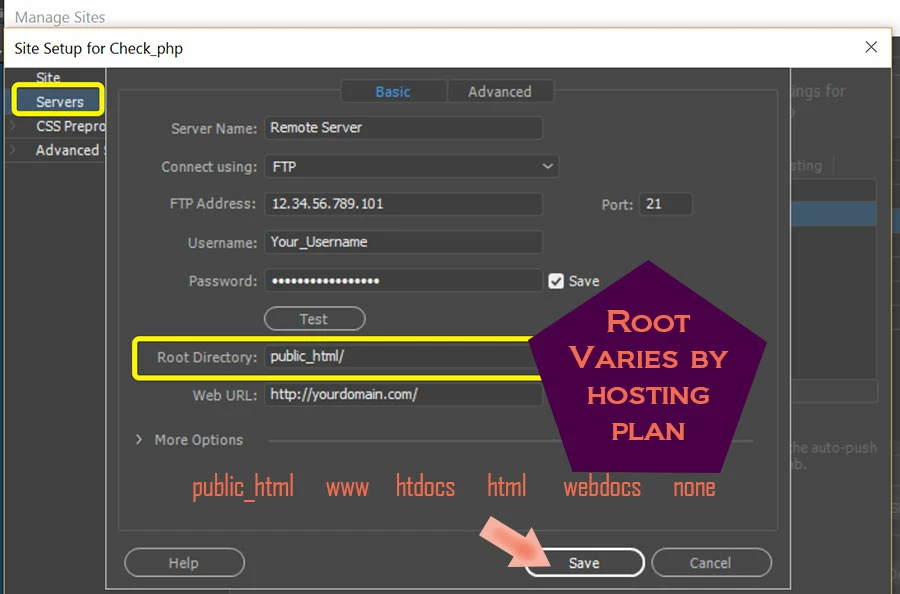
    Did you upload changed files to the correct ROOT DIRECTORY on your web server?

    If they're not in the proper root directory, nobody can see them. 


    Go to Site > Manage Sites to ensure your server credentials are properly defined.  If unsure, check with your web host.


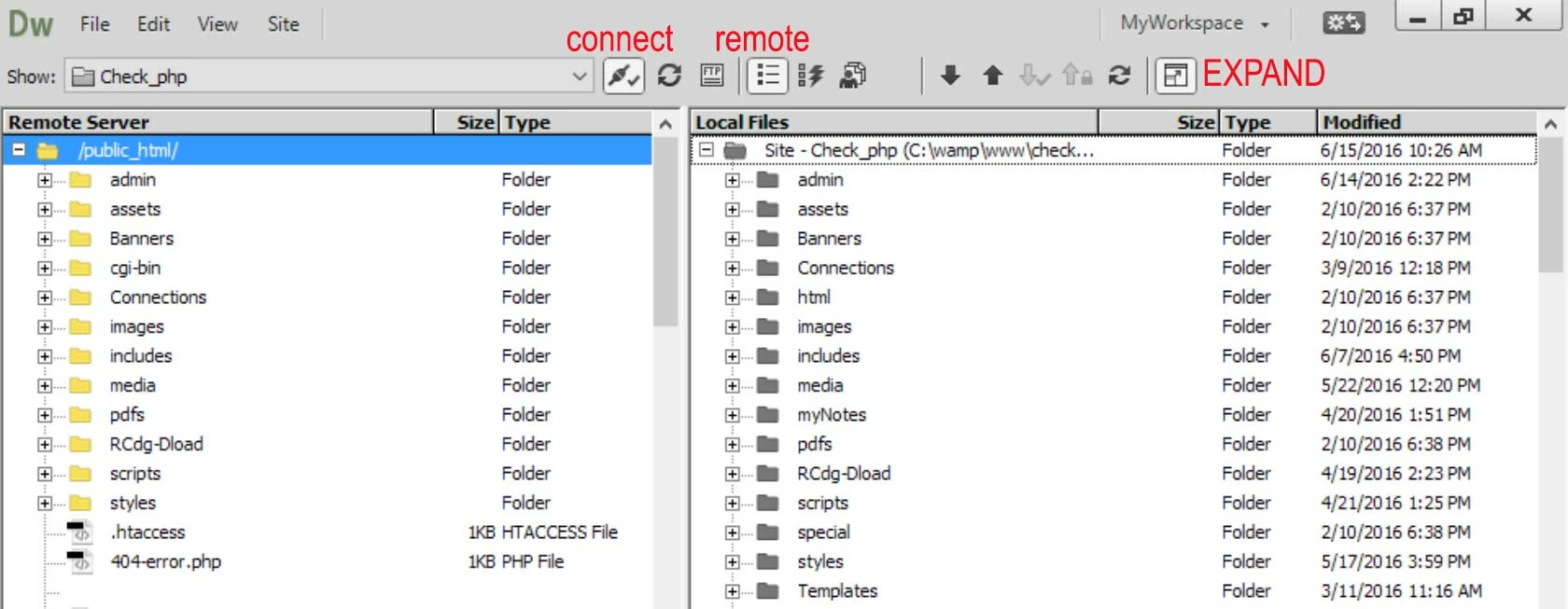
    Expand your Files Panel (F8) to compare Local and Remote site files side-by-side. 


    3 replies

    B i r n o u
    Legend
    May 2, 2021

    don't forget that Dreamweaver proposes to automatically upload your files when you save them. To do so, go to the site preferences, on the server tab > advanced, you have a box to check to this effect.


    Nancy OShea
    Community Expert
    Community Expert
    May 2, 2021

    Automatic upload on SAVE is a terrible recommendation. Don't do it.  I don't care how careful one is, mistakes happen.  And accidentally uploading a damaged file to server could bring the whole site down.  


    To upload an open document, use Ctrl + Shift + U.

    Or open the Files Panel (F8), select files and click on the UP arrow.


    Nancy O'Shea— Product User & Community Expert
    Nancy OShea
    Community Expert
    Nancy OSheaCommunity ExpertCorrect answer
    Community Expert
    May 2, 2021

    Did you upload changed files to the correct ROOT DIRECTORY on your web server?

    If they're not in the proper root directory, nobody can see them. 


    Go to Site > Manage Sites to ensure your server credentials are properly defined.  If unsure, check with your web host.


    Expand your Files Panel (F8) to compare Local and Remote site files side-by-side. 


    Nancy O'Shea— Product User & Community Expert
    Participant
    May 3, 2021

    Hi, Apparently the ROOT DIRECTORY is not the same i put in. So ok now. 

    Interesting enough, it took several hours before it shows the changes I made after I did the root directory correction. 

    Thank you all. Appreciate your help!

    Nancy OShea
    Community Expert
    Community Expert
    May 3, 2021

    Glad you got it sorted 🙂

    It's possible your hosting server is caching data on their end.  But I think it's more likely that you just need to clear your browser's cache and data.  Consult your browser's documentation for details on that.


    Nancy O'Shea— Product User & Community Expert
    B i r n o u
    Legend
    May 2, 2021

    once you modified the files, did you upload them back to the web server ?