ccmsnevada
Participant
November 6, 2017
Answered

Where did the up arrow go? (How to make upload changes to our website)

  • November 6, 2017
  • 3 replies
  • 578 views

Let me preface my question with a disclaimer: I am a Dreamweaver newbie and have only learned what my predecessor at work taught me (who was also a newbie). I have no training and have not worked with it prior to my current job. Now, to my question:

Before the update to Dreamweaver, when I wanted to upload/update something to our website - I would hit an up arrow near the top right-hand corner of the screen near the website folder. That would then "push" the new content to the website and make it live online. Well, that arrow is gone and now I don't know how to upload the changes from my screen to the live website.

If you have any suggestions, please advise! It's greatly appreciated.

This topic has been closed for replies.
Correct answer Jon Fritz

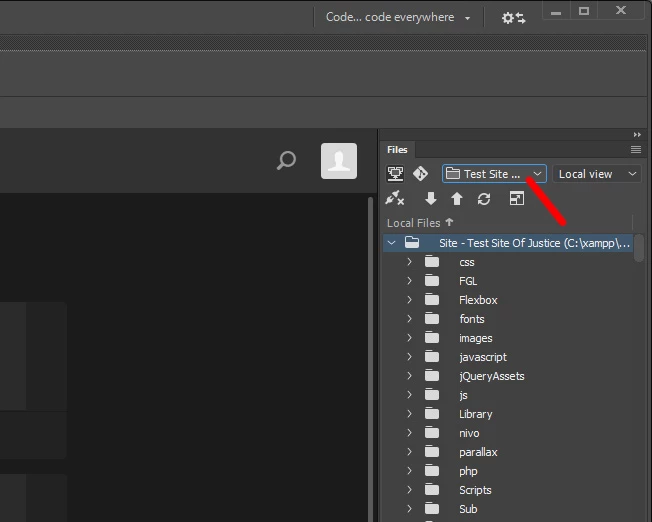
Those buttons should appear in your Files Window under Window > Files in your menu (or hit F8), as long as your site definition is chosen.

If the Files window is open and you still aren't seeing your Connect | Get | Put | Synchronize | Expand buttons, make sure you have selected the correct site definition from the dropdown menu in the Files window...

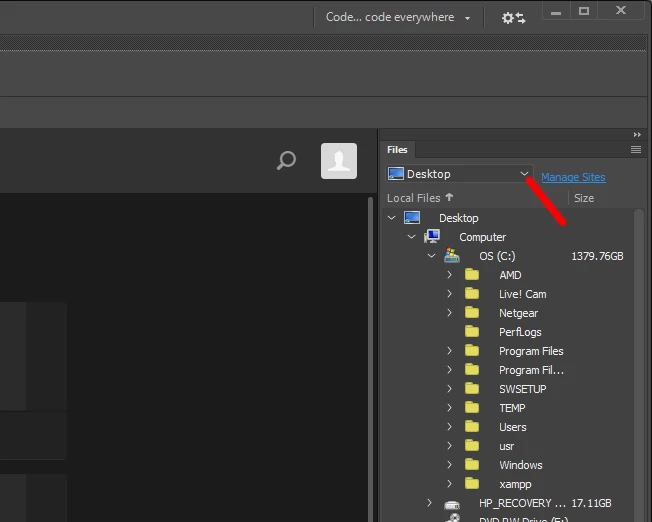
do NOT simply browse to the folder where the site resides, the buttons will not appear...

3 replies

Jon Fritz
Community Expert
Jon FritzCommunity ExpertCorrect answer
Community Expert
November 6, 2017

Those buttons should appear in your Files Window under Window > Files in your menu (or hit F8), as long as your site definition is chosen.

If the Files window is open and you still aren't seeing your Connect | Get | Put | Synchronize | Expand buttons, make sure you have selected the correct site definition from the dropdown menu in the Files window...

do NOT simply browse to the folder where the site resides, the buttons will not appear...

John Waller
Community Expert
Community Expert
November 6, 2017

I would hit an up arrow near the top right-hand corner of the screen near the website folder. That would then "push" the new content to the website and make it live online. Well, that arrow is gone

It's probably "gone" (or hidden) because your Files Panel is closed.

Clicking Window > Files in Dreamweaver should make your arrow re-appear.

B i r n o u
Legend
November 7, 2017

if you talk about the get put files arrows they are now in the tool bar

77pivrOU

B i r n o u
Legend
November 7, 2017

you also can still hit the {ctrl|cmd}-shift-U to place the file that has the focus (the focus also apply to the related files)

Nancy OShea
Community Expert
Community Expert
November 6, 2017

In order to upload files you will need to:

1) define a local site folder -- from Site > New Site or Manage Sites.

2) enter your server's FTP log-in credentials,

and 3) connect to your server.

Expanded Files Panel with remote server on the left and local  files folder on the right.

Nancy O'Shea— Product User & Community Expert