
Participant
May 21, 2019
Answered

Why do repeating area columns show as black on one computer?

  • May 21, 2019
  • 1 reply
  • 380 views

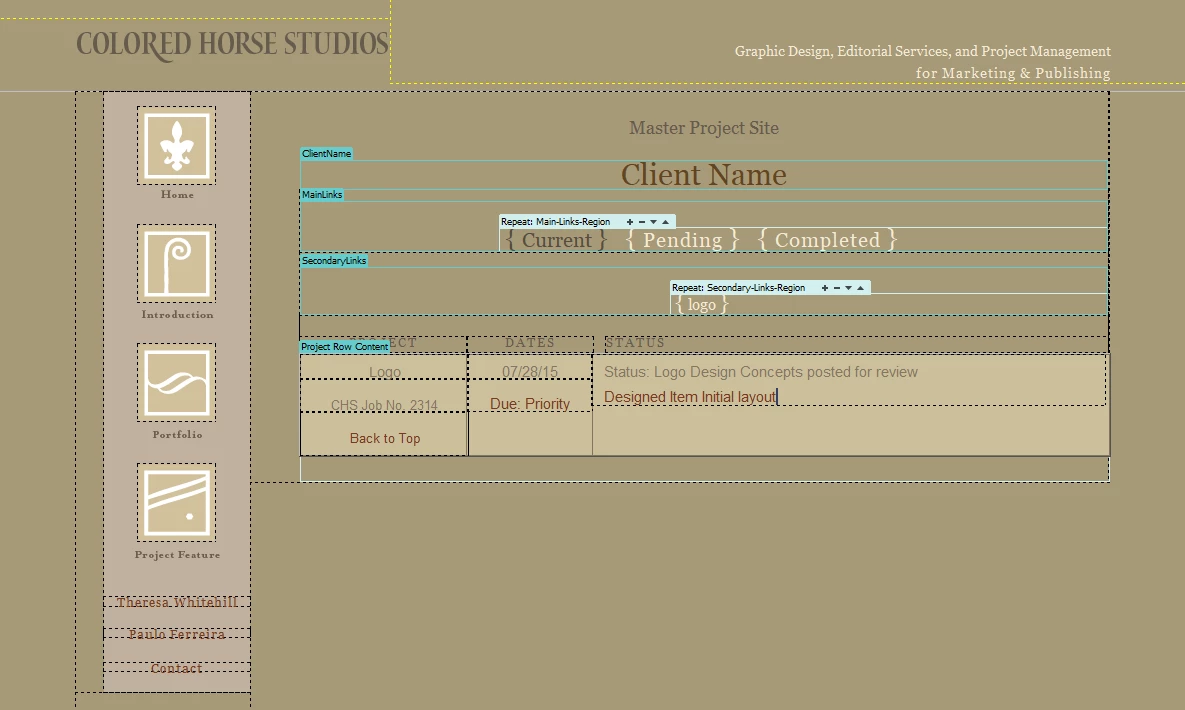
We have a template we use for posting client projects, which has a repeating area. On most of our computers, in the Design view, this area appears properly as the hex it is assigned to, #ccc09b. Here's a photo:
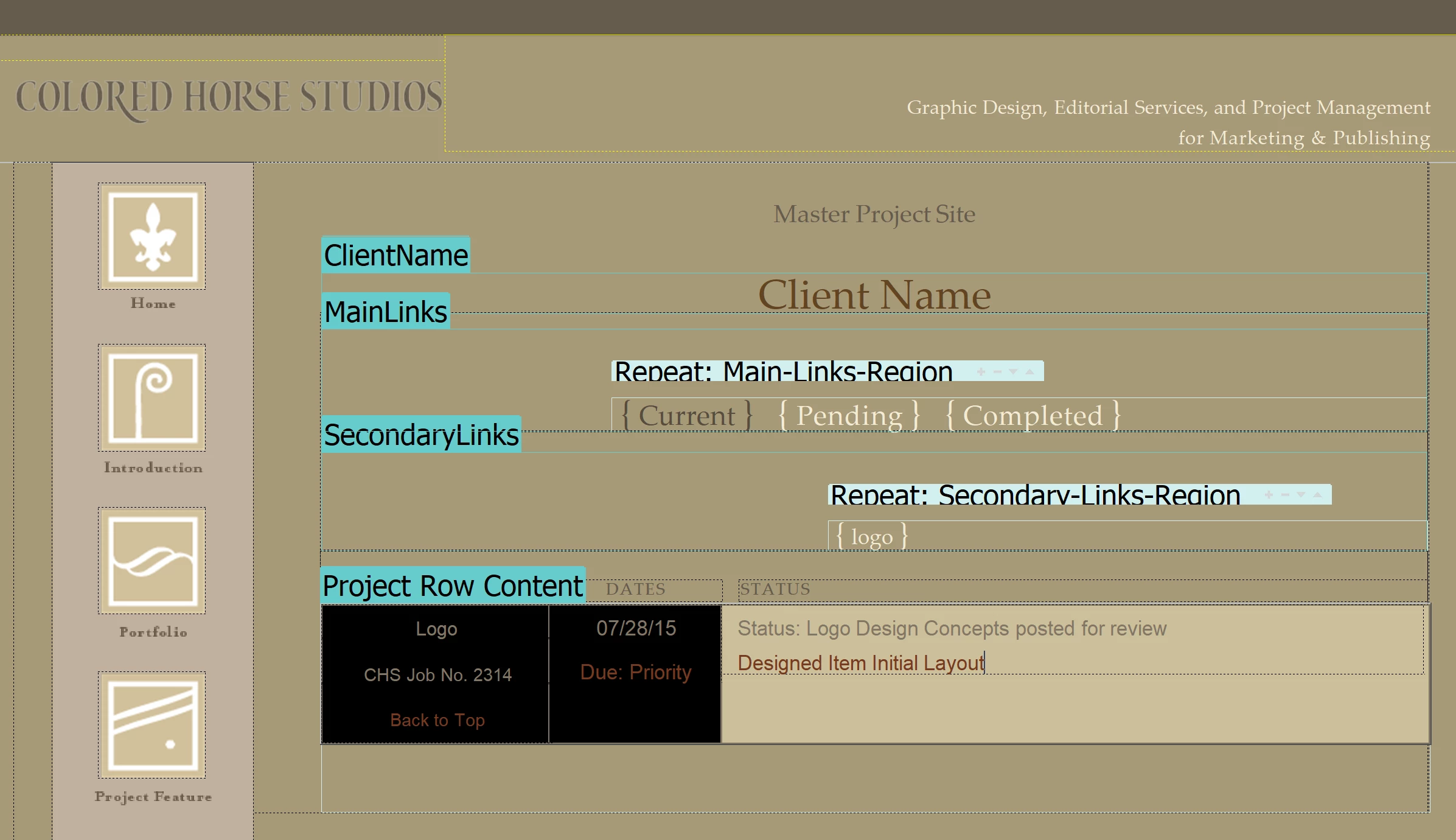
On our laptop, the first two columns of any template are black, but we are not aware of changing any settings. How do we get those two columns to display with their intended background color? It makes editing really annoying.
Code:

<!-- InstanceBeginRepeat name="Project Rows" --><!-- InstanceBeginRepeatEntry -->

                <!-- InstanceBeginEditable name="Project Row Content" -->

                <div class="row" style="background-color:#ccc09b;">

                  <div class="project">

                    <div class="title">Logo</div>

                    <div class="job">CHS Job No. 2314</div>

                    <div class="top"><a href="#pageTop">Back to Top</a></div>

                  </div>

                  <div class="dates">

                    <div class="assigned">07/28/15</div>

                    <div class="due" style="color:#773a1f;">Due: Priority</div>

                    <!--inline color here-->

                  </div>

                  <div class="status">

                    <p>Status: Logo Design Concepts posted for review</p>

                    <p><a href="ccm-hope-rising/logo/Hope-Rising-Logo-Design.pdf" target="_blank">Designed Item Initial layout</a></p>

                  </div>

                </div>

                <!-- InstanceEndEditable --><!-- InstanceEndRepeatEntry --><!-- InstanceEndRepeat --></div>

This topic has been closed for replies.
Correct answer ColoredHorse

Try disabling CSS.   Go to View > Design View Options > Style Rendering and remove the check from Display Styles.  This will have no impact on Live view or browser previews.

If that doesn't solve the issue, then go to Preferences > Interface and tell me which App and Code themes are being used on both devices.


Thanks for your suggestions, Nancy. I tried your suggestions above, and compared all settings in Preferences to our other computers; they were the same.

Solution: I realized that the laptop has Scale set to 225% in Windows > Settings > Display > Scale and layout; this appears to be causing the issue. When set to anything other than 100%, those columns turn black. I confirmed by adjusting the Scale on one of our desktops and got the same result. I will submit a bug report.

1 reply

Nancy OShea
Community Expert
Community Expert
May 21, 2019

Which version of DW are you using?

Which view are you using -- Design or Live?

Why do  you have inline CSS styles in your markup?  It's best practice to keep CSS separate from markup.

Nancy O'Shea— Product User & Community Expert
Participant
May 21, 2019

We are using DreamWeaver CC 2019. This issue is happening in the Design view.

I believe the original builder of the site used inline CSS in this instance because there were some color variations by client, but I don't believe that is a contributing factor to the issue I am having—it seems more like a setting that got accidentally activated on the laptop, but I don't know what it would be.

Nancy OShea
Community Expert
Community Expert
May 21, 2019

Try disabling CSS.   Go to View > Design View Options > Style Rendering and remove the check from Display Styles.  This will have no impact on Live view or browser previews.

If that doesn't solve the issue, then go to Preferences > Interface and tell me which App and Code themes are being used on both devices.

Nancy O'Shea— Product User & Community Expert