Participating Frequently
February 26, 2020
Answered

Work on hidden divs in wysiwyg editor

  • February 26, 2020
  • 2 replies
  • 1699 views

Hi there,


I am creating a website in Dreamweaver containing some javascript functions, like accordions.

The content divs of these accordions are hidden by css instructions and displayed via javascript/jQuery functions.


How can user change the content in these hidden divs via the wysiwyg editor? I was searching for hours now, but couldn't find any solution 😞

Regards Niko

This topic has been closed for replies.
Correct answer Jon Fritz

DW's interface is far from WYSIWYG, no matter what Adobe's marketing department has said about it over the years.

That being said, all you may need to do is switch to Design View in the Document Toolbar. DW's Live View Editor still has some growing to do before it will be able to fully take over for Design and Code View...

     1. If it's not open already, go to Window > Toolbars > place a check by Document
     2. Choose Design from the small triangle dropdown


If that doesn't do the trick, with Design View active...

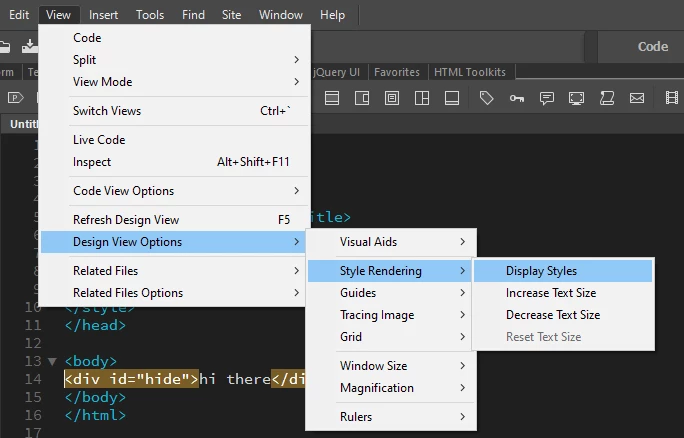
     1. Go to View > Design View Options > Style Rendering > uncheck Display Styles


This will likely make your page appear to blow apart, don't worry, nothing has changed in your actual code, just how DW's design View handles it. You should now be able to see and interact with any object hidden with "display:none"

2 replies

Nancy OShea
Community Expert
Community Expert
February 26, 2020

Call me Capt. Obvious but wouldn't it be much simpler to temporarily comment out the CSS or JS that is "hiding" content?   Or just work with relevant code which is way more precise than either of the visual editors.   


Nancy O'Shea— Product User & Community Expert
Participating Frequently
February 27, 2020

you are right, the problem is, that it won't be me who is going to work on this site, but people who have no idea of code, so that won't be a solution.

Nancy OShea
Community Expert
Community Expert
February 27, 2020

"it won't be me who is going to work on this site, but people who have no idea of code"

In that case, you have to provide them with a CMS they can use to safely maintain the site without giving them total access to code.  Asking non-coders to maintain a responsive site in DW is  like handing a loaded gun to a child.  


Depending on your needs, Content Management Systems can be really big or really small.


Nancy O'Shea— Product User & Community Expert
Jon Fritz
Community Expert
Jon FritzCommunity ExpertCorrect answer
Community Expert
February 26, 2020

DW's interface is far from WYSIWYG, no matter what Adobe's marketing department has said about it over the years.

That being said, all you may need to do is switch to Design View in the Document Toolbar. DW's Live View Editor still has some growing to do before it will be able to fully take over for Design and Code View...

     1. If it's not open already, go to Window > Toolbars > place a check by Document
     2. Choose Design from the small triangle dropdown


If that doesn't do the trick, with Design View active...

     1. Go to View > Design View Options > Style Rendering > uncheck Display Styles


This will likely make your page appear to blow apart, don't worry, nothing has changed in your actual code, just how DW's design View handles it. You should now be able to see and interact with any object hidden with "display:none"

Participating Frequently
February 26, 2020

Hi Jon_Fritz_II,


thank youf or your detailed reply.

By deactivating the styles it is possible to edit the hidden fields, thanks for the help.

Of course this is not a nice solution, because it can be very error-prone with larger contents.

That's why my idea was to add a class to the hidden fields at the start of the page using Javascript. In Dreamweaver I wanted to disable Javascript. Unfortunately this option is always greyed out and therefore not usable. Can you tell me what the reason is?

Thanks for your help!

Jon Fritz
Community Expert
Community Expert
February 26, 2020

It can be done, however, it also disables the ability to use the Live View Editor. Although useless to your workflow, I'll include it for the sake of completeness...

1. With Live View active, go to View > Live View Options
2. Place a check by Hide Live View Displays
3. Go back to View > Live View Options
4. Place a check by Disable Javascript

If you want to continue editing in Live View, your best bet will likely be to temporarily comment out your script with html comment tags...

<!-- <script> your script here </script> -->

You can do that relatively painlessly by...

1. Select the <script> your script here </script> block in your HTML
2. Click the "Apply Comment" button in the Common Toolbar
3. Choose HTML Comment
4. You can then "unwrap" it by doing the same and clicking the Remove Comment button.

The top is apply and bottom is remove in this screen capture...