


Participant
August 6, 2022
Question

wrong template linked to one page

  • August 6, 2022
  • 2 replies
  • 344 views

I have a page with a template that lists all of the chapters in our online reader: http://inside.sfuhs.org/dept/history/Mexicoreader/Chapter1/index.htm. This template works fine for every chapter except ch. 5, which goes to a bunch of dead links: http://inside.sfuhs.org/dept/history/Mexicoreader/Chapter5/Chapfive.htm.

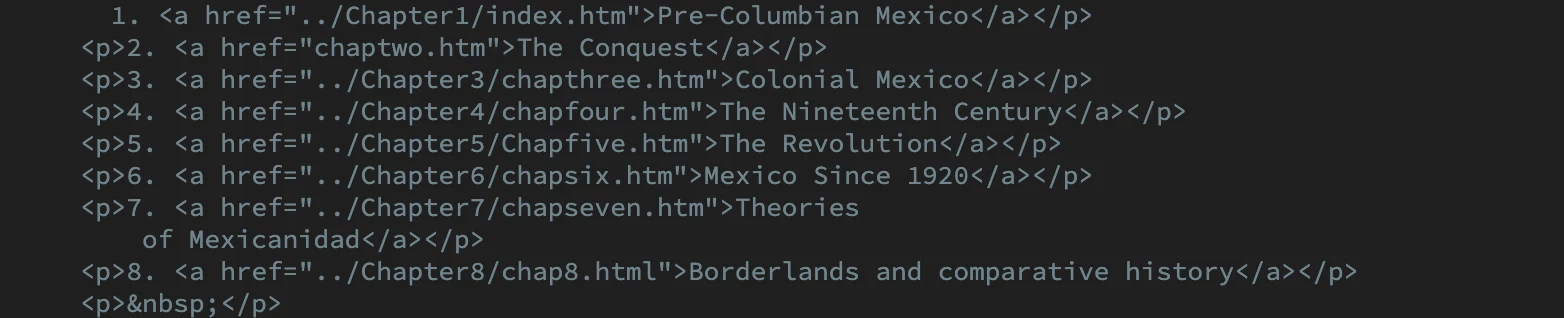
I followed the directions to reinstall the standard template, and the code now reflects that--though it looks different. Here's the code for ch.2:
Whereas here's the code for ch. 5:
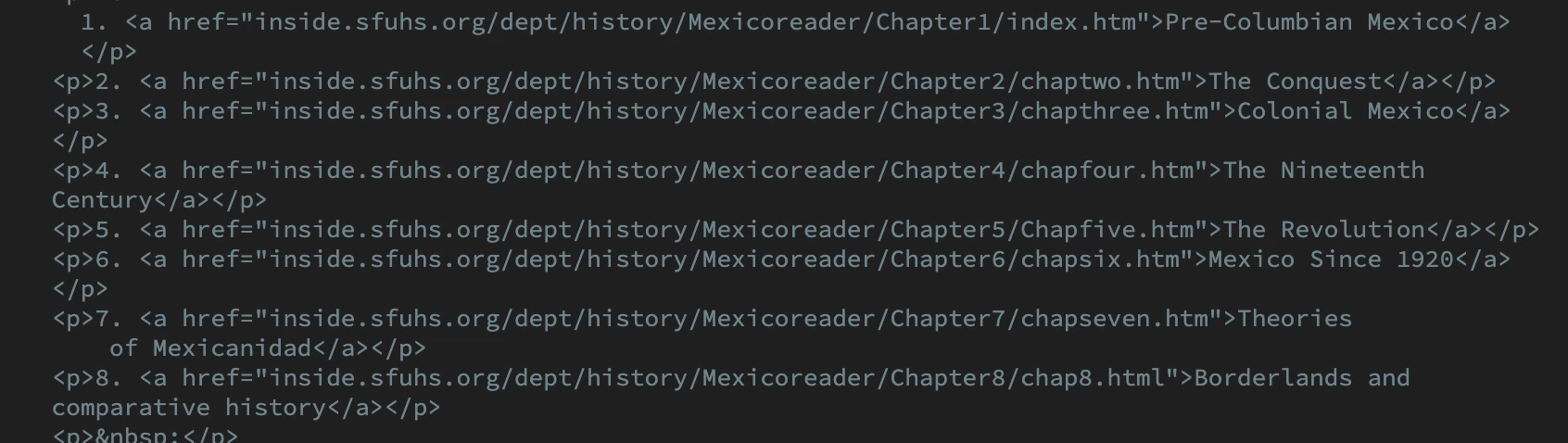
The links should work, from what I can see, but they don't. Would love thoughts about what I should be doing.

This topic has been closed for replies.

2 replies

jberrettAuthor
Participant
August 6, 2022
Thanks! It is indeed a .dwt file.
But I’m getting this message that the template is nested inside itself. I searched and found this suggestion for dealing with that: https://macromedia.dreamweaver.narkive.com/3unO1nlB/template-nested-inside-itself-error, and indeed my page has the string

which I’m supposed to delete and replace, as in the post above.
But I can’t edit that template when I open it in code view. Same in terms of your suggestion: the lines that I should edit are all part of the template, which means they’re locked to me. I followed this direction: https://helpx.adobe.com/dreamweaver/using/editing-updating-deleting-templates.html#:~:text=Open%20and%20edit%20a%20template%20file&text=Right%2Dclick%20the%20template%20and,bottom%20of%20the%20Assets%20panel.
But it would not let me edit the template. Very confusing.
jberrettAuthor
Participant
August 6, 2022
Nope, wait, something worked! It’s fixed. Thanks!
B i r n o u
Legend
August 6, 2022

when you talk about Template, are you talking about Dreamweaver DWT template ?

If so, try to reapply the template first... for that, just drag and drop the template over the child page display.


  1. open the appropriate child page in display view mode
  2. open the assets panel
  3. select on the left side vertical icon, the templates one (the second to last)
  4. drag and drop the appropriate template over the display view of the opened child page
  5. click the appropriate dialog box that will open, to validate what will asked.


but anyway if that dont fix the links section.

try to use the search and replace tool... for that


  1. get the concerned page open in code view mode
  2. open the search an replace local page tool (Ctrl F) or (Cmd F if you're on MacOs)
  3. the search string to be replaced is  inside.sfuhs.org/dept/history/Mexicoreader/
  4. the replace sting to define is ../
  5. do it and everything should work again as expected