



ActiveX Filtering in Internet Explorer
If you have completed the steps in our Enabling Flash Player in Internet Explorer 9 FAQ and continue to have problems seeing Flash content, please see the following video and instructions to learn how to disable ActiveX Filtering.
Please click here for an HTML5 version of this video: YouTube HTML5 HD Link
Internet Explorer and ActiveX Filtering
ActiveX Filtering is a feature introduced in Internet Explorer 9 which allows you to browse the Web without running any ActiveX controls. Flash Player is an ActiveX control and when filtering is enabled Flash content will not be displayed on a webpage.
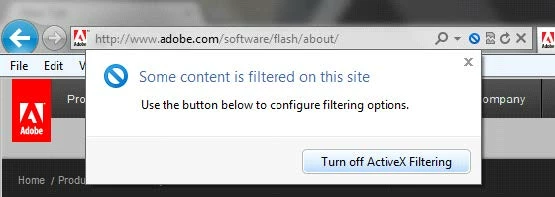
When you visit a webpage that contains ActiveX controls, and filtering is enabled, IE will display a "circle with slash" icon (see screenshot below) in the address bar to indicate that controls have been filtered.

Flash content and video will not be displayed on the page until you have disabled ActiveX filtering. Fortunately, you have a few options for enabling ActiveX content.
Disable ActiveX Filtering for all websites
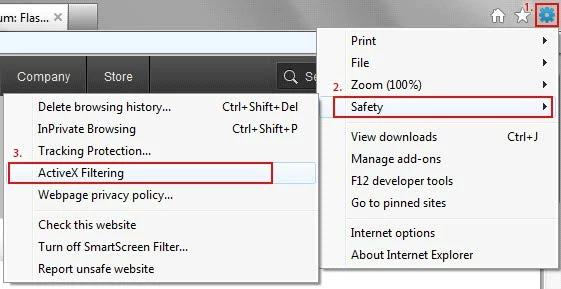
- Open Internet Explorer and click on the gears icon in the upper right corner of the window.
- Select the Safety Menu, and then uncheck the ActiveX Filtering menu item.
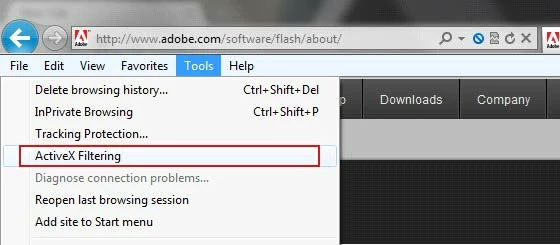
Alternately you can also access this via the Tools menu on the menu bar, then unchecking ActiveX Filtering.
Disable ActiveX Filtering for individual websites that you trust
- Navigate to a page with blocked content, noted with the circle with slash icon.
- Click the circle with slash icon
- Click the "Turn off ActiveX Filtering" button
 AdChoices