

Participant
May 22, 2016
Question

Can't run FlashPlayerUpdateService.exe by Task Scheduler

  • May 22, 2016
  • 2 replies
  • 1365 views

My Windows 7 Utimate 64 bits have some problems about Flash Player update.

In Services, It always switch to manual.

In Task Scheduler, I added a new task but it never run.
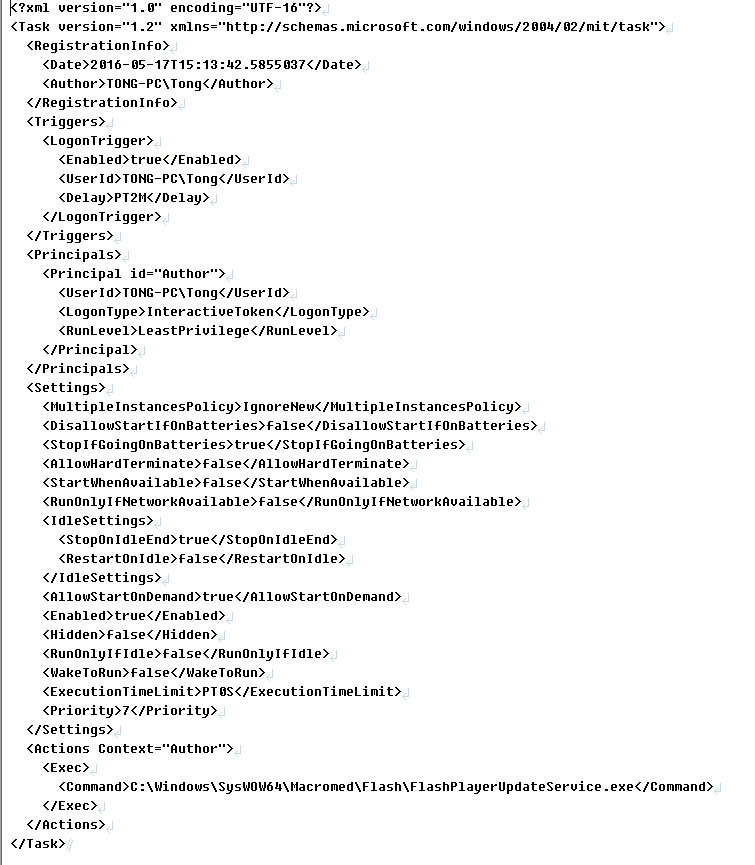
This topic has been closed for replies.

2 replies

_maria_
Legend
May 23, 2016

Hi,

There is no need to create your own task to launch the Service, as Flash Player creates the Task as part of the Background Update feature.

There are two components to the Background Update feature:  A Service named 'Adobe Flash Player Update Service' and the Scheduled Task named 'Adobe Flash Player Updater'. Does your system have both of these?  If your system is missing this Task it can explain why the Background Update is not running.

The Scheduled Task runs at a predetermined time to check to see if it's time for the Service to check if an update is available.  If so, the Service wakes up and checks the Adobe server if an update is available.  If an update is available, it downloads and installs.  If an update is not available, it goes back to sleep.  It also creates a registry entry (HKLM\SOFTWARE\Wow6432Node\Macromedia\FlashPlayerSAU - LastUpdateCheck) to keep track of these checks.   The registry entry is reset when an update is available and installed.  The Service is also set to 'Manual'.  This is not something to be concerned with.  Unlike many other products out there, Flash Player Background Update is not constantly running.  It only runs when it needs to.

I'm assuming the 'Update Flash' task in your screenshot is the one you created, right?

Please do the following:

  1. Delete the Task you have manually created.
  2. Download the latest uninstaller posted at Uninstall Flash Player for Windows
    1. Extract the contents and use the EXE installer in the /21.0.0.213 directory.  Don't use the MSI installer, or any of the installers in the 21.0.0.213_debug directory.
  3. Download the previous Flash Player version, 21.0.0.213 from the Archived Adobe Flash Player versions​ page
  4. Run the Uninstaller downloaded in step 2
  5. Reboot your system
  6. Run the installer and select the 'Allow Adobe to install updates' option
  7. Enable Background Updates verbose logging:
    1. Go to C:\Windows\SysWOW64\Macromed\Flash and add the following to the mms.cfg file: SilentAutoUpdateVerboseLogging=1
  8. Open the Services and Task Scheduler windows.
  9. In Task Scheduler, locate the Task  'Adobe Flash Player Updater'. What does it have for 'Triggers'? It should have something like:
  10. In Services, locate 'Adobe Flash Player Update Service'  It should be set to Manual
  11. Wait for the task to run based on the set trigger.
    1. For example, in the step 9 screenshot the Task will run at 4:55 pm and launch the Service to check for an update.
  12. Since you installed the previous version in step 6, when the Service runs, it'll find an update and install it.

Please post back with your results.

--

Maria

SomchaiAuthor
Participant
May 23, 2016

Now, It can run already. I tried out for a whole day. And found a solution.

1. It must create with basic task first.

2. Don't use more than 2 whitespaces in the name. Very very strange.

3. Reboot to test and it will work well
4. Now adjust some options, such as delay, repeat, etc.

_maria_
Legend
May 23, 2016

Hi,


Why are you creating a custom Task?  Flash Player installs the Task, Adobe Flash Player Updater, as I mentioned previously. Does this task, Adobe Flash Player Updater, exist on your system?

--

Maria

Carm01
Legend
May 23, 2016

I thought it set itself up automatically.

Why dont you simply re-install fash and get a valid xml file.?

Best Regards

SomchaiAuthor
Participant
May 23, 2016

Yes, I did clean uninstall and re-install 2-3 times. But it never run.

I also manual created Task Scheduler. The other items of Task scheduler can run normally.
