Known Participant
January 28, 2016
Answered

Don't want documentation, want a link.

  • January 28, 2016
  • 1 reply
  • 644 views

I'm trying to get to where you change security settings in Adobe Flash Player. Online instructions say go to the "Settings Manager," but I just get documentation and go round and round. It says "Use the Panel" or click on a tab. But I only get to where you install or purchase products. Flash Player IS installed. I want to set security so that the camera/microphone is never used. I don't understand. I need a link that will open wherever it is that you choose those options.

    This topic has been closed for replies.
    Correct answer _maria_

    Hi,

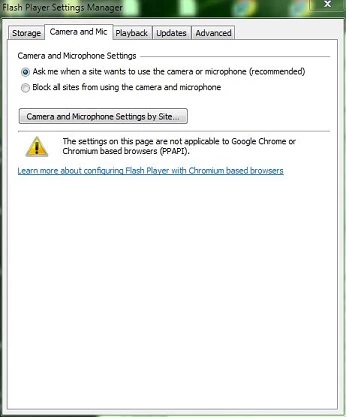
    For IE 11 the setting is in the Flash Player Settings Manager in the Control Panel.

    1. Launch Control Panel and go to Control Panel > All Control Panel Items
    2. Select the Flash Player item
      • On a 64-bit OS the name will be Flash Player (32-bit)
    3. In Flash Player Settings Manager select the Camera and Mic tab
    4. Select the radio button for Block all sites from using the camera and microphone

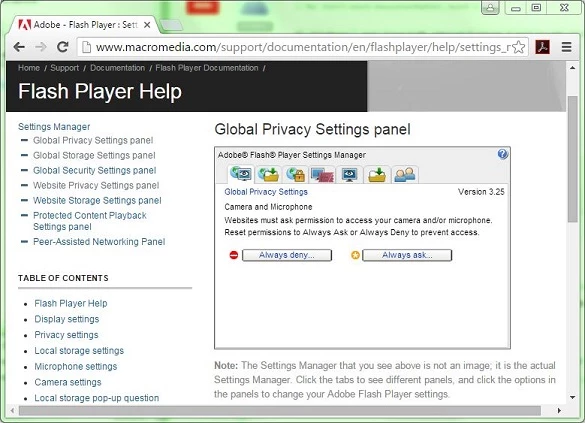
    Due to the security model in Chrome, Chrome utilizes the Online Settings Manager:

    1. Launch Chrome and navigate to http://www.macromedia.com/support/documentation/en/flashplayer/help/settings_manager02.html
    2. In the Global Privacy Settings panel, select Always deny...

    --

    Maria

    1 reply

    _maria_
    Legend
    January 28, 2016

    Hi,


    What operating system and browser is this on?

    --

    Maria

    MizDazeeAuthor
    Known Participant
    January 28, 2016

    It’s Windows 7, and I have both Internet Explorer 11 and Google Chrome installed so would like to fix settings in both.

    _maria_
    _maria_Correct answer
    Legend
    January 28, 2016

    Hi,

    For IE 11 the setting is in the Flash Player Settings Manager in the Control Panel.

    1. Launch Control Panel and go to Control Panel > All Control Panel Items
    2. Select the Flash Player item
      • On a 64-bit OS the name will be Flash Player (32-bit)
    3. In Flash Player Settings Manager select the Camera and Mic tab
    4. Select the radio button for Block all sites from using the camera and microphone

    Due to the security model in Chrome, Chrome utilizes the Online Settings Manager:

    1. Launch Chrome and navigate to http://www.macromedia.com/support/documentation/en/flashplayer/help/settings_manager02.html
    2. In the Global Privacy Settings panel, select Always deny...

    --

    Maria