


Participating Frequently
March 12, 2016
Question

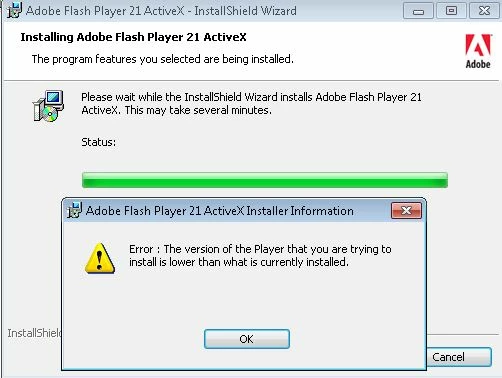
Downgrade error when upgrading from 20.0.0.306 to 21.0.0.182 using MSI installer

  • March 12, 2016
  • 2 replies
  • 1213 views

I download the 21.0.0.182 MSI from the distribution site today and updated several test systems.  I am getting this error on every system I try. We are upgrading from 20.0.0.306
This topic has been closed for replies.

2 replies

_maria_
Legend
March 14, 2016

Hi,


Since your issue is different from the topic you posted to, I branched it to a new discussion.

Please provide a verbose MSI installation log from an impacted system.  Upload the file to either cloud.acrobat.com using the instructions at How to share a document or some other file sharing service of your choice that doesn't require a log in to access.  Post the link to the uploaded file in you reply.

Thank you.

--

Maria

Participating Frequently
March 14, 2016

We are not getting any MSI logs since the install fails.  If we use the Adobe uninstall and reinstall clean.  It appears successful but when I check the above verify site it is not working.

_maria_
Legend
March 14, 2016

Hi,

Even though it fails, there should be something logged in the MSI log file, especially if you enable verbose logging.  The FlashInstall.log file may provide some information, but the verbose MSI log file will provide more information, since this is the MSI installer.


The FlashInstall.log file is saved at C:\Windows\System32\Macromed\Flash directory.  If this is a 64-bit OS there's another FlashInstall.log file saved at C:\Windows\SysWOW64\Macromed\Flash directory.  Both are required from 64-bit systems.

--

Maria

Varun_Bhal
Adobe Employee
Adobe Employee
March 13, 2016

Hi,

Sorry, for the inconvenience caused. Can you please visit Flash Player Help on IE browser on any of the impacted system, then Click on Check Now button and paste the screenshot of the results on here using How to post a screenshot in the forum ?

Also, please share the values of the below 2 registries location from any of the impacted system.

1. Press Windows + R button

2. Type regedit.exe and press enter

3. Goto HKEY_LOCAL_MACHINE\SOFTWARE\Macromedia\FlashPlayerActiveX and check the values of "Version" key and paste it here

4. (Only on 64-bit Windows) Goto HKEY_LOCAL_MACHINE\SOFTWARE\Wow6432Node\Macromedia\FlashPlayerActiveX and check the value of "Version" key and paste it here.

Regards

Varun Bhal

Participating Frequently
March 14, 2016

Attached is what I received when I checked the version and registry keys.