


Participant
January 21, 2018
Answered

Flash player not working on Webassign - Windows 10 w/various browsers

  • January 21, 2018
  • 3 replies
  • 10180 views

Hey,

I've installed the latest version of flash, but I can't seem to get it to run on webassign. Specifically, it won't let me access my texbook. The adobe help site says I have successfully installed the latest flash, and I've marked webassign.net as an allowed site, but nothing seems to be working. My friend is having the same problem.
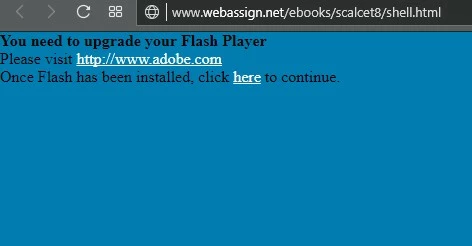
No matter what, this little warning continues to show up.

I use Opera, but I'm having the same problem on Chrome. Running on Windows.

If you have any idea what the issue could be, please just let me know. I'll honestly try anything at this point. I've got HW due in the morning.

Thanks,

Justin

[moderator: added os and browser comment to title for clarity]

    This topic has been closed for replies.
    Correct answer _maria_

    Most browser's disable Flash by default and force user's to enable it, usually on a per-site basis (e.g. www.adobe.com is not the same as helpx.adobe.com)

    While you mention Chrome and Opera, your screenshot appears to be for Edge browser.

    For both Chrome and Edge, assuming the website is coded to handle Chrome's and Edge's click-to-play implementation, both browsers should intercept the request when clicking the http://www.adobe.com link and display the 'allow flash' pop-up window.

    See the following for more assistance:

    While Opera is based on Chromium, their click-to-play implementation is slightly different.  The easiest way is to add http://* and https://* to the list of Flash exceptions.  See Enable Flash Player for Opera

    For Chrome and Opera:

    • If the above do not work, you may need to modify the page's Site Engagement Index score to view Flash content after enabling Flash in the browser.  Do the following:
      • On Chrome, go to chrome://site-engagement/
      • On Opera, go to opera://site-engagement
      • Locate the link to the site you are attempting to view Flash on on both browser's site-engagement index page
      • Modify the corresponding index score to 100
      • Reload the browser
      • Flash content should display.

    3 replies

    Participant
    December 3, 2019

    have the same problem and making the site engagement base 100 does not work on my browser what should i do now ?

    _maria_
    Community Manager
    Community Manager
    December 3, 2019

    see https://community.adobe.com/t5/flash-player/flash-player-does-not-work-on-web-assign/m-p/10778233 for reply.


    Please do not post the same issue to multiple locations.

    jshayAuthor
    Participant
    January 23, 2018

    Thanks a ton. I added the http://* and https://* in opera and that fixed it.

    _maria_
    Community Manager
    Community Manager
    January 23, 2018

    you're welcome

    _maria_
    Community Manager
    _maria_Community ManagerCorrect answer
    Community Manager
    January 22, 2018

    Most browser's disable Flash by default and force user's to enable it, usually on a per-site basis (e.g. www.adobe.com is not the same as helpx.adobe.com)

    While you mention Chrome and Opera, your screenshot appears to be for Edge browser.

    For both Chrome and Edge, assuming the website is coded to handle Chrome's and Edge's click-to-play implementation, both browsers should intercept the request when clicking the http://www.adobe.com link and display the 'allow flash' pop-up window.

    See the following for more assistance:

    While Opera is based on Chromium, their click-to-play implementation is slightly different.  The easiest way is to add http://* and https://* to the list of Flash exceptions.  See Enable Flash Player for Opera

    For Chrome and Opera:

    • If the above do not work, you may need to modify the page's Site Engagement Index score to view Flash content after enabling Flash in the browser.  Do the following:
      • On Chrome, go to chrome://site-engagement/
      • On Opera, go to opera://site-engagement
      • Locate the link to the site you are attempting to view Flash on on both browser's site-engagement index page
      • Modify the corresponding index score to 100
      • Reload the browser
      • Flash content should display.