



chris.campbell
Community Manager
Community Manager
March 20, 2012
Answered

How do I clear my Flash Player cache and settings?

  • March 20, 2012
  • 2 replies
  • 838445 views

The following steps will show you how to delete all Flash Player data stored by websites on your computer.  To remove all browsing history, please see your browser documentation for clearing its cache or use a third party cleaner (see the end of this FAQ for links).

1. Close all browser windows

2. Open your system control panel or preferences and open the Flash Player control panel
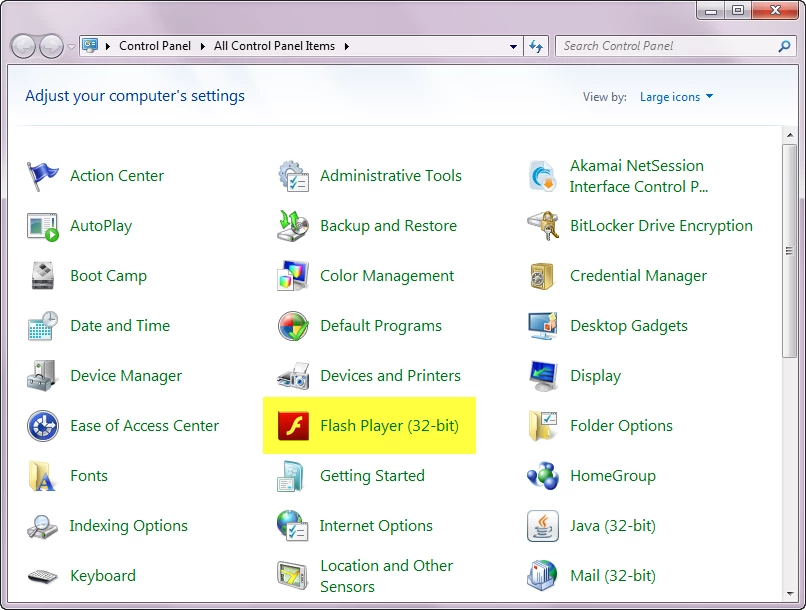
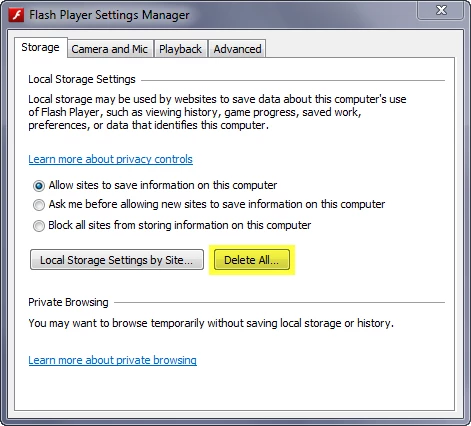
3. Select the Storage tab and click the "Delete All..." button.  Please note that the "Advanced" tab also contains a "Delete All..." button and the behavior and functionality are identical.
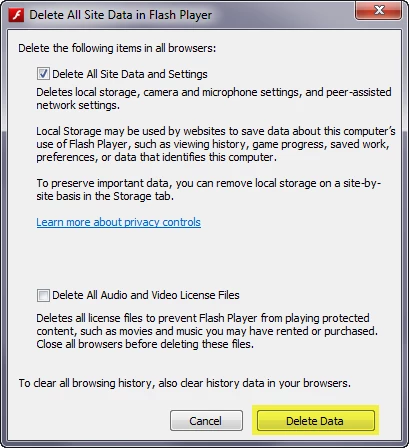
4. Verify that the "Delete All Site Data and Settings" checkbox is checked and click the "Delete Data" button
You've now cleared your Flash cache and can restart your browser.  For additional details on this functionality and the Flash Player Settings Manager, please see this help document:

Using the Local Settings Manager

For information on how to clear your browser cache and history, please see:

Internet Explorer

Firefox

Chrome

Safari

I've also found that CCleaner can be a helpful tool for clearing cache and temporary files from a system.

This topic has been closed for replies.
Correct answer Andreo5E23
Close all browser windows. Open your system control panel or preferences and open the Flash Player control panel. Select the Storage tab and click the "Delete All..." button. ..Verify that the "Delete All Site Data and Settings" checkbox is checked and click the "Delete Data" button.
 
[moderator: link removed]

2 replies

Participant
December 29, 2020

I am also here for thanks for sharing it. Due to this, I have faced many issues like glitches during work. Good work Buddy!

Andreo5E23Correct answer
Participant
January 13, 2021
Close all browser windows. Open your system control panel or preferences and open the Flash Player control panel. Select the Storage tab and click the "Delete All..." button. ..Verify that the "Delete All Site Data and Settings" checkbox is checked and click the "Delete Data" button.
 
[moderator: link removed]
chris.campbell
Community Manager
Community Manager
March 20, 2012

You can also manually accomplish this task by deleting the contents of the following folders:

Windows (tip: copy and paste these paths into the path bar in an Explorer window)

  • %appdata%\Adobe\Flash Player
  • %appdata%\Macromedia\Flash Player

Macintosh

  • ~\Library\Preferences\Macromedia\Flash Player\
  • ~\Library\Caches\Adobe\Flash Player\