


Participant
March 6, 2016
Answered

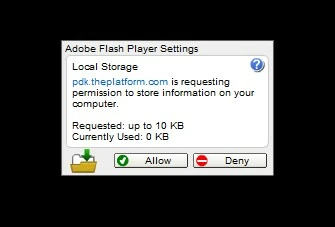
How do I get rid of the "local storage" message?

  • March 6, 2016
  • 2 replies
  • 684 views

How do I get rid of this message? Clicking Allow or Deny does not get rid of it. It also can't be moved and it sits right on top of the video, making the Flash Player completely useless. Thanks for any help.
This topic has been closed for replies.
Correct answer jonasgrumby

I found the answer.

  1. Right-click (Windows) or Control-click (Macintosh) the application image while it is running. 
  2. From the context menu, select Settings, and then click the Local Storage tab.

There is no "Settings" selection but if you want to allow local storage for all sites choose "Global Settings".

2 replies

Participant
March 6, 2016

It might also be worth noting that the path to the local Flash Player Applet (for Windows 7) is at C:\Windows\SysWOW64\FlashPlayerApp.exe

Keep in mind that it may or may not be dangerous to allow global access to store third party files on your computer.

I'm not sure why Adobe makes this information so hard to find.

jonasgrumbyAuthorCorrect answer
Participant
March 6, 2016

I found the answer.

  1. Right-click (Windows) or Control-click (Macintosh) the application image while it is running. 
  2. From the context menu, select Settings, and then click the Local Storage tab.

There is no "Settings" selection but if you want to allow local storage for all sites choose "Global Settings".