

glaustin
Inspiring
July 25, 2017
Question

Layout in Chrome Instructions Different to Advice

  • July 25, 2017
  • 2 replies
  • 624 views

Hi Guys

I'm using Win10 and I'm trying to ensure FlashPlayer on Chrome is working properly because a video on a site I am visiting keeps giving a 'cannot load player config' error. I have checked that Chrome and FlashPlayer are both up to date and I've followed the steps in this link Enable Flash Player for Google Chrome,​ but I do not have the same structure here, so cannot configure as the link suggests! Here's a screenshot.
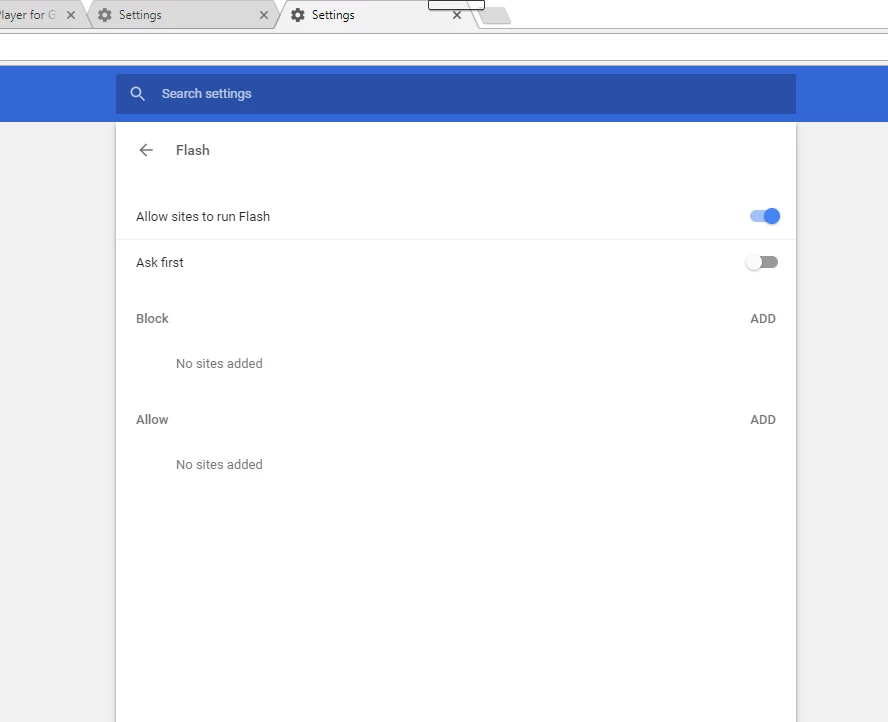
Any help or guidance would be appreciated.

Regards,

Graham

This topic has been closed for replies.

2 replies

_maria_
Legend
July 25, 2017

Higlaustin

With every recent release Google has changed their settings layout, which makes it difficult for out tech note to keep up with the constant changes.  As such, it's better to use Google's support doc at Adobe Flash isn't working - Google Chrome Help​.  I would recommend bookmarking this support document for future reference.

--

Maria

divya010193
Adobe Employee
Adobe Employee
July 25, 2017

Hi,

Please see Enable Flash Player for Google Chrome

The Google support document Adobe Flash isn't working - Chrome Help  also contains this, and more information on troubleshooting Flash in Chrome, and is kept updated by Google.

Also, Please try the following:

  • launch chrome
  • navigate to chrome://flags/#prefer-html-over-flash
  • The flag is most likely set to Default
  • change the flag to Disabled
  • relaunch Chrome
  • Does Flash content display now?

For google Chrome you may access the Flash Player Global Settings using link: Adobe - Flash Player : Settings Manager - Global Security Settings panel. You can also get this link when you right-click any flash content and choose "Global Settings" from the context menu. Then follow below steps to add any location to trusted locations for Chrome.

  • On the page opened select "Global Security Settings panel" from the left panel.
  • To add any file/folder click on Edit location -> Add location
  • Paste the path to the file/folder in the input box below "Trust this location:"
  • To delete any location select that location from the menu and choose "delete location" and then confirm

Thanks!