Participant
January 11, 2018
Answered

Says I do not have a current Adobe Flash Player installed or enabled

  • January 11, 2018
  • 1 reply
  • 2719 views

Hi,

I am currently working through chrome and trying to use Sapling Learning. I have used this site in the past about 9 months ago, but it is suddenly telling me that I need Adobe Flash Player and that it is not currently installed or enabled. I have installed Adobe Flash Player, and see the moving clouds on the test site through Google Chrome. The flash player has been working for all sites except for Sapling. I have ensured that it is enabled and working, but have yet to be able to use Sapling. Is there anything I can do for this?

Thank you!

Megan

This topic has been closed for replies.
Correct answer _maria_

Please see Use or fix Flash audio & video - Computer - Google Chrome Help for assistance.

Have you tried adding the Sapling Learning domain to the list of exceptions?

  • Launch Chrome navigate to the page that is not displaying Flash
  • Then go to chrome://settings/content/flash
  • Add the domain (e.g. helpx.adobe.com) to the list of allowed sites
    • Note that sub-domains within a main domain need to be added.  For example www.adobe.com and helpx.adobe.com would need to be added separately.
  • reload Chrome
  • Flash content should display

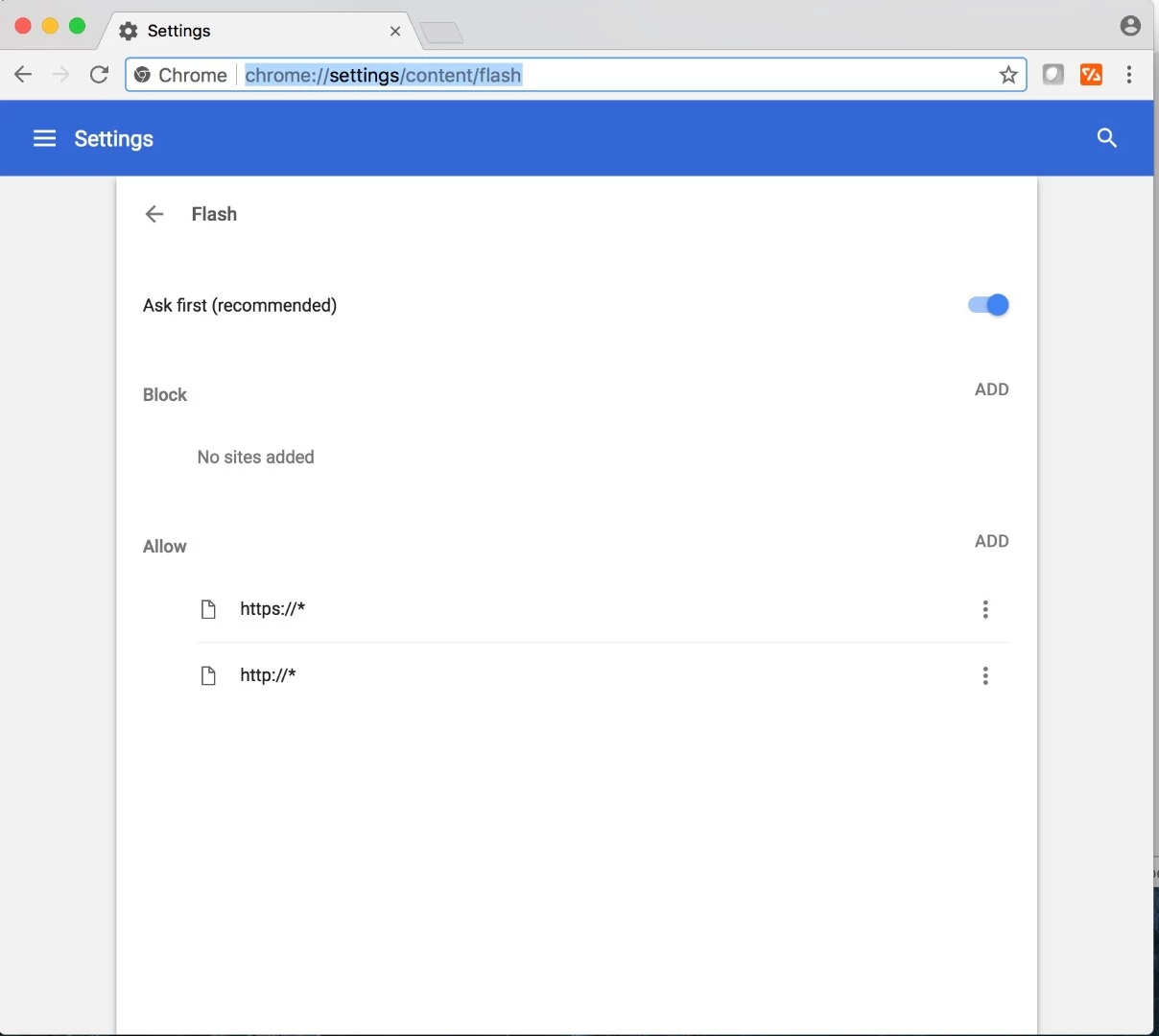
Alternatively add https://* and http://* to the list of allowed sites - this should whitelist every single site:

If none of the suggestions in Google's help document, nor whitelisting all sites work I recommend contacting Sapling Learning for assistance.  All major browsers are constantly changing how they handle/load Flash and it's possible the issue is on their end with their Flash detection code.

1 reply

_maria_
Community Manager
_maria_Community ManagerCorrect answer
Community Manager
January 11, 2018

Please see Use or fix Flash audio & video - Computer - Google Chrome Help for assistance.

Have you tried adding the Sapling Learning domain to the list of exceptions?

  • Launch Chrome navigate to the page that is not displaying Flash
  • Then go to chrome://settings/content/flash
  • Add the domain (e.g. helpx.adobe.com) to the list of allowed sites
    • Note that sub-domains within a main domain need to be added.  For example www.adobe.com and helpx.adobe.com would need to be added separately.
  • reload Chrome
  • Flash content should display

Alternatively add https://* and http://* to the list of allowed sites - this should whitelist every single site:

If none of the suggestions in Google's help document, nor whitelisting all sites work I recommend contacting Sapling Learning for assistance.  All major browsers are constantly changing how they handle/load Flash and it's possible the issue is on their end with their Flash detection code.

andram45Author
Participant
January 11, 2018

It is now working, thank you so much!

_maria_
Community Manager
Community Manager
January 11, 2018

You're welcome.