March 1, 2014
Question

Unable to install Flash Player 12 on Mac OS X 10.9.2

  • March 1, 2014
  • 2 replies
  • 6951 views

Good day,

I was trying to install Flash Player 12 on my new MacBook Pro (OS X 10.9.2).

The download was ok but when installing, it gives an error :
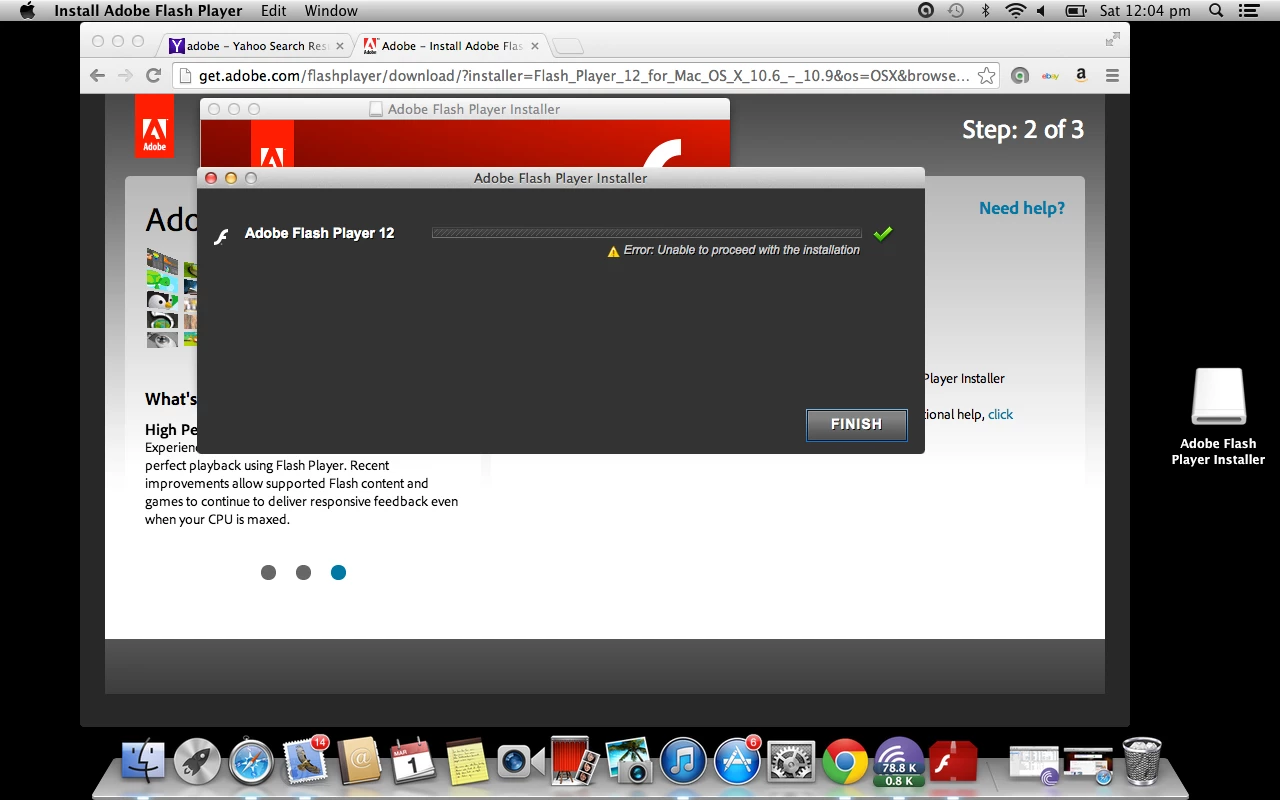
Can anyone help, please...

This topic has been closed for replies.

2 replies

Participant
March 26, 2014

I also have this problem. I have already changed System Preference settings to accept applications that are non-Appstore and still won't work. Also tried, the uninstall and re-install and nothing. Always stops at 50% and then goes to error screen as above screenshot from OP.

C_F_McBlob
Inspiring
March 26, 2014

Download the FULL installer: Flash Player 12 Plug-in (Mac OS X)

Double click it to "mount the DMG"

Right click the installer and choose "Open"

You'll see a warning about opening it. Click Yes and proceed with the installation.

Participant
March 27, 2014

Hi Mike! I do know how to install plug-ins so no issues on that... However, I got it to work but had gone about it another way. I did the proposed solution from this link.

https://discussions.apple.com/message/25230492#25230492


Repair the Hard Drive and Permissions - Mavericks, Lion/Mountain Lion

Boot to the Recovery HD:

Restart the computer and after the chime press and hold down the COMMAND and R keys until the menu screen appears. Alternatively, restart the computer and after the chime press and hold down the OPTION key until the boot manager screen appears. Select the Recovery HD and click on the downward pointing arrow button.

Repair

When the recovery menu appears select Disk Utility. After DU loads select your hard drive entry (mfgr.'s ID and drive size) from the the left side list.  In the DU status area you will see an entry for the S.M.A.R.T. status of the hard drive.  If it does not say "Verified" then the hard drive is failing or failed. (SMART status is not reported on external Firewire or USB drives.) If the drive is "Verified" then select your OS X volume from the list on the left (sub-entry below the drive entry,) click on the First Aid tab, then click on the Repair Disk button. If DU reports any errors that have been fixed, then re-run Repair Disk until no errors are reported. If no errors are reported then click on the Repair Permissions button. When the process is completed, then quit DU and return to the main menu. Select Restart from the Apple menu.

Try installing Flash again.

C_F_McBlob
Inspiring
March 1, 2014