


Inspiring
March 16, 2016
Answered

Why Flash Player 21.0.0.182 msi install differs to the exe version (Windows)

  • March 16, 2016
  • 1 reply
  • 2853 views

Long story short - the msi install of the latest version does not register in Windows 7 Enterprise x64. Causing Flash Player (FP) websites prompting to install it.

I previously uninstall the version 20 via msiexec /x before passive install of version 21.

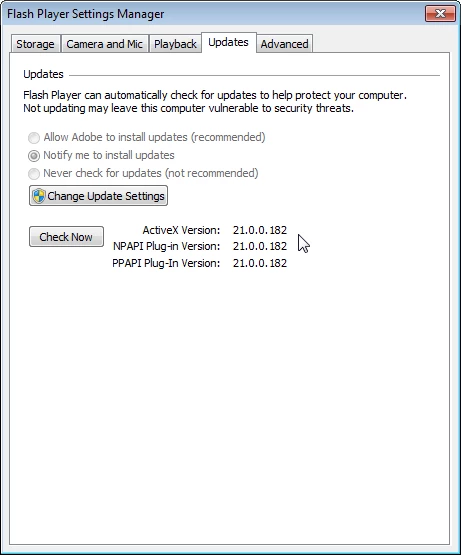
From "Flash Player (32-bit)" control within Windows Control Panel, at the Updates tab, ActiveX version is saying "Not installed". In fact, I have all 3 versions installed by msi files (ActiveX, NPAPI and PPAPI) but only saying PPAPI is installed.

So I give it a go at the ActiveX exe version, after install, the FP is registered for the ActiveX. And now there are 2 entries of "Adobe Flash Player 21 ActiveX 21.0.0.182" in Programs and Features, and the exe install being less in size.

Does anyone have this issue and anyone know how to fix it (get them registered in Control Panel-FP)? Be it Registry/extra command to the msiexec PROPERTY.

Cheers guys!
This topic has been closed for replies.
Correct answer PKam

Hi,

I am not seeing any errors in the MSI install log files.  I am seeing permissions warning on the ActiveX Control in the FlashInstall.log file.  These have persisted for a number of releases.  I also see some on the NPAPI plugin, for recent installs.  This could mean the file was in use at the time of upgrade.  I am also seeing numerous downgrade attempts (e.g. install 20.0.0.306 then install 20.0.0.286) without first uninstalling the Player.

I suspect the reason you have numerous entries in Control Panel is because you're not using the standalone uninstaller to uninstall Flash Player, and you're possibly using an older version to uninstall, which doesn't know about the latest version MSI GUIDs, and these leaves residual entries.

How many systems are impacted by this issue?


I would recommend performing a clean install, see the FAQ How do I do a clean install of Flash Player?‌  Note that it is very important to ensure any application that may use Flash Player is not running during this process.  You'll also want to make sure to reboot the system after running the uninstaller.  This will delete any files marked for deletion upon reboot (usually this means files that were in use during an upgrade attempt).

After performing a clean install, try deploying Flash Player again.  If you experience the same problem, upload new verbose MSI install log files, and FlashInstall.log files from BOTH C:\Windows\System32\Macromed\Flash AND C:\Windows\SysWOW64\Macromed\Flash.  Post the link to the uploaded files in your reply.

--

Maria


Hi Maria,

I think I have found the root cause - I should NOT include uninstall calls (msiexec /x) right before the new version installs.

I tested on the same affected machine and is now all good. Now is there option to run the uninstaller exe silently?

1 reply

_maria_
Legend
March 16, 2016

Hi,

The "Flash Player (32-bit)" item in the Control Panel is the Settings Manager, it is not Flash Player itself.  Flash Player itself shows up in Programs and Features.

Please provide the following from an impacted system:

  1. Screenshot of the C:\Windows\SysWOW64\Macromed\Flash directory - AFTER ActiveX, NPAPI, & PPAPI have been installed using the MSI installer
  2. Screenshot of Control Panel > Programs and Features - AFTER ActiveX, NPAPI, & PPAPI have been installed using the MSI install
  3. Provide the FlashInstall.log file, from an impacted system.  The file is saved at C:\Windows\System32\Macromed\Flash AND C:\Windows\SysWOW64\Macromed\Flash.  Upload the files to cloud.acrobat.com using the instructions at How to share a document or some other file sharing service of your choice that doesn't require user log-in to access.  Post the link to the uploaded files in your reply.

If you're going to uninstall Flash Player first, before installing the upgrade you may want to use the standalone uninstaller to do so to ensure everything from the previous version is removed.  The uninstaller is posted at Uninstall Flash Player for Windows.  Note that using the standalone uninstaller will reset the Flash Payer Update options on the client system.  If you do decide to use the standalone uninstaller, and have disabled Flash Player updates (either notification or background) on the client systems, you'll need to deploy a custom mms.cfg file to disable updates after running the installer

Thank you.

--

Maria

PKamAuthor
Inspiring
March 17, 2016

Thanks Maria,

Files uploaded: https://files.acrobat.com/a/preview/b6ebf6dd-1a63-4ce4-89f6-141e165e4901

The log files beginning with SYDBB are msiexec /li outputs for that version of msi.

Please note there is a SCCM pushing out v20 that I don't have access to stop.

Patrick

_maria_
Legend
March 17, 2016

Hi,

I am not seeing any errors in the MSI install log files.  I am seeing permissions warning on the ActiveX Control in the FlashInstall.log file.  These have persisted for a number of releases.  I also see some on the NPAPI plugin, for recent installs.  This could mean the file was in use at the time of upgrade.  I am also seeing numerous downgrade attempts (e.g. install 20.0.0.306 then install 20.0.0.286) without first uninstalling the Player.

I suspect the reason you have numerous entries in Control Panel is because you're not using the standalone uninstaller to uninstall Flash Player, and you're possibly using an older version to uninstall, which doesn't know about the latest version MSI GUIDs, and these leaves residual entries.

How many systems are impacted by this issue?


I would recommend performing a clean install, see the FAQ How do I do a clean install of Flash Player?‌  Note that it is very important to ensure any application that may use Flash Player is not running during this process.  You'll also want to make sure to reboot the system after running the uninstaller.  This will delete any files marked for deletion upon reboot (usually this means files that were in use during an upgrade attempt).

After performing a clean install, try deploying Flash Player again.  If you experience the same problem, upload new verbose MSI install log files, and FlashInstall.log files from BOTH C:\Windows\System32\Macromed\Flash AND C:\Windows\SysWOW64\Macromed\Flash.  Post the link to the uploaded files in your reply.

--

Maria