Inspiring
August 3, 2019
Answered

Exclude Some Key Words for Export Option

  • August 3, 2019
  • 2 replies
  • 2362 views

I'm trying to figure out how to exclude Key Words when I export an image. For example, I have a photo of an athlete where the athlete's name is a Key Word. In addition, I typically add the country they represent and possibly other Key Words such as male, female, sponsors, location, event, etc.

When I export these images, I only want the athlete's name to appear in the file name (along with my name and sequence number).

What I am trying to figure out is how to export the image with only the athlete's name and not the other Key Words I've assigned. In addition, if  I have a photo where there's 5 athletes and all are identified (show up in Key Word), I may crop the photo and export it. Again, now all 5 athletes appear in the file name.

Is there a way or place to add Key Words in LR to help find/organize photos and not have that information show up in the file name because I selected "Key Word" in the export?

Regards

This topic has been closed for replies.
Correct answer johnrellis

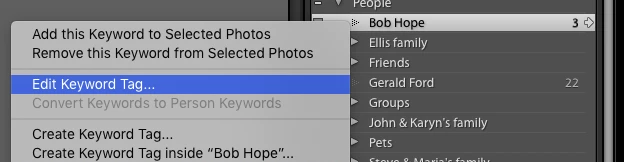
Right-click the keyword itself, e.g.

2 replies

Rob_Cullen
Community Expert
Community Expert
August 3, 2019

I might suggest- Put people names into the metadata 'Caption' field, then you can rename the exported photos with a rename preset for 'Caption' included in the filename (eg. Sequence-YourName-Caption ).  Include, or not, other keywords in the export options.

My thoughts are also to create Virtual Copies for Group shots, and Caption each for individuals.

Regards. My System: Windows-11, Lightroom-Classic 15.1.1, Photoshop 27.3.1, ACR 18.1.1, Lightroom 9.0, Lr-iOS 10.4.0, Bridge 16.0.2 .
Inspiring
August 4, 2019

This is a good suggestion and will work on smaller projects and when turn around time isn't of the essence. Thank you.

johnrellis
johnrellisCorrect answer
Legend
August 4, 2019

Right-click the keyword itself, e.g.

johnrellis
Legend
August 3, 2019

You can mark keywords to not be exported. In the Keyword List panel, right-click the keyword, do Edit Keyword Tag, and uncheck Include On Export:

In addition, if  I have a photo where there's 5 athletes and all are identified (show up in Key Word), I may crop the photo and export it. Again, now all 5 athletes appear in the file name.

Make a virtual copy of the original photo, crop the virtual copy, and then remove the 4 irrelevant keywords from the virtual copy.

Inspiring
August 4, 2019

I cannot locate the Edit Keyword Tag you reference to. When I right-click the Keyword List, these are the options I see (see attached image).

Would love to perform the create Virtual Copies, but this would still require performing the step for hundreds of images.