


- Home
- Acrobat
- Discussions
- Re: export bookmarked page(e) to excel xlsx file
- Re: export bookmarked page(e) to excel xlsx file

Copy link to clipboard
Copied
Hi,
We manage a part of a process, and we want to automate it.
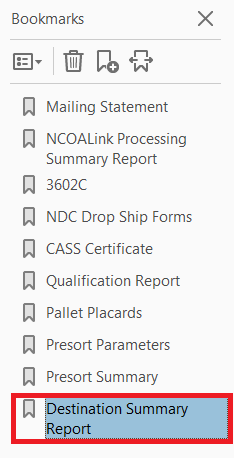
We currently manually export a report (bookmarked - see screenshot) from a pdf to .xlsx, and it works find using the menu system.
But we do 40 of these a week and our sister company does about 80 of these so we want to automate it.
 The data looks something like this, although it could be 70 lines of data not just two:
Any suggestions?
Rico





Copy link to clipboard
Copied
Without opening the PDF? That's not possible with Acrobat.
You can use the Split Pages command to extract each bookmark as a separate file, but the file must be opened first.
 7
Replies
7
7
Replies
7


Copy link to clipboard
Copied
It's not really clear what you're actually doing... What does the bookmark have to do with the values in the Excel file?

Copy link to clipboard
Copied
You can extract the pages and save the pages as excel file.
Copy link to clipboard
Copied
The pages of the Destination Summary Report are bookmarked. I want to extract those pages without having to open the pdf.
Copy link to clipboard
Copied
Without opening the PDF? That's not possible with Acrobat.
You can use the Split Pages command to extract each bookmark as a separate file, but the file must be opened first.
Copy link to clipboard
Copied
Is this roadblock an adobe pdf issue or any pdf issue? What I mean is that maybe another pdf creator/editor can do what I want.
Copy link to clipboard
Copied
Acrobat is not meant for automation purposes, so this "roadblock" is on purpose.
It's possible to do it without using interaction using a stand-alone tool that can be executed from a command-line, for example.
If you're interested in such a tool feel free to contact me privately at try6767 at gmail.com.
Copy link to clipboard
Copied
Here are the steps I currently go through to extract the pages to an xlsx file. You can see why I want to make it simpler and automated. After I open the pdf:
1. Organize the pages
2. highlight the pages needed
3. Extract
4. Extract again
5. Tools
6. Export the new pages
7. Choose the file format
8. Export
9. Choose the folder to save in
10. Give it a file name.


Get ready! An upgraded Adobe Community experience is coming in January.
Learn more
 AdChoices