Participant
May 7, 2020
Answered

help with an auto-page advance.

  • May 7, 2020
  • 3 replies
  • 11789 views

HI there,


for a specific document, I want to create a macro or action that will auto advance each page after 3 seconds as a presentation once you click on a button that is located oin the first page. 


I know thre is a setting in prefenece to Advance every X Seconds.  Bit this affactes ALL documents so is not appropraite to my needs.


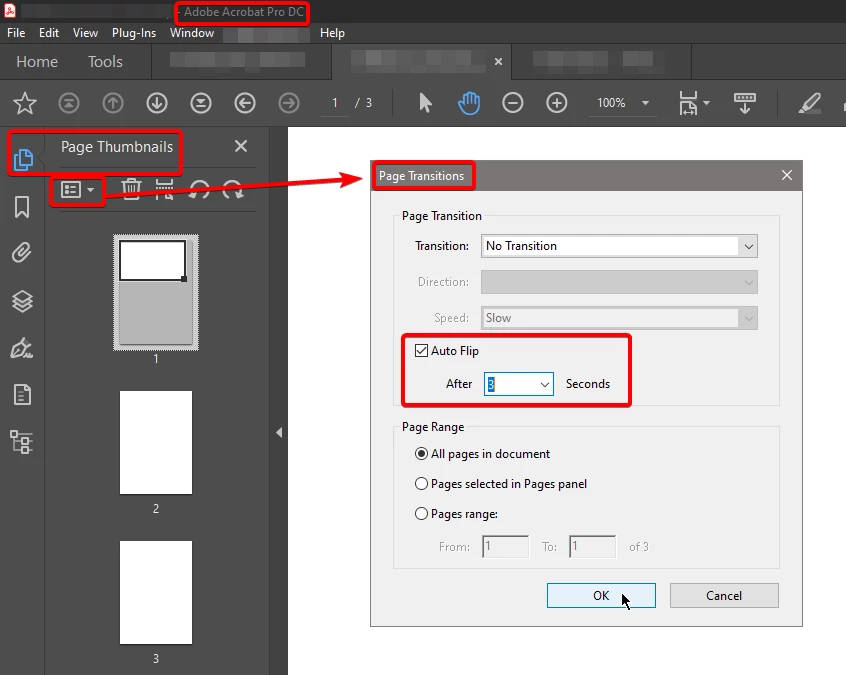
I know there is an action that can be created under Page Transitions > Auto flip but this will cause the presentation to start right upon loading. 


I want to load the document and once I click on a start button, then the presnttaion will begin.  I can not seem to figure out how to do this.


Thank


Dave
This topic has been closed for replies.
Correct answer JR Boulay

"I know thre is a setting in prefenece to Advance every X Seconds. Bit this affactes ALL documents so is not appropraite to my needs.

I know there is an action that can be created under Page Transitions > Auto flip but this will cause the presentation to start right upon loading."


Don't use the Preferences of your app.

Use the Properties of the document instead, which are available for this document only.


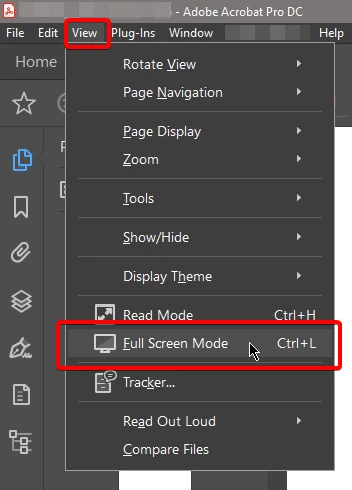
So the auto-advance starts when the doc is in Full-screen mode, and stops when it is not in Full-screen mode (ctrl + L).


3 replies

Participating Frequently
May 8, 2020

The simplest way of auto-advancing a page  I use is:

Open the PDF in Acrobat or Reader

choose Acrobat/Adobe Reader> Preferences> Full Screen and select options to let Acrobat or Reader automatically advance from page to page at a selected interval.


I hope this helps!


JR Boulay
Community Expert
JR BoulayCommunity ExpertCorrect answer
Community Expert
May 8, 2020

"I know thre is a setting in prefenece to Advance every X Seconds. Bit this affactes ALL documents so is not appropraite to my needs.

I know there is an action that can be created under Page Transitions > Auto flip but this will cause the presentation to start right upon loading."


Don't use the Preferences of your app.

Use the Properties of the document instead, which are available for this document only.


So the auto-advance starts when the doc is in Full-screen mode, and stops when it is not in Full-screen mode (ctrl + L).


Acrobate du PDF, InDesigner et Photoshopographe
Participant
May 8, 2020

Thanks.  This is exactly what I was looking for.  Never saw this option within the specific document.


Much appreciated


dave

try67
Community Expert
Community Expert
May 7, 2020

You can do it by executing this JavaScript code:


var timeout = app.setInterval("if (this.pageNum==this.numPages-1) {app.clearInterval(timeout);}else this.pageNum++;", 3000);


EDIT: Fixed small mistake in the code.

Legend
May 7, 2020

The problem with that code is there's no way to stop the thing from advancing. The PDF Page Transitions system only works in full screen mode for that very reason - without the ability to assign hotkeys to escape from the interval timer, the document will become impossible to work with.


It makes more sense to use real transitions, which you can apply to a range of pages (including defining a specific timer for every page) using the doc.setPageTransitions() API call - read the Acrobat SDK for a complete guide to the parameters. Just exclude the first page with the button, then all the trigger script needs to do is enable full-screen mode and advance one page. ESCaping to the UI will stop it.

try67
Community Expert
Community Expert
May 7, 2020

True, but they didn't ask for a way to stop it, so I assumed it was not necessary. I added a condition to stop it when it reaches the last page, although it is possible to make it go in a loop back to page 1, if desired.