


- Home
- Acrobat
- Discussions
- Re: PDF Becoming pixelated/error when I select
- Re: PDF Becoming pixelated/error when I select

Copy link to clipboard
Copied
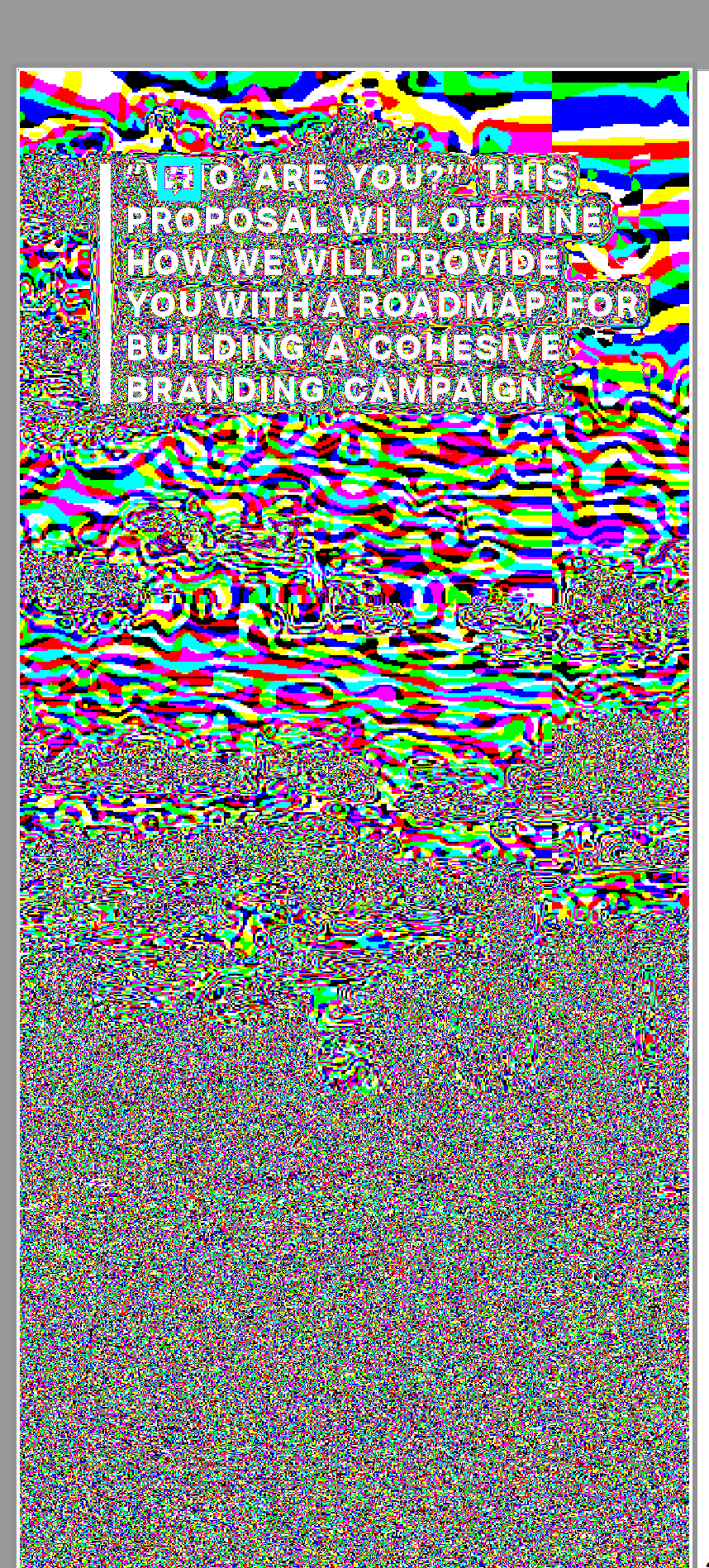
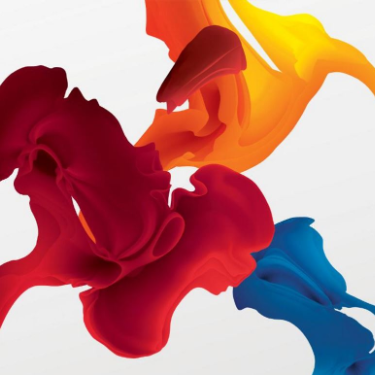
I'm not sure how to describe it exactly but all of a sudden when I am looking at a PDF, whether I click on an image or go to select text, it freaks out and gets all colorful and pixelated. Seems like a bad error and I don't know why it's happening, hopefully someone knows what I'm talking about. I'm using CC and the app is up to date. Included a pic below of what's happening.




Copy link to clipboard
Copied
I don't remember the thread.
But if you're using MS Windows 10, and you PC has of those new video cards, then it may be possible that the drivers that were intended for the Windows OS may not render properly with the Adobe Acrobat program.
Using compatibility mode is more of a work around, not really a solution, but it is worth giving it a shot and see how it goes.
Compatibility Mode allows you to run a program as if it was in an older version of the operating syste.
In this case, I'd suggest to run Adobe Acrobat in compatibility mode for Windows 8.
To do so, open the Windows Explorer and got to the following folder path:
C:\Program Files(x86)\Adobe\Acrobat DC\Acrobat
Find in the list of programs "Acrobat.exe"
Right-click on it, select "Test Compatibility" from the context menu to let Windows detect for issues automatically. Follow tge wizard dialogue boxes. You'll get an option to test Windows recommended settings, or, if you prefer to skip all the waiting, just select "Properties" and then go to the "Compatibility" tab.

Copy link to clipboard
Copied
Hey Everyone,
Was Having the same issue too. I followed the suggestion from ls_rbls that he was recommending to Audrey5C08 and znpnh above, to use the compatibility mode troubleshooter. Which ultimately solved the pixelization issue for me. However, I'm running the new MicroSoft Windows 11 and using "one of those new video cards", LOL! So the difference I noticed when running the Compatibility Mode Troubleshooter with the New Windows 11 is; I had to go to C:\Program Files\Adobe\Acrobat DC\Acrobat instead of Program Files(x86). Found listed in the Acrobat folder and Right Clicked the "Acrobat.exe" ...but (apparently) in the Windows 11 popup/pulldown window, you find and have to click on "Show more options"...and that will take you to the next popup/pulldown window to where you find and click on "Troubleshoot compatibility". Then as ls_rbls intructed before, just follow the Wizard. However, in my case, I ended up running the Compatibility Wizard a few times only to get the settings for "Window Vista" to work for me and not the "Windows 8" compatibility settings. So maybe run the Wizard and just go straight to the Windows 8 settings if you are currently running Windows 11? But like ls_rbls said, it's worth running the compatibility troubleshooter to find out.
 8
Replies
8
8
Replies
8


Copy link to clipboard
Copied
Hello jessicamulder,
Honestly, that looks to me more like hidden subliminal messaging through digital stenography art
(good link here by the way: https://www.infopackets.com/news/322/digital-steganography-art-hiding-files)
The flashy colors got me dissoriented and off-topic. It gave me a headache ..seriously.
It reminds me when I was 8 years old and try to kiss a girl that was older than me; she slap me sooo hard in the face that when I try to open my eyes I couldn't see where did she go. I was like huh!?? Who am I??
Yup, that proposal didn't go well for me. No cohesive branding there I tell you that.
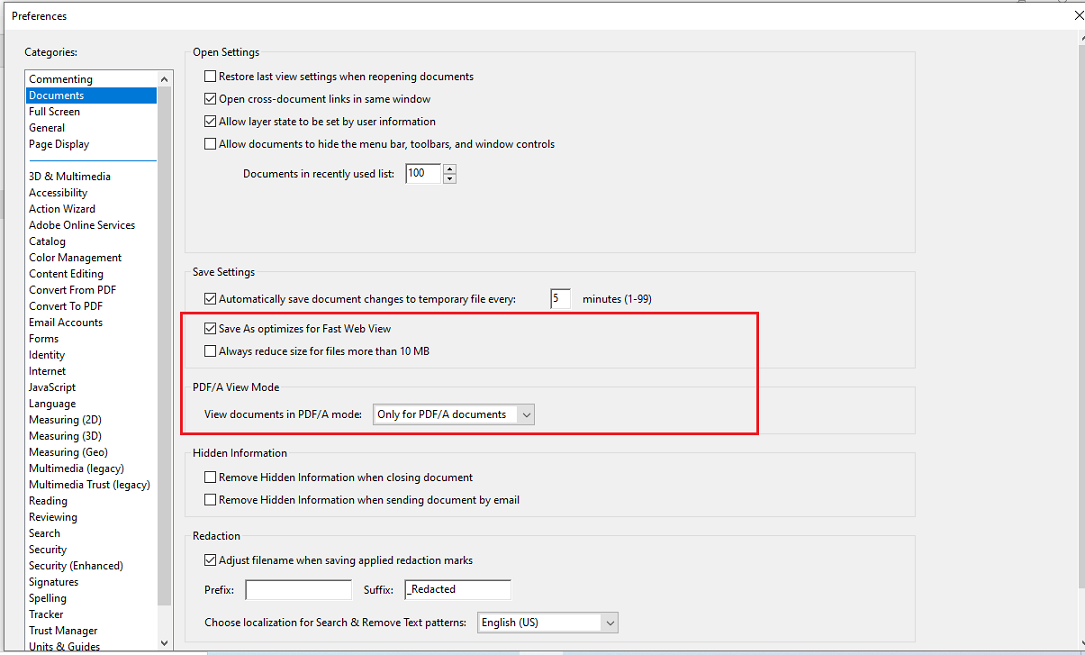
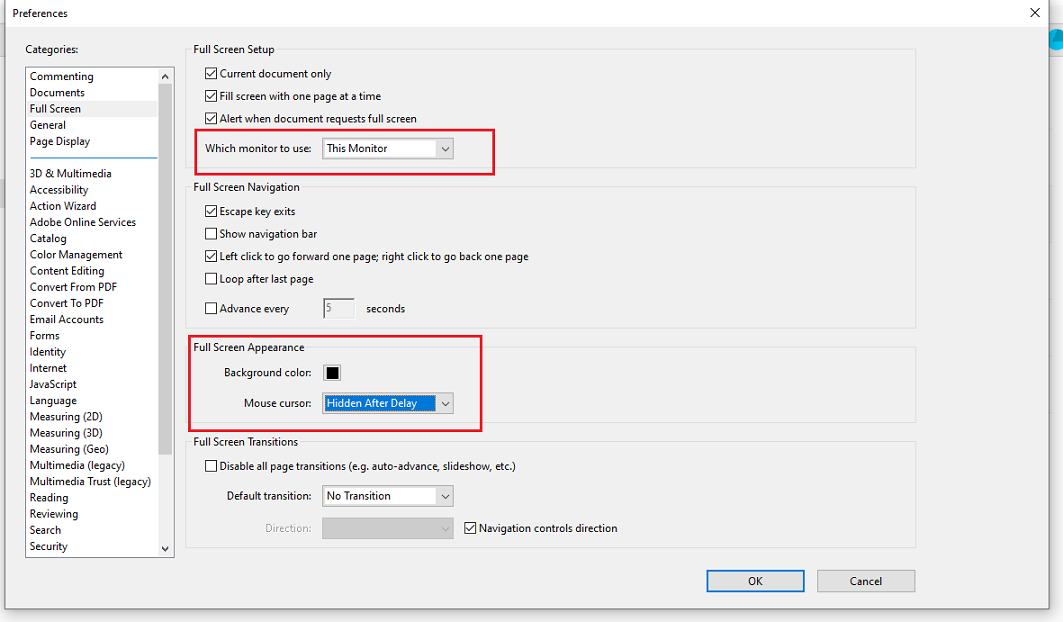
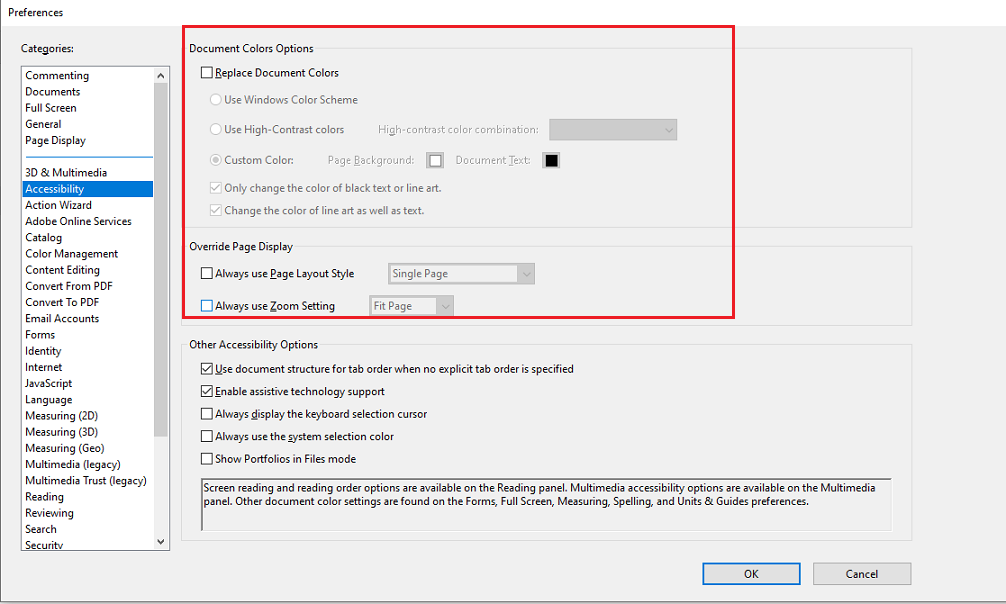
Anyway, before suggesting to change any video card settings and monitor resolutions in your OS, go to "Preferences" and review the settings that you have on each of the following sections:
* Documents
*Full Screen
* General
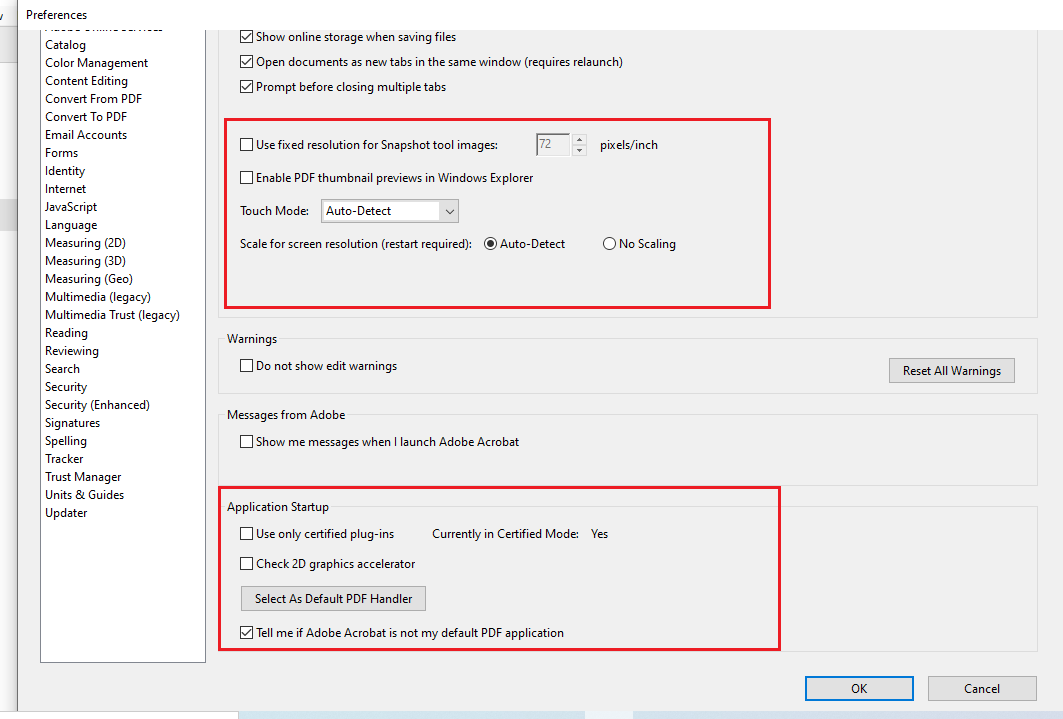
* Page Display

* Accessibility
* Color Management

Hope this helps in any way.

Copy link to clipboard
Copied
Hi jessicamulder ,
Apologies for the issue that you are facing here.
Could you please help me with the below information so that i can have more information on this.
1) Could you please confirm me the latest version number of Acrobat that you are working upon. ?
2) On Which OS are you currently facing this issue. Is it windows or Mac. Please confirm the version for OS as well.
3) Are you facing this issue with every pdf or it is something specific to only some PDFs. ?
4) Since when are you facing this issue. Is it a Recent behavior that you've observed in past few days/weeks/months ?
Could you please share any Sample PDF to me so that i can try and see if issue can be reproduced at my end as well. ?
You can share the PDF with me by uploading on any Cloud URL and let me know of it ?
Thanks
Ayush Jain
Acrobat Team

Copy link to clipboard
Copied
Hi Ayush
I'm having the same problem. I checked the settings suggested by Is_Rbls above and they're all ok. I've just downloaded another pdf from the internet and still having the same problem - it's as if the image has thick black mesh over the top of it and the image seems to move slightly underneath the mesh. It's impossible to read the text. Sometimes you can click away and back again and read a section before it is hidden again, but not always.
- Adobe product and version number: Adobe Acrobat Reader CD Continuous Release. Version 2020.006.20034
- Operating system and version number: Windows 10 Education
- The full text of any error message(s): no error message
- What you were doing when the problem occurred: Reading a .pdf document
- Screenshots of the problem
- Computer hardware:
Processor: AMD Ryzen 5 3400G with Radeon Vega Graphics 3.70 GHZ;
RAM: 13.9 GB
64-bit operating system
Hoping you can help :-).
Zils

Copy link to clipboard
Copied
Did anyone ever resolve this issue? My dad just bought a new HP all in one and is having the same issue. I uninstalled the program twice, and it still does it. It doesn't matter what PDF he is using, all of them pixelate.
Copy link to clipboard
Copied
yes,
there was a solution posted by Amal(Adobe employee) a couple of months ago.
It seems like when you setup Acrobat to run in compatibility mode (if using MS Windows), it resolves this issue.

Copy link to clipboard
Copied
Where would that solution be? It doesn't seem to be in this thread and I don't know how to find it.
Copy link to clipboard
Copied
I don't remember the thread.
But if you're using MS Windows 10, and you PC has of those new video cards, then it may be possible that the drivers that were intended for the Windows OS may not render properly with the Adobe Acrobat program.
Using compatibility mode is more of a work around, not really a solution, but it is worth giving it a shot and see how it goes.
Compatibility Mode allows you to run a program as if it was in an older version of the operating syste.
In this case, I'd suggest to run Adobe Acrobat in compatibility mode for Windows 8.
To do so, open the Windows Explorer and got to the following folder path:
C:\Program Files(x86)\Adobe\Acrobat DC\Acrobat
Find in the list of programs "Acrobat.exe"
Right-click on it, select "Test Compatibility" from the context menu to let Windows detect for issues automatically. Follow tge wizard dialogue boxes. You'll get an option to test Windows recommended settings, or, if you prefer to skip all the waiting, just select "Properties" and then go to the "Compatibility" tab.
Copy link to clipboard
Copied
Hey Everyone,
Was Having the same issue too. I followed the suggestion from ls_rbls that he was recommending to Audrey5C08 and znpnh above, to use the compatibility mode troubleshooter. Which ultimately solved the pixelization issue for me. However, I'm running the new MicroSoft Windows 11 and using "one of those new video cards", LOL! So the difference I noticed when running the Compatibility Mode Troubleshooter with the New Windows 11 is; I had to go to C:\Program Files\Adobe\Acrobat DC\Acrobat instead of Program Files(x86). Found listed in the Acrobat folder and Right Clicked the "Acrobat.exe" ...but (apparently) in the Windows 11 popup/pulldown window, you find and have to click on "Show more options"...and that will take you to the next popup/pulldown window to where you find and click on "Troubleshoot compatibility". Then as ls_rbls intructed before, just follow the Wizard. However, in my case, I ended up running the Compatibility Wizard a few times only to get the settings for "Window Vista" to work for me and not the "Windows 8" compatibility settings. So maybe run the Wizard and just go straight to the Windows 8 settings if you are currently running Windows 11? But like ls_rbls said, it's worth running the compatibility troubleshooter to find out.


Get ready! An upgraded Adobe Community experience is coming in January.
Learn more
 AdChoices