Participant
September 24, 2016
Answered

How to fix "page size" in an Adobe Acrobat PDF converted from Word for Mac?

  • September 24, 2016
  • 1 reply
  • 925 views

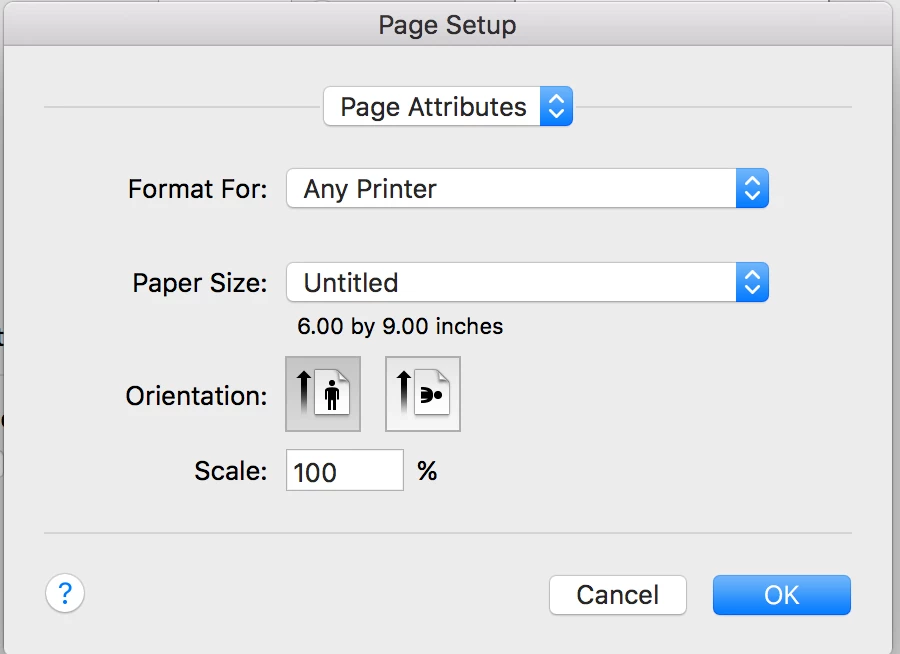
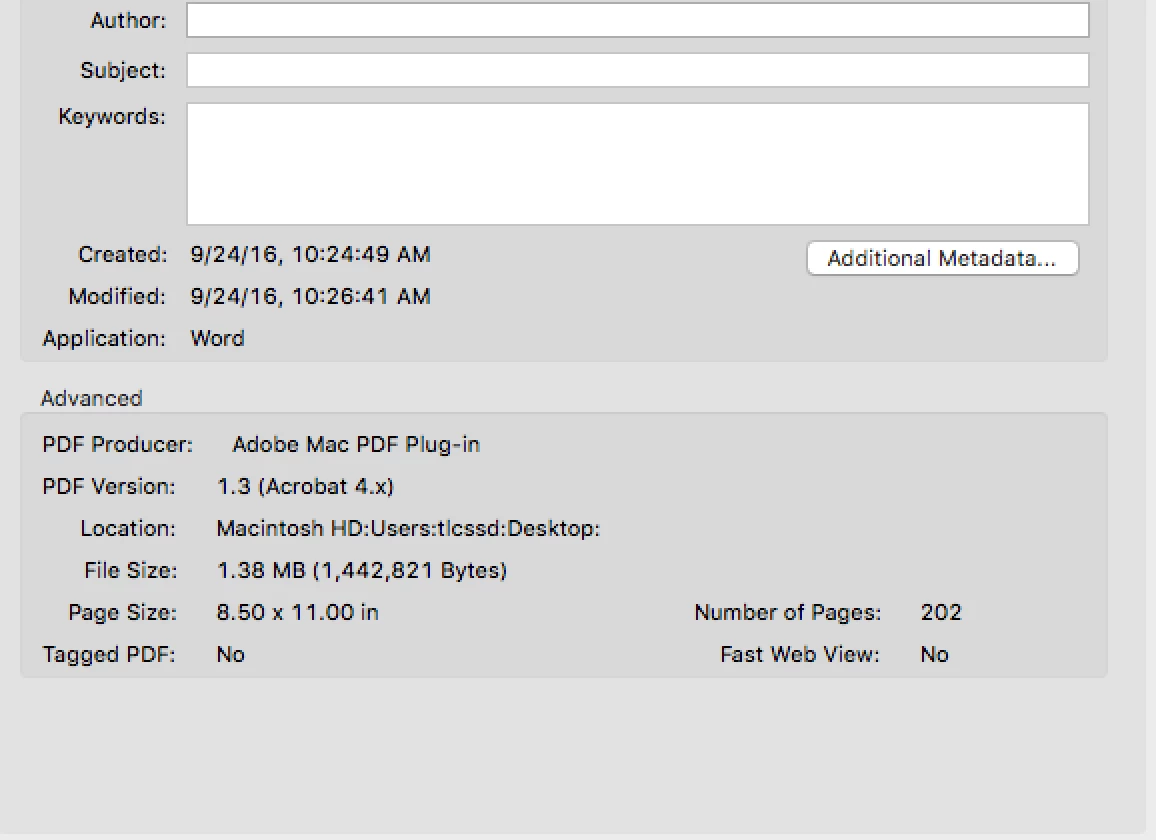
I have formatted my mac word document so that the page attributes in "page setup" are 6X9. But when i convert to Adobe Acrobat and look in "File properties" the page size shown is 8.5X11. Does anyone know how to fix it so that the page size in the PDF will be converted to match the page attributes in the mac word document.

This topic has been closed for replies.
Correct answer StevenChickadee

I have figured out the answer, and since this seems to be a question that comes up all the time, I figured I would share it. The trick is that when you are setting the page size format for the whole document in word, it won't work unless you highlight the whole document first! It should work if you just format for the whole document, but it won't.

To create a PDF that is sized 6X9

  1. In word, click “Edit”
  2. “Select all”
  3. While the whole document is highlighted, Click Format, document, page setup
  4. Format for: Any Printer
  5. Paper Size: custom sizes
  6. In the custom sizes setting, set paper size at 6 width and 9 height
  7. Be sure that the bottom margin is set side enough for adequate bleed (so that you don't chop off the very bottom of the page) - probably 0.56 (rather than the usual 0.5).

When converting to PDF setting, PDF/x-1a:2001.

1 reply

StevenChickadeeAuthorCorrect answer
Participant
September 25, 2016

I have figured out the answer, and since this seems to be a question that comes up all the time, I figured I would share it. The trick is that when you are setting the page size format for the whole document in word, it won't work unless you highlight the whole document first! It should work if you just format for the whole document, but it won't.

To create a PDF that is sized 6X9

  1. In word, click “Edit”
  2. “Select all”
  3. While the whole document is highlighted, Click Format, document, page setup
  4. Format for: Any Printer
  5. Paper Size: custom sizes
  6. In the custom sizes setting, set paper size at 6 width and 9 height
  7. Be sure that the bottom margin is set side enough for adequate bleed (so that you don't chop off the very bottom of the page) - probably 0.56 (rather than the usual 0.5).

When converting to PDF setting, PDF/x-1a:2001.